Installation guide
Please if you haven't read yet take a look at System requirements before you start the installation procedure.
xBit Installer
The xBit-Installer download provides a command Line (cli) tool for Windows and Linux users for setting up / upgrading xBit in their on-premise environments.
This tool will download the xBit Container image and create/update xBit containers in the onsite container runtime environment.
Prerequisites
- TeelKey License file (License.teelkey) - Either downloaded via the xBit Customer Portal or obtained from xBit Support
- Container runtime environment
- Windows
- Linux
Install xBit
Windows
Note: Ensure Docker Desktop is up and running
Default Installation
- Create a directory
C:\teel_tech\installer - Copy
xbit_installer-4.1.latest.ziptoC:\teel_tech\installer - Extract the
xbit_installer-4.1.latest.zipfile - Open PowerShell
- Temporary set Bypass on ExecutionPolicy for allowing script execution. Provide 'Y' when prompted for input.
Set-ExecutionPolicy -Scope Process -ExecutionPolicy Bypass
- Run script
cd C:\teel_tech\installer\xbit_installer-4.1.latest\xbit_installer\windows\
./installer.ps1
- Follow the instructions provided by the installer script.
- Supply the Teel Token supplied with the Welcome Email.
- Example Teeltoken:
1e317bf4-0b9e-4418-89c2-e50643a04c87
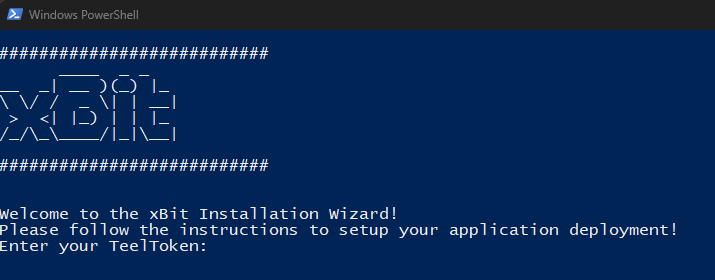
- Once the TeelToken is validated, the installer will download the xBit Container images from the repository and start the xBit Service in Docker.
- Once the installation is completed, the installer will prompt the URL list to access the xBit Application.
Example:
###########################
Happy to inform you that the application installation process was successful!

You can reach the application at:
http://10.0.188.234:17543
http://172.17.0.1:17543

###########################
If you need your IP and port number in the future: Navigate to your "xBit app" folder and open the "endpoint.txt" file. This can be shared.
To view the IP addresses assigned to your host, please perform below command.
ipconfig
Custom Installation with different installation path
- Create the custom directory path.
- Example directory
D:\teel_tech\installer - Copy
xbit_installer-4.1.latest.ziptoD:\teel_tech\installer - Extract the
xbit_installer-4.1.latest.zipfile - Edit
D:\teel_tech\installer\xbit_installer-4.1.latest\xbit_installer\windows\conf\xbit_config.ps1with Notepad and update below lines
$APP_DIRECTORY = "d:\teel_tech\apps\xbit"
$BACKUP_PATH   = "d:\teel_tech\backups\xbit_backups\automated"
- Open PowerShell
- Temporary set Bypass on ExecutionPolicy for allowing script execution. Provide 'Y' when prompted for input.
Set-ExecutionPolicy -Scope Process -ExecutionPolicy Bypass
- Run script
cd D:\teel_tech\installer\xbit_installer-4.1.latest\xbit_installer\windows\
./installer.ps1
- Follow the instructions provided by the installer script.
- Supply the Teel Token supplied with the Welcome Email.
- Example Teeltoken:
1e317bf4-0b9e-4418-89c2-e50643a04c87
- Once the TeelToken is validated, the installer will download the xBit Container images from the repository and start the xBit Service in Docker.
- Once the installation is completed, the installer will prompt the URL list to access the xBit Application.
Example:
###########################
Happy to inform you that the application installation process was successful!

You can reach the application at:
http://10.0.188.234:17543
http://172.17.0.1:17543

###########################
If you need your IP and port number in the future: Navigate to your "xBit app" folder and open the "endpoint.txt" file. This can be shared.
Linux / Mac
- Create a directory
$HOME/teel_tech/installer - Copy
xbit_installer-3.14.latest.zipto$HOME/teel_tech/installer - Extract the
xbit_installer-3.14.latest.zipfile - Open a terminal
- Navigate to the script location and execute the installer script
cd $HOME/teel_tech/installer/xbit_installer-3.14.latest/xbit_installer/linux
sudo ./install.sh
- Follow the instructions provided by the installer script.
- Supply the Teel Token supplied with the Welcome Email.
- Example Teeltoken:
1e317bf4-0b9e-4418-89c2-e50643a04c87
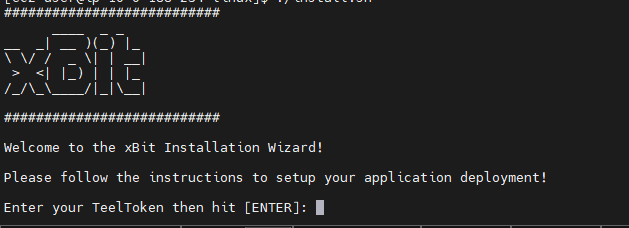
- Once the TeelToken is validated, the installer will download the xBit Container images from the repository and start the xBit Service in Docker.
- Once the installation is completed, the installer will prompt the URL list to access the xBit Application.
###########################
Happy to inform you that the application installation process was successful!

You can reach the application at:
http://10.0.188.234:17543
http://172.17.0.1:17543

###########################
Please copy this address out for continued access.
Support Contacts
EMAIL: support@xbitdcm.com
PHONE: +1 (203) 293-6409