About / Settings
Go to Admin > About / Settings. Only admins can open this page.

- General: system-wide options. See General.
- Evidence Reviews: review levels and reviewers. See Evidence Reviews.
- Captcha: reCAPTCHA on the login page.
- API: who can use the API.
- E-MAIL / SMTP: email delivery and notifications. See Email / SMTP.
- Identity Providers: AD/LDAP and Microsoft Entra ID sign-in.
- License Info: your licenses.
- EULA: the end user license agreement.
- Health: checks the environment xBit runs in. Marked ‼️ when something needs attention.
Settings on the General and API tabs save as soon as you change them. Captcha, E-MAIL / SMTP and Identity Providers have their own save button.
General
Display and language

- Language: English (United States) or Español (España). Only built-in fields are translated; translate your own Form Builder fields yourself. See Language.
- Barcode Type: the symbology used on printed labels. See Barcodes. A warning appears below it when barcodes that match your Case IDs or Evidence IDs won't fit the type. See Form Builder.
- Select Timezone, Select Date Format and Time Format: how dates and times appear everywhere.
Version, at the top of the tab, shows the installed xBit version.
Compliance and deletion
| Setting | What it does |
|---|---|
| Conform to ANAB 17025:2017 | Memos and custody entries can't be edited or deleted, and evidence is locked while a review is in progress. See Important Settings. |
| SORN | Hides built-in fields that ask for personally identifying information. Doesn't affect custom fields. |
| USSS Stats | Turns on USSS stats. See USSS Stats. |
| Delete Case | Shows Delete Case on the case dashboard. |
| Delete Evidence | Shows Delete Evidence on the View Evidence page. |
| Delete Case Status History Entries | Lets users delete a status entered by mistake from a case's Status History. Off by default. See Change the case status. |
Turn Delete Case and Delete Evidence on only when you need them, for example to clear test data before going live. Turn them off again afterwards.
Case IDs and cases
- Auto Case ID: generate case IDs from a template. When it's on, set up the template under
Admin>Auto CID. See Auto CID. - Edit Case ID: with Auto Case ID on, let users change the generated case ID.
- Default Case Group: the group new cases are assigned to. Admins see every case regardless.
Chain of Custody
- Chain of Custody: record custody for evidence. The green tags next to the toggle are the custody forms in use.
- Allow Edit and Delete Chain of Custody: needs custody enabled and ANAB off.
- Require Chain of Custody at Evidence Creation: users must add a custody entry when they create evidence.
See Chain of Custody for recording custody.
Sign-in and sessions
- One Time Password 2FA for login: everyone signs in with a code sent by email. SMTP must be set up first.
- Users can also set up an authenticator app from their User Profile. See Recovery Codes.
- Internal User Session Timeout (minutes): signs out inactive users. xBit recommends 15 minutes; check your agency's policy.
- Login banner text: shown to everyone at sign-in. Restore Default Text puts back the US Government notice.
Memos, names and evidence
| Setting | Options |
|---|---|
| Start of Fiscal Year | Month. Used by the fiscal-year tokens in Auto CID. |
| Memo Signature | Required, Optional or Disabled. |
| Allow Examiners to Edit Each Other's Memos | On or off. |
| User name display format | Natural or Last, First. |
| Lock Evidence | Shows the lock button on View Evidence and in evidence lists, so users can lock an item against editing. See Case and Evidence Screens. |
| Evidence Naming Separator | Underscore "_", Hyphen "-", Space " ", Pipe "|" or Forward Slash "/". |
| File Upload Maximum size | Read-only. Total size of all files in one upload. Contact support to change it. |
| Embedded PDF Quality in Reports | Standard (default) embeds uploaded PDFs in PDF reports at 150 dpi, which keeps reports small. Full keeps the quality they were uploaded with, but reports get much larger and need more server memory to build. |
| Keep Traces of Successful Reports | Off, only failed reports keep their trace. See Report traces. |
| Label for Evidence Type | Renames "Evidence Type" everywhere, for example to "Work Type". |
| Evidence's Unassigned Days Calculation | Counts unassigned days From Case's Date Added, From Evidence Creation Date (default) or Both. With Both, dashboards show both values when they differ. |
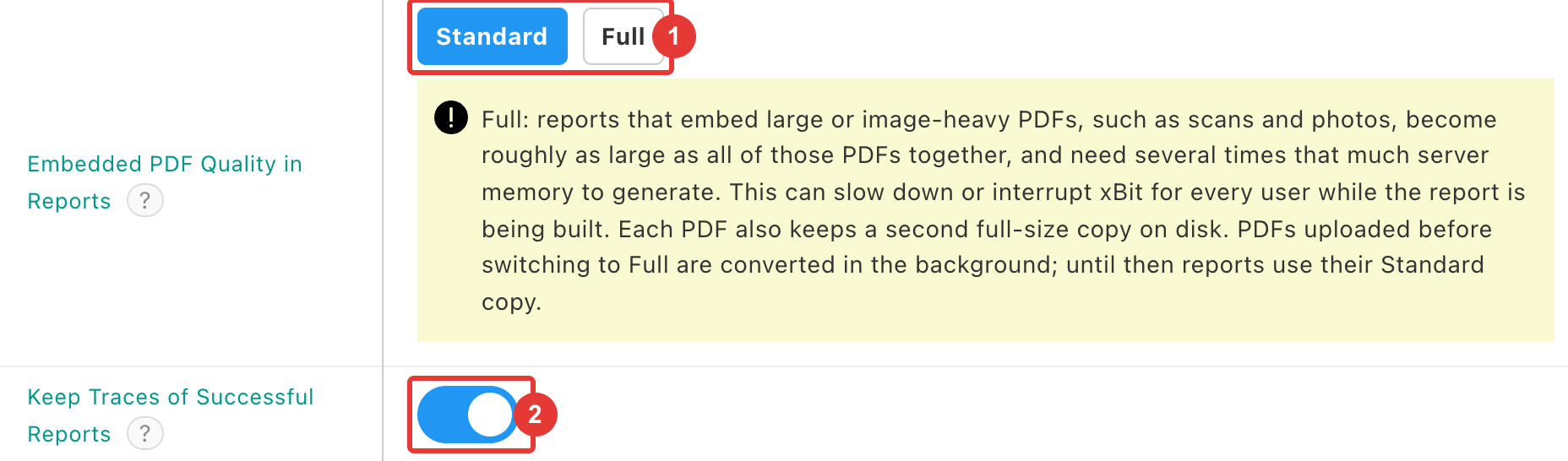
- Embedded PDF Quality in Reports: Standard or Full. The warning below explains the cost of Full.
- Keep Traces of Successful Reports.
Search
- Allow exclude cases on global search: adds Global Search Options to the case dashboard and to Bulk Actions in Evidence Manager, so you can hide cases from global search. Hidden cases show an icon next to their status.
- To hide all closed cases, filter Evidence Manager by Case Status = Closed, then use
Bulk Actions>Global Search Options.
- To hide all closed cases, filter Evidence Manager by Case Status = Closed, then use
- Exclude multiple choice search in Table Views: makes text search in Case Manager, Evidence Manager and other Table Views faster by skipping multiple choice fields.
See Search.
Agencies and external users
- Use Agency Categories: group agencies into categories and subcategories, with your own Agency Category Label and Agency Subcategory Label. See Agency Manager.
- Allow External User Login: registered external users can sign in to Lab Submission.
- Allow External User Access Request: external users can request access from the login page. Needs Allow External User Login.
Both external user settings need email notifications turned on under E-MAIL / SMTP. See External Users.
Lab submission uploads
- Lab submission upload memory limit, for example
512M. - Lab submission upload time limit, in seconds, for example
300.
Leave both empty to use the server's limits, which are shown in grey. Enter -1 to remove a limit.
Captcha
- Get a key and secret from Google reCAPTCHA. The link at the top of the tab opens Google's instructions.
- Enter the ReCaptcha Key and ReCaptcha Secret.
- Turn on Enable CAPTCHA in login and click Save.
With captcha on, every password and recovery-code sign-in must pass it before the password or code is checked, and it can't be skipped. The 2FA code step isn't checked again.
API
- Enable API: Everyone, Admin Only or Disabled.
- API Documentation Public: anyone can read the API documentation without signing in.
See API.
Identity Providers
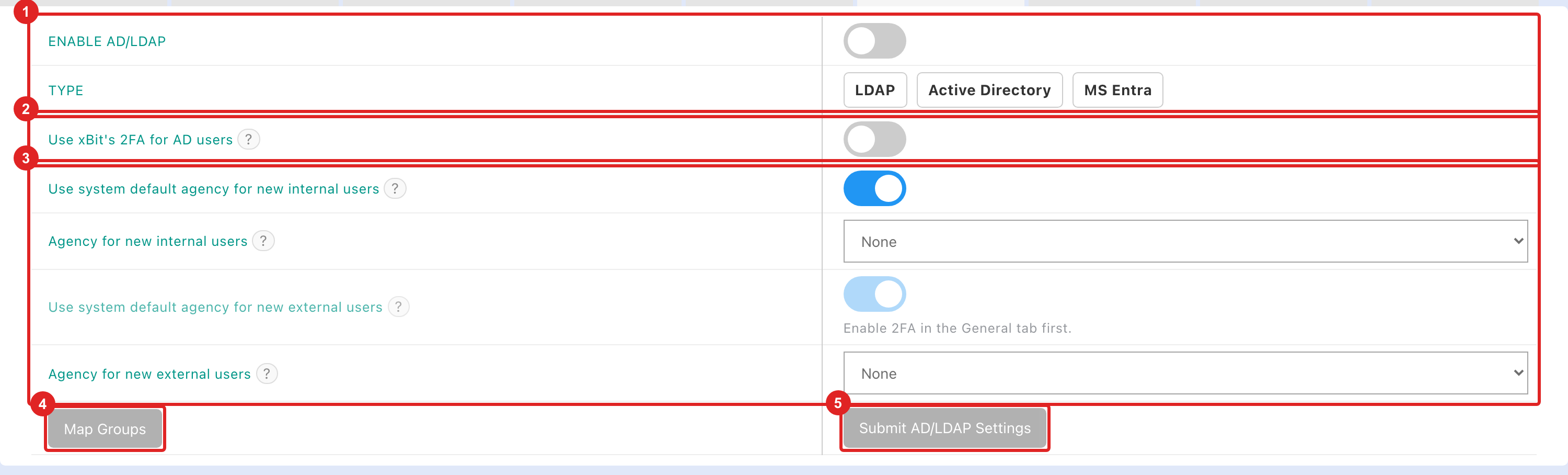
- ENABLE AD/LDAP, then choose the TYPE: LDAP, Active Directory or MS Entra. The connection fields for that type appear: Host, Port, Base DN and User Base DN, or for MS Entra the Tenant ID, Client ID and Client Secret.
- Use xBit's 2FA for AD users: after the directory signs users in, xBit also asks for a 2FA code. Needs 2FA turned on in General.
- The agency a directory user gets the first time they sign in. Existing users aren't changed.
- Use system default agency for new internal users, or turn it off and pick Agency for new internal users.
- Use system default agency for new external users, or turn it off and pick Agency for new external users.
- Map Groups: enter a directory username and password, then assign a directory group to each xBit role and one to external users.
- Submit AD/LDAP Settings.
Use Test AD/LDAP Connection to check the settings with a directory username and password before you submit.
First name attribute and Last name attribute choose the directory attributes that fill a user's name when they sign in.
Left empty, xBit uses displayName and sn.
If your directory's displayName holds the full name, enter givenName for the first name.
License Info

- Each license, with Licensee, Created Date, Expiry Date, Enabled and Licenses In Use.
- Upload Update File: choose a new license file, then click Upload File.
Health
Health lists the environment variables xBit reads and whether each one is set. Values are never shown.
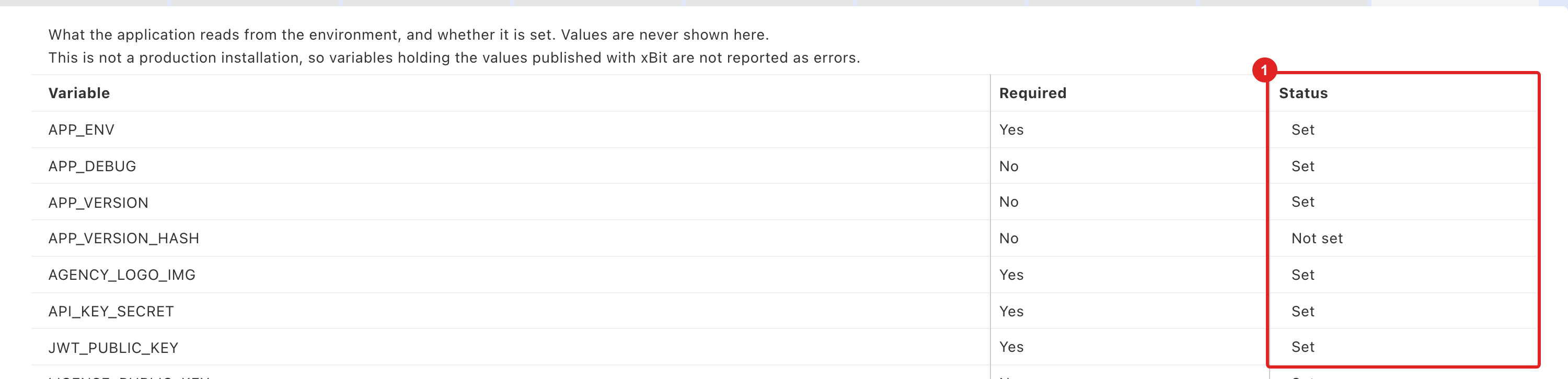
- Status of each variable:
- Set: fine.
- MISSING - required and not set: set it.
- Still the value published with xBit - change it: replace it with a value unique to your installation.
If some accounts' two-factor data can't be read under the current TwoFA_SECRET, the tab lists them. Run ./bin/reset-unreadable-twofa to see the list, then ./bin/reset-unreadable-twofa --apply so those users set up 2FA again.
See Updates for how to set environment variables.