Image Gallery
The image gallery shows thumbnails of uploaded files in a table view, so you can preview them without opening each case or evidence item. There are two gallery widgets:
| Widget | Shows | Can be added to |
|---|---|---|
| Evidence Image Gallery | Files uploaded to the evidence item, and files in its upload fields | Evidence views |
| Case Image Gallery | Files uploaded to the case (not to an evidence item), and files in its upload fields | Case and evidence views |
Images show as thumbnails; other files show as a file-type icon.
Image views
xBit comes with a view for each gallery:
- Evidence Image View: Case Info, Device Info and Evidence Image Gallery columns. Clicking a row opens the evidence's uploads page.
- Case Image View: Case Info, Offense Information, Requester and Case Image Gallery columns. Clicking a row opens the case's gallery tab.
Open them from the Evidence and Cases menus, or pick them in the View list of the Evidence or Case Manager.
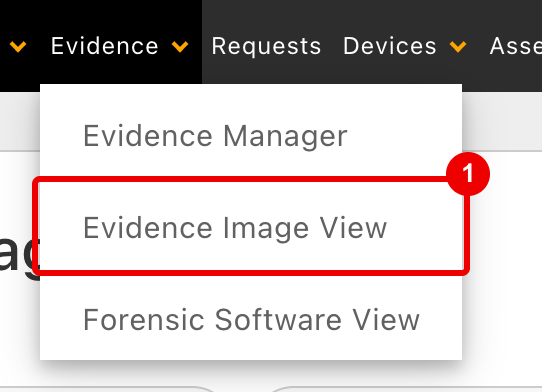
Evidence>Evidence Image View.
Use the gallery
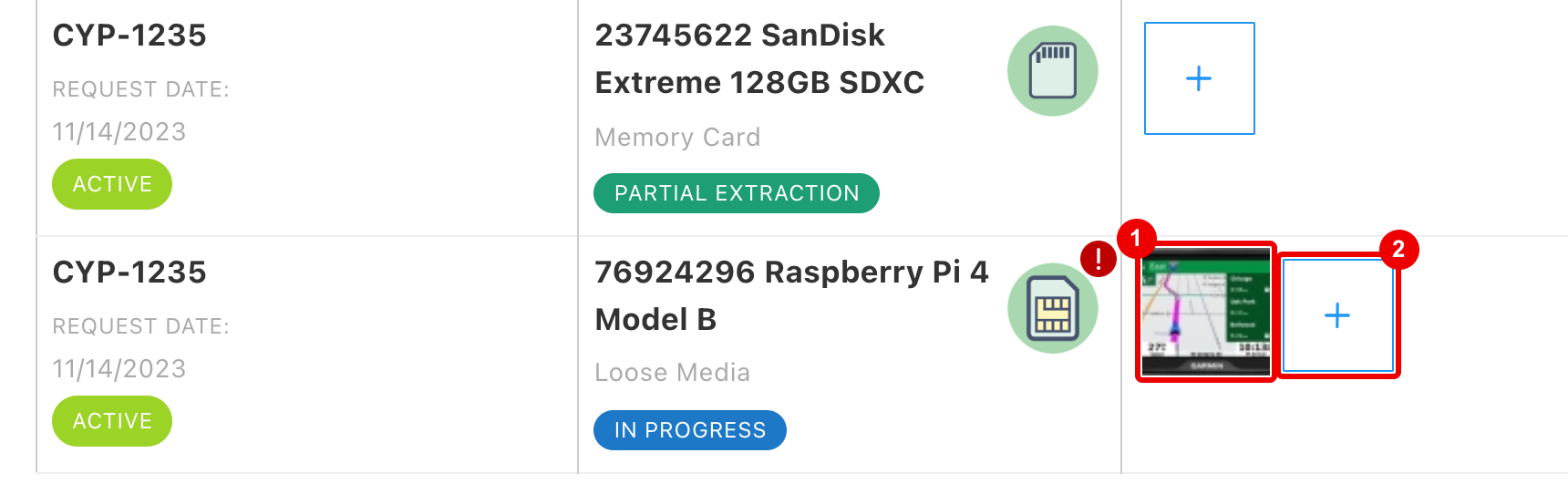
- A thumbnail: click it to open the file in the gallery viewer.
- Add New Upload: upload a file to the evidence item (or the case, for Case Image Gallery). Shown only if you can edit the case.
Gallery viewer
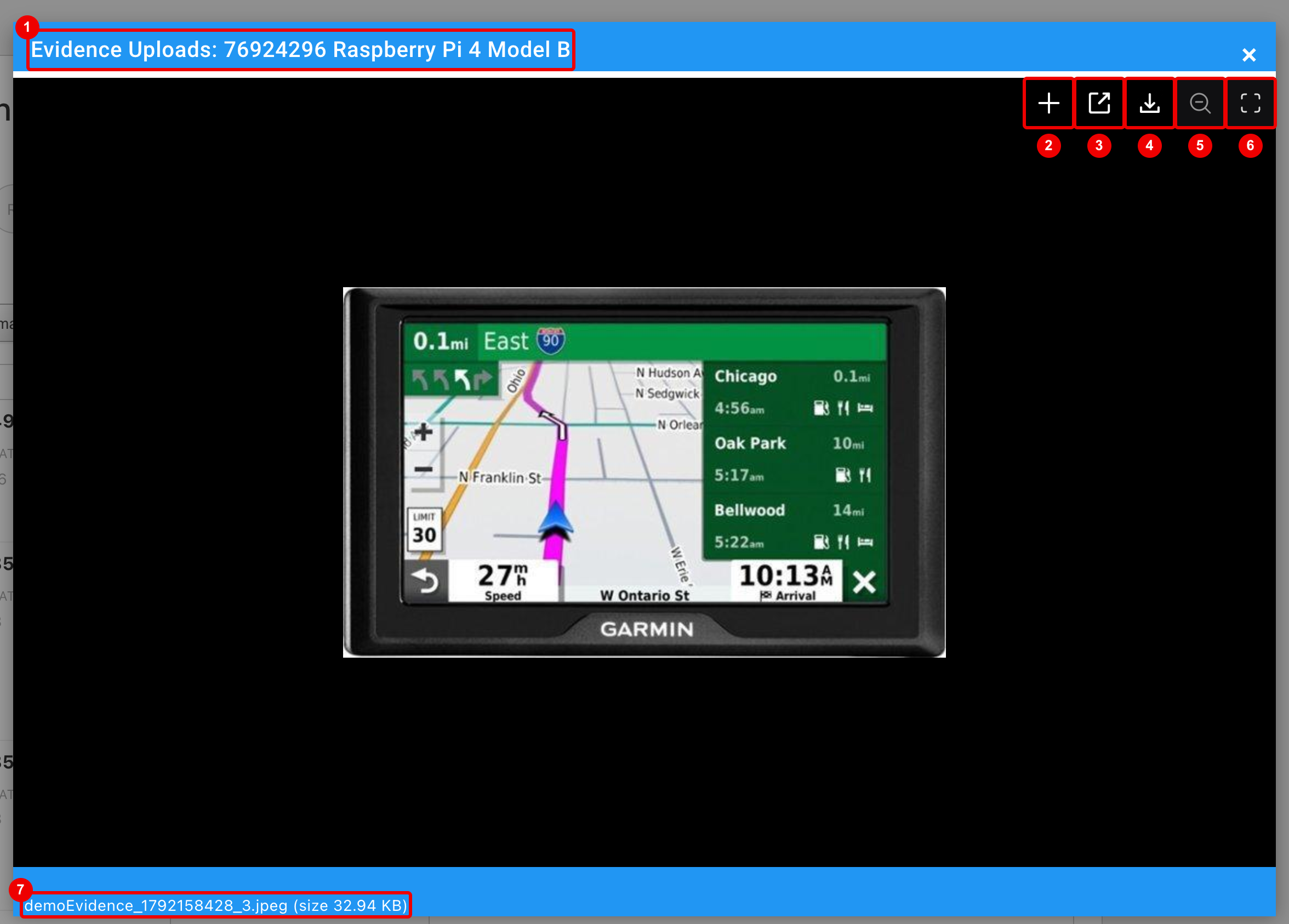
- The evidence item (Evidence Uploads) or case (Case Uploads) the files belong to.
- Add New Upload: shown only if you can edit the case.
- Open in New Tab.
- Download.
- Toggle zoom level.
- Toggle full-screen mode.
- File name and size.
With two or more files, the viewer also shows:
- Toggle slideshow: moves to the next file every 3 seconds.
- Toggle thumbnails: shows or hides the thumbnail strip at the bottom.
- Arrows to move between files.
Click the image to view it full screen, and × to close the viewer.
Add a gallery to a view
- Go to
Admin>Table View Builderand open a view (see Table View). - Click Add Fields to this Column (the + at the bottom of a column).
- Search for "gallery", select the widget and click Add Items.
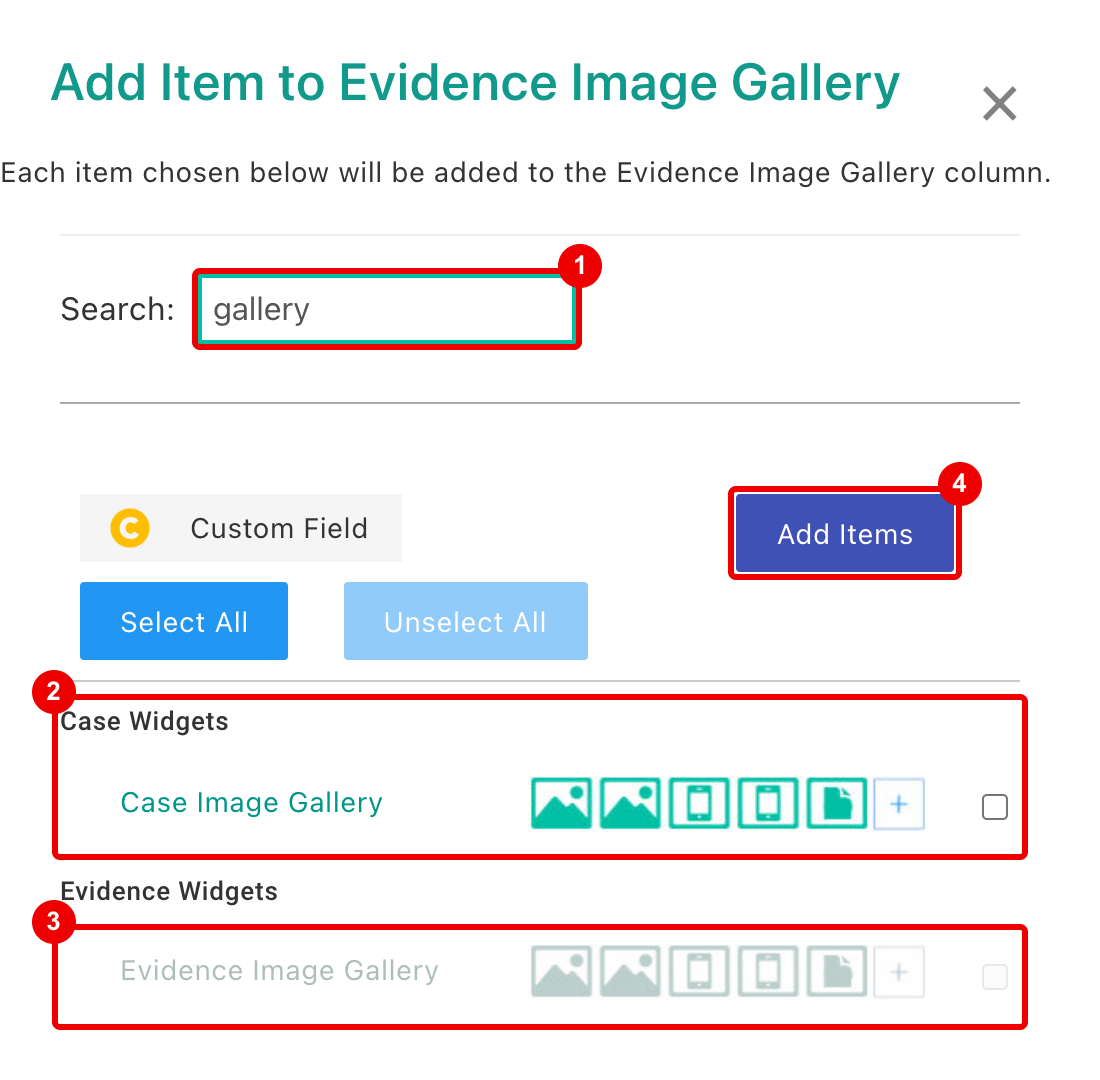
- Search.
- Case Image Gallery, under Case Widgets.
- Evidence Image Gallery, under Evidence Widgets; greyed out here because the view already has it.
- Add Items.