Device Stats, Asset Stats and Hours Report
Three fixed reports under the Stats menu:
Device Stats: evidence items counted by make and model.Asset Stats: your Asset Manager assets by grant and agency.Hours Report: every memo with hours, totalled by evidence item, case and agency.
Unlike Case and Evidence Stats, you can't add or change charts here. For your own breakdowns, use the Stats Explorer.
| Who | Can |
|---|---|
| Admin, Analyst | Open all three reports. They show data from every case, whatever cases an Analyst can open. |
| Examiner, Viewer | No Stats menu |
Device Stats
Go to Stats > Device Stats.
It counts evidence items by their Make and Model fields; it doesn't use the Device Inventory.
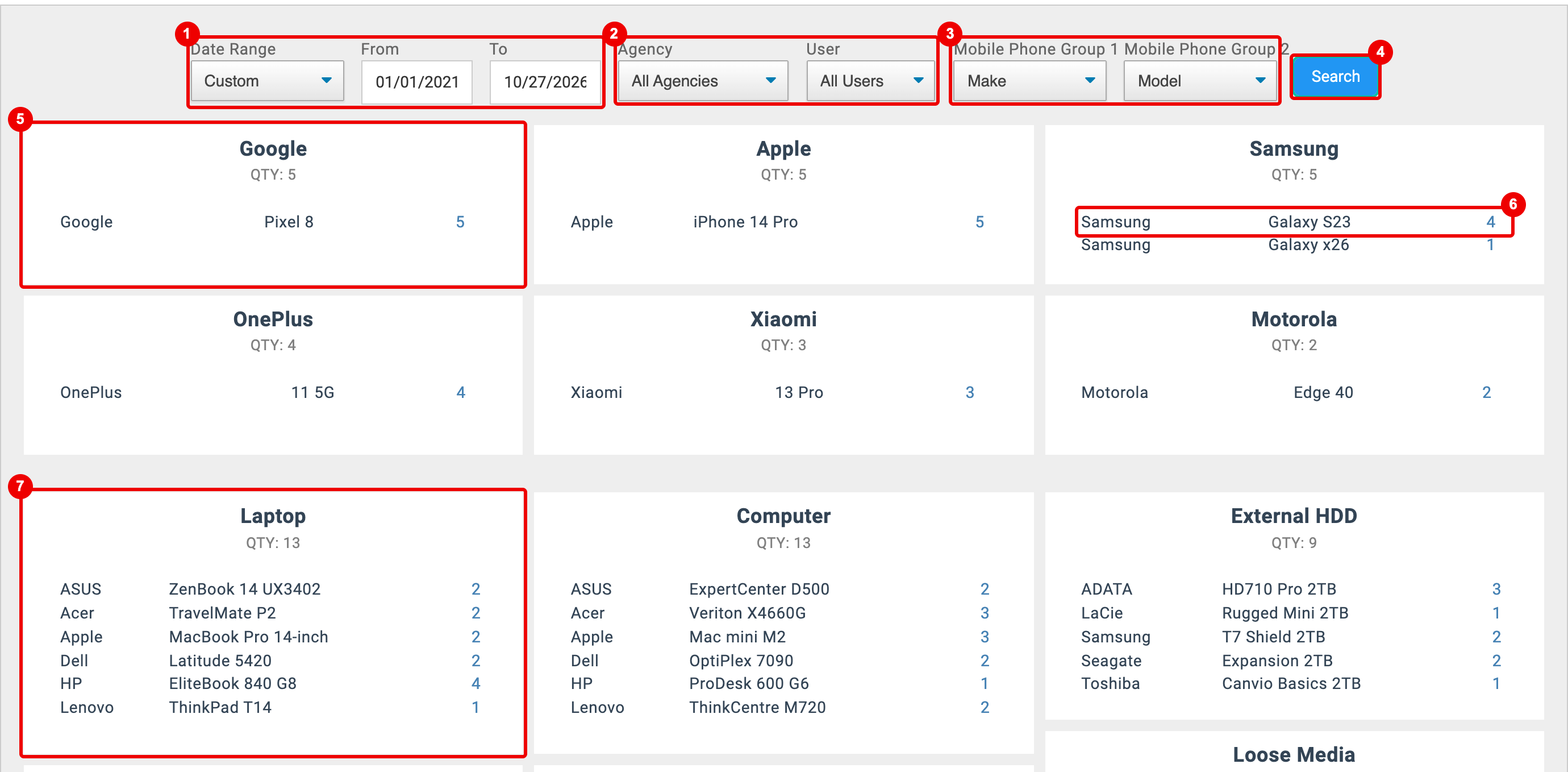
- Date Range, From and To: counts evidence on cases whose Request Date falls in the range. Pick a preset such as This Year or Last Fiscal Quarter - FY, or Custom to type dates. It opens on Custom, from January 1 of your license's first year to today.
- Agency: the case's agency (only agencies that have cases are listed). User: evidence assigned to, imaged by or examined by that user.
- Mobile Phone Group 1 and Mobile Phone Group 2: the two Mobile Phone fields the phone tiles group by, Make and Model by default. Any enabled Mobile Phone field can be picked, such as Mobile OS and Mobile OS Version.
- Search: applies the filters.
- A tile for each Group 1 value, largest first. QTY is the number of phones with that value, and the rows split them by Group 2. Phones with no Group 1 value are left out.
- Click a row to open its evidence items in the Evidence Manager.
- A tile for every other evidence type, largest first, with one row per make. When a make has several models, only the first is listed, so the rows can add up to less than QTY.
N/A means no evidence of that kind falls in the filters.
Asset Stats
Go to Stats > Asset Stats.
The page has no filters: it covers every asset in the Asset Manager.
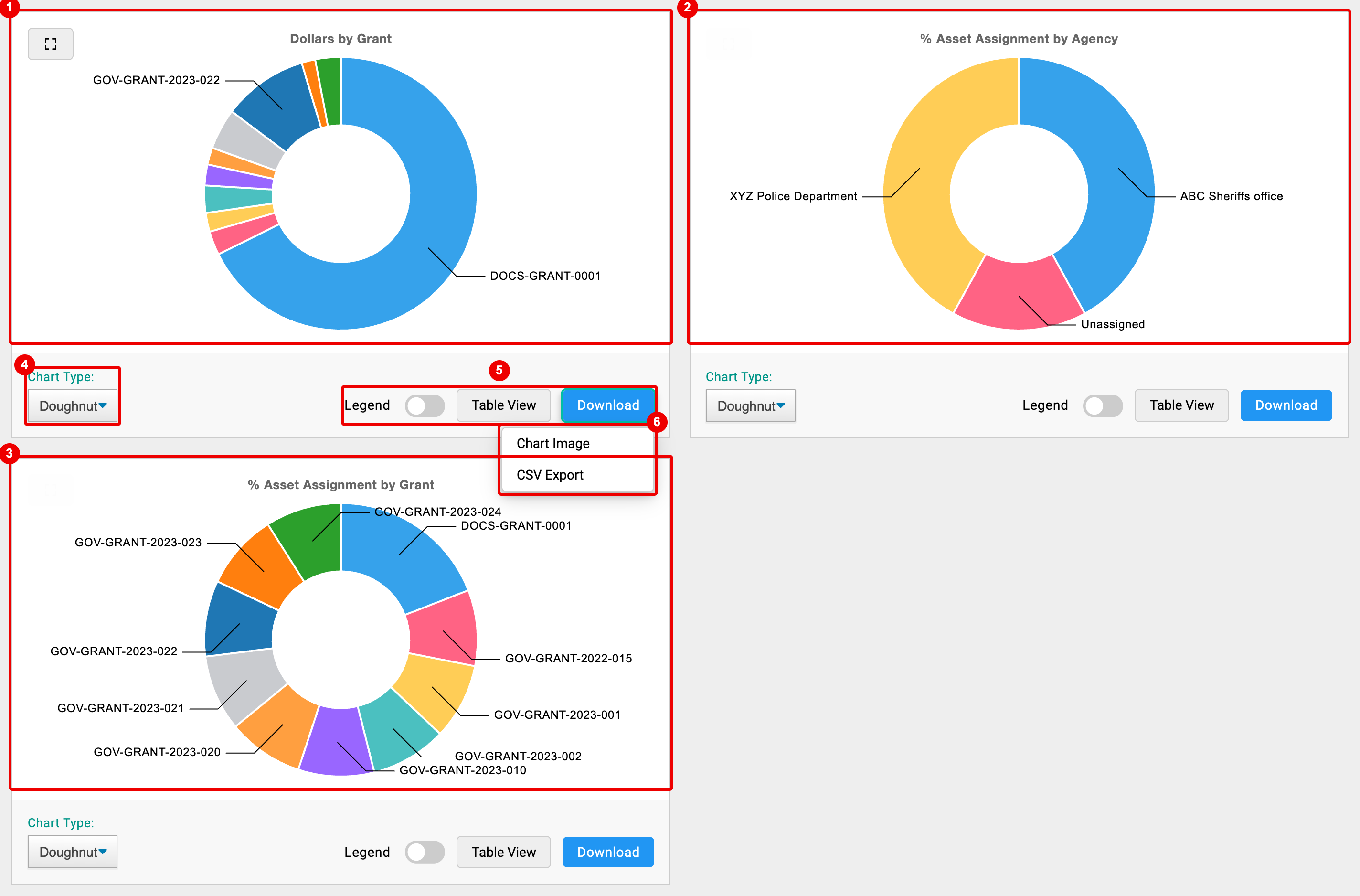
- Dollars by Grant: Purchase Price $ plus Renewal Cost $ of the assets on each grant, labelled by Grant ID.
- % Asset Assignment by Agency: each agency's share of all assets, by the agency of the asset holder. Assets with no holder show as Unassigned.
- % Asset Assignment by Grant: each grant's share of all assets. Assets with no grant aren't drawn, so the slices can add up to less than 100%.
- Chart Type: Bar, Line, Doughnut (the default), Pie or Polar. Your choice is remembered in this browser.
- Legend shows or hides the legend, and Table View lists each label with its value. Expand (top left of the chart) opens it full screen.
- Download: Chart Image saves a PNG; CSV Export saves the label and value of each slice.
Hours Report
Go to Stats > Hours Report.
The page is titled Hours Breakdown.
It lists every memo with Hour(s) Worked above 0, from case memos and evidence memos.
Expense hours aren't included.
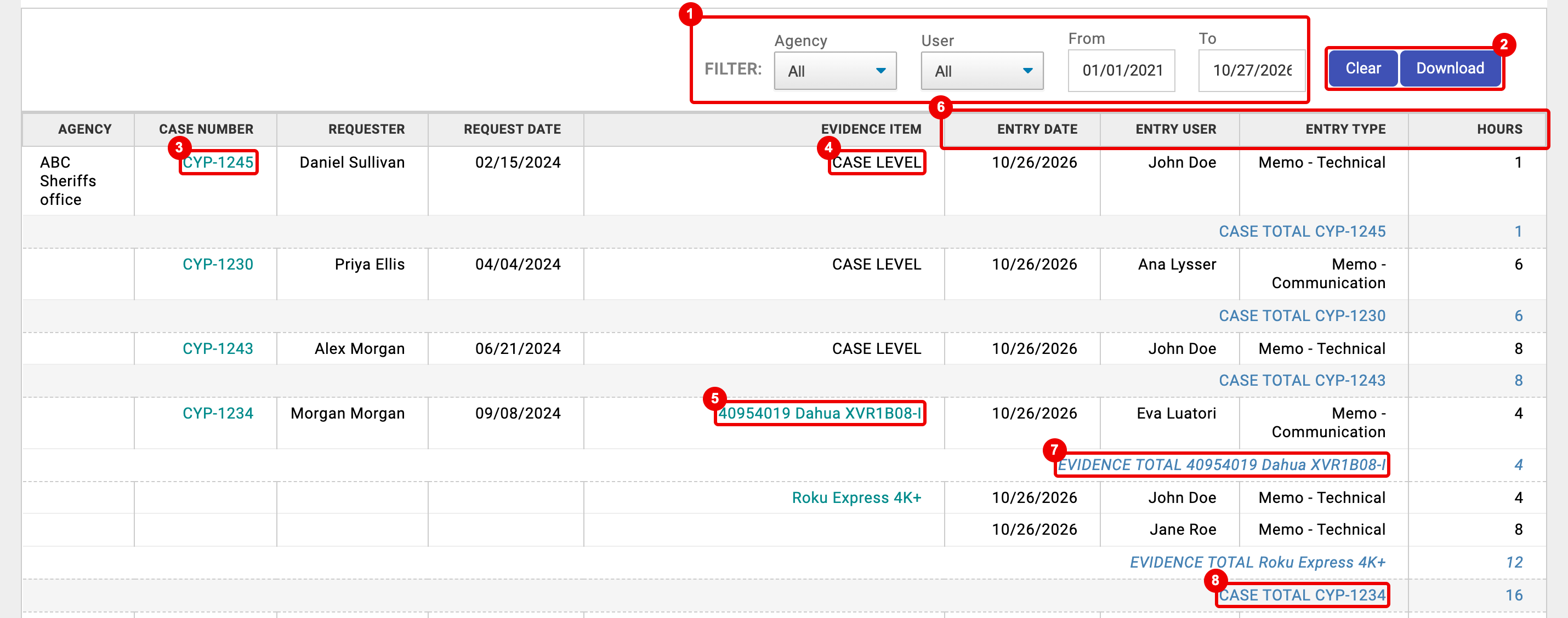
- FILTER: Agency (the case's agency), User (the memo's author), and From and To (the memo's Entry Date). The table reloads as soon as you change one. It opens on all agencies and users, from January 1 of your license's first year to today.
- Clear resets the filters.
Download saves the filtered table as a CSV file (
hours_breakdown_YYYY_MM_DD.csv). - CASE NUMBER: opens the case dashboard. REQUESTER and REQUEST DATE come from the case.
- CASE LEVEL: a case memo, not tied to an evidence item.
- EVIDENCE ITEM: opens the evidence item the memo is on.
- ENTRY DATE, ENTRY USER (author), ENTRY TYPE (Memo and its Memo Type) and HOURS.
- EVIDENCE TOTAL (or CASE LEVEL MEMO TOTAL): hours for one evidence item, or for the case memos.
- CASE TOTAL: hours for the case.
Rows are grouped by agency (A to Z), then case (oldest Request Date first), then evidence item. AGENCY TOTAL rows add up each agency, and Grand Total is the last row. No entries found means no memo with hours matches the filters.
To log hours, enter Hour(s) Worked when you add or edit a memo.