Department / Unit Manager
Departments and units are the choices for:
- Department/Unit on the expense form (required for every expense).
- Department fields you add in the Form Builder.
Go to Admin > Department / Units.
The page, titled Department/Unit Manager, is for Admins only and is always on.
Departments and units
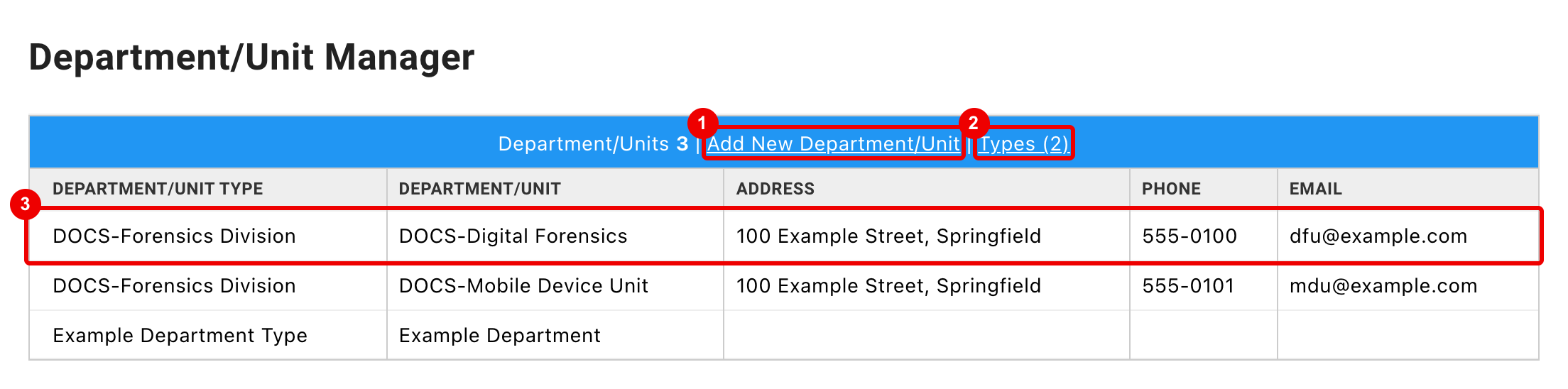
- Add New Department/Unit. Until at least one type exists, the bar shows PLEASE ADD AT LEAST ONE TYPE BEFORE ADD DEPARTMENTS OR UNITS instead.
- Types: add, rename or delete types (see Types).
- Click a row to edit or remove that department or unit.
The list is sorted by name; Department/Units shows how many there are.
Add a department or unit
- Click Add New Department/Unit.
- Enter a Name and choose a Department/Unit Type.
- Optionally, enter Address, Phone and Email.
- Click Submit Department/Unit.
| Field | Required | Maximum length |
|---|---|---|
| Name | Yes | 50 characters |
| Department/Unit Type | Yes | - |
| Address | No | 75 characters |
| Phone | No | 15 characters |
| No | 50 characters |
⚠️ Note: Longer values aren't saved and xBit shows an error page. Go back and shorten them.
Edit or remove a department or unit
Click its row to open Edit Department/Unit.
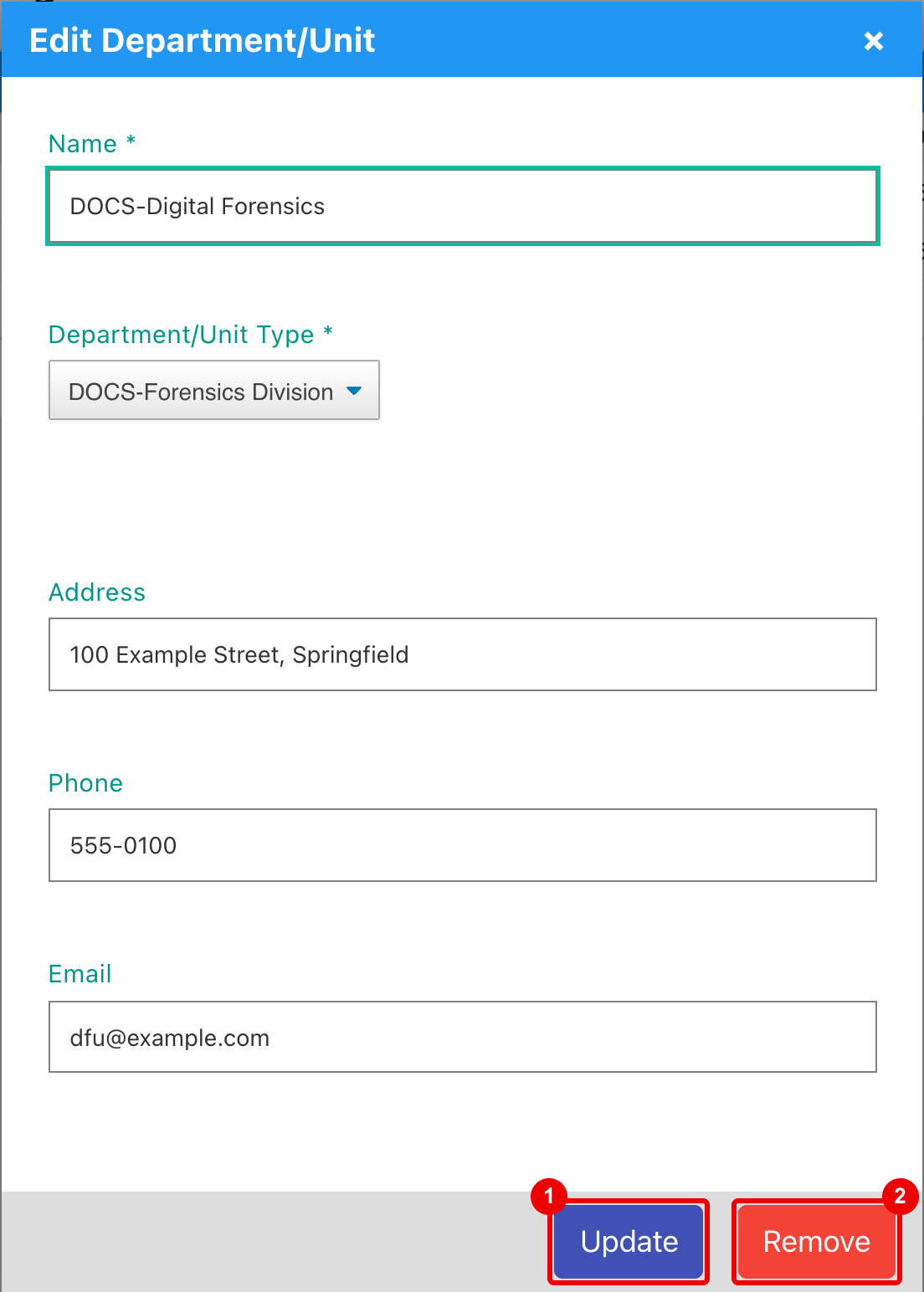
- Update: saves your changes.
- Remove: deletes it after you confirm Are you sure?. You can't undo this.
You can't remove a department or unit that is used on an expense. xBit shows An error occurred while deleting the department. There is no way to deactivate one; rename it instead if it's no longer current.
Types
Every department or unit has a type, for example "Police Department" or "Forensics Unit". Click Types to open Department/Unit Types.
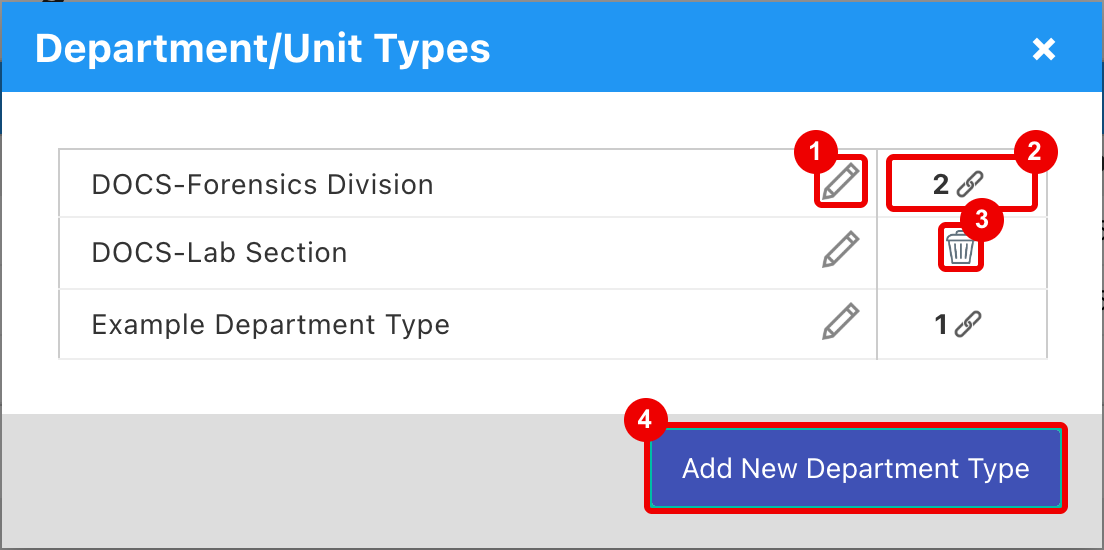
- Rename the type.
- In use: the number of departments or units with this type. A type in use can't be deleted.
- Delete a type that isn't in use. There is no confirmation.
- Add New Department Type: enter a name and click Add.
New and renamed types appear in the Department/Unit Type choices straight away. The count next to Types in the page bar updates when you reload the page.
Where they're used
- Expenses: every expense needs a Department/Unit. The choices are all departments and units.
- Form Builder: a Department field offers every department and unit, whatever its type. Its settings show Go to Department/Unit Manager to edit Choices instead of a list of choices.
- Report Builder: expense tables can include a Department/Unit column.
- API: Get Expense Departments (
GET /api/v1/expense/department) returns the IDs to use when adding expenses (see API).
See also Optional Settings.