Managing Read-only Users
Give ADAs, managers or clients a way to review cases without being able to change them. Use the Viewer role, then choose which cases each Viewer can see.
- Viewers can't edit cases or evidence.
- Viewers need no license. See Licenses.
- Viewers can't be a case's Primary Case Assignment, can't be assigned evidence (they are left out of Assigned To, Triaged By, Imaged By and Completed By), and can't be reviewers.
Add a Viewer
- Go to
Admin>Groups / Usersand click New User. - Set Role to Viewer. Role lists show it as Viewer (Read Only).
- Fill in the rest and click Create User.
See Groups / Users for every field. When every license is in use, New Viewer Account adds a Viewer.
Set the Default Case Group
New cases start with Admins, plus the Default Case Group.
Set it in Admin > About / Settings > General.

-
Default Case Group: the group added to every new case.
-
Use Admins, or Examiners if they should see every new case.
- Don't choose Everyone or Viewers. Every new case would be open to them.
- With None, new cases show Default Permissions Missing until you set it.
⚠️ Note: The setting only affects new cases. Check older cases that are open to Everyone or Viewers.
Choose what Viewers see on each case
Each case has a Viewer Case Permission:
| Permission | Viewers |
|---|---|
| Read Only (default) | Can open the case and read it. |
| Hidden | Can't see the case. |
There is no Read/Write for Viewers. Admins always see and edit every case.
On a new case
On New Case, the Case Permissions & Assignments column sets who sees the case.
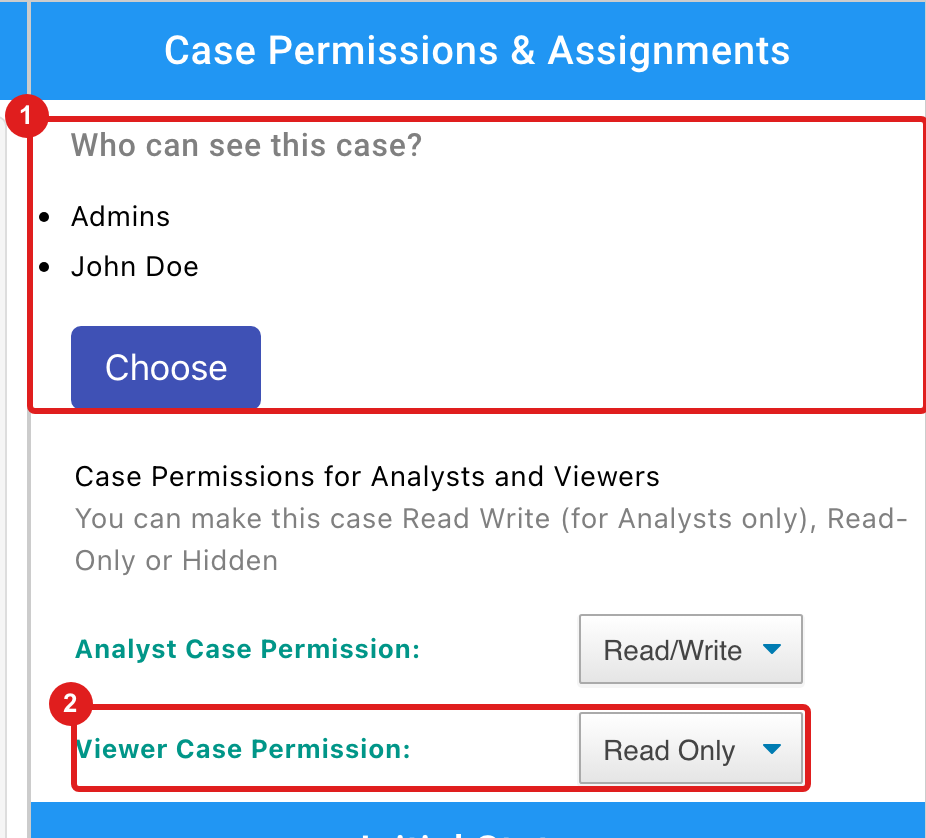
- Choose: pick the groups and users who can access the case (below).
- Viewer Case Permission: Read Only or Hidden.
On an existing case
On the case dashboard, open Case Permissions & Assignments in the right sidebar.
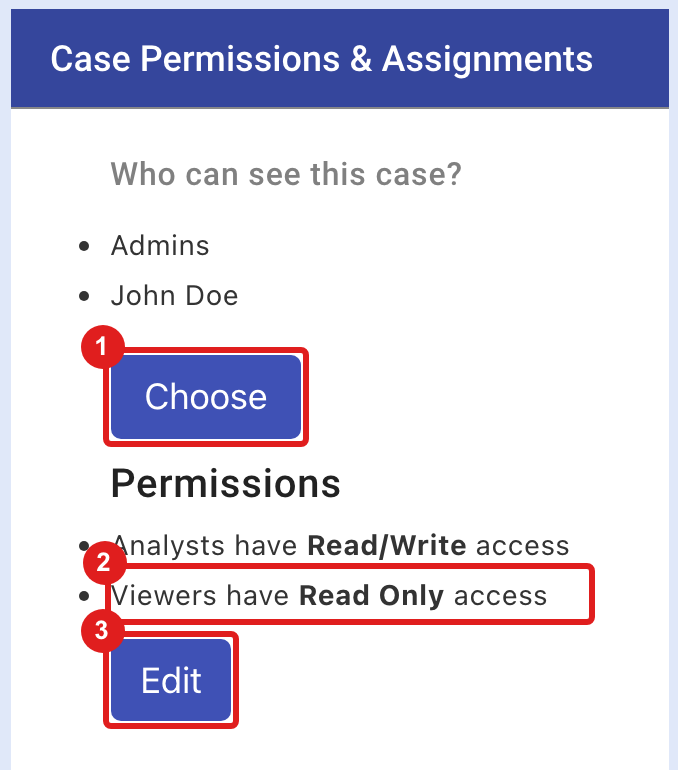
- Choose: change who can access the case.
- What Viewers have now, for example Viewers have Read Only access.
- Edit: change the permissions.
In the Permissions window, set Viewer Case Permission and click Save.
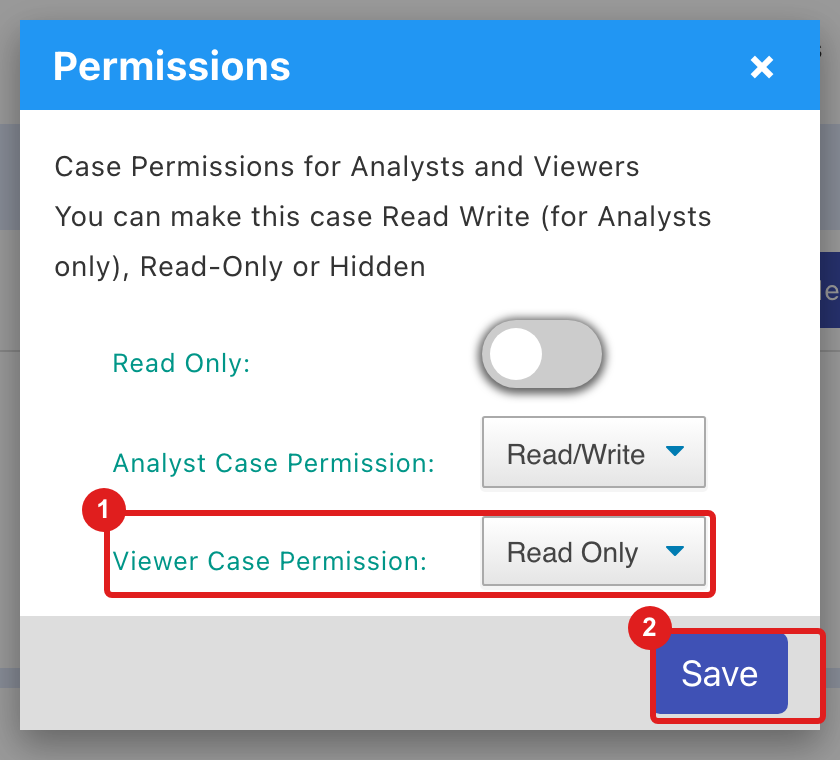
- Viewer Case Permission: Read Only or Hidden.
- Save.
Add a Viewer to a case
A Viewer sees a case when their user, or a group they are in, has access, and Viewer Case Permission isn't Hidden.
- Click Choose.
- Select the Viewer's user card, or a group that includes them, such as Viewers.
- Close the window.
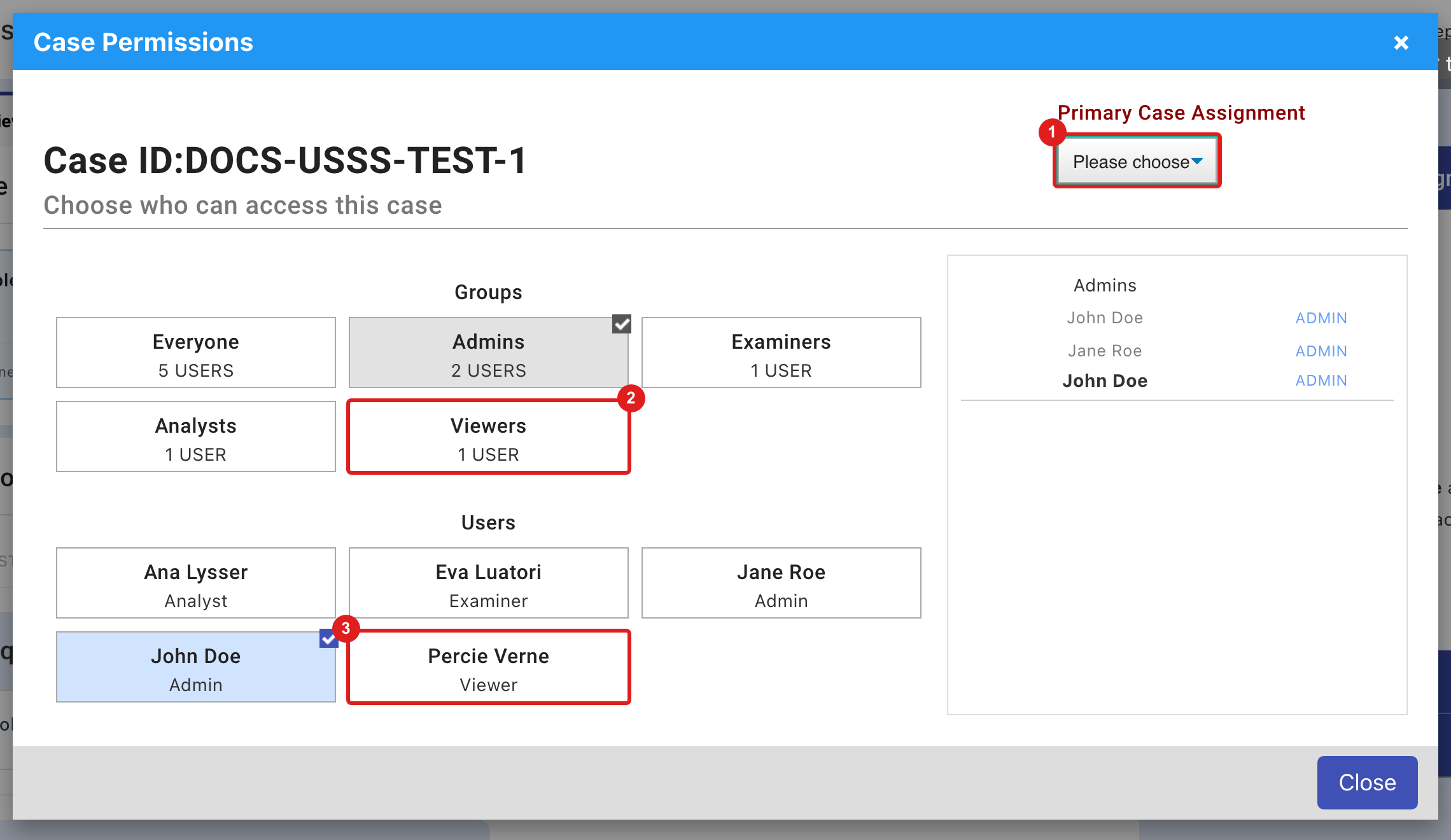
- Primary Case Assignment: lists Admins, Examiners and Analysts only.
- Viewers group.
- A Viewer's user card, with the role shown as Viewer.
Disabled users are left out of group counts and member lists.