USSS Stats
xBit collects the fields the US Secret Service Forensic Partner Reporting (FPR) system requires, and downloads them as a spreadsheet ready to upload to the FPR. If any required field is missing, the FPR rejects the whole report, so xBit flags missing data before you download.
Videos: USSS Stats and FPR, Auto-populate USSS fields and Legacy USSS stats.
Turn on USSS Stats
An Admin turns on USSS Stats in Admin > About / Settings, General tab (see About / Settings).
This adds:
- the USSS FPR Required Fields section on New Case
- a USSS Stats tab on each case dashboard
- a USSS Stats section on evidence
Stats>USSS Stats- the USSS controls in the Case Type list (see Case Types and USSS)
Before you start:
- Give each evidence type form a USSS Stats Type in the Form Builder. Evidence of a [Do Not Track] type is left out of the report.
- Enter a city and state for each agency in the Agency Manager.
- Link your case types to USSS case types in the List Manager.
New Case
The USSS FPR Required Fields section fills itself in as you enter the case. You can change any of these fields.
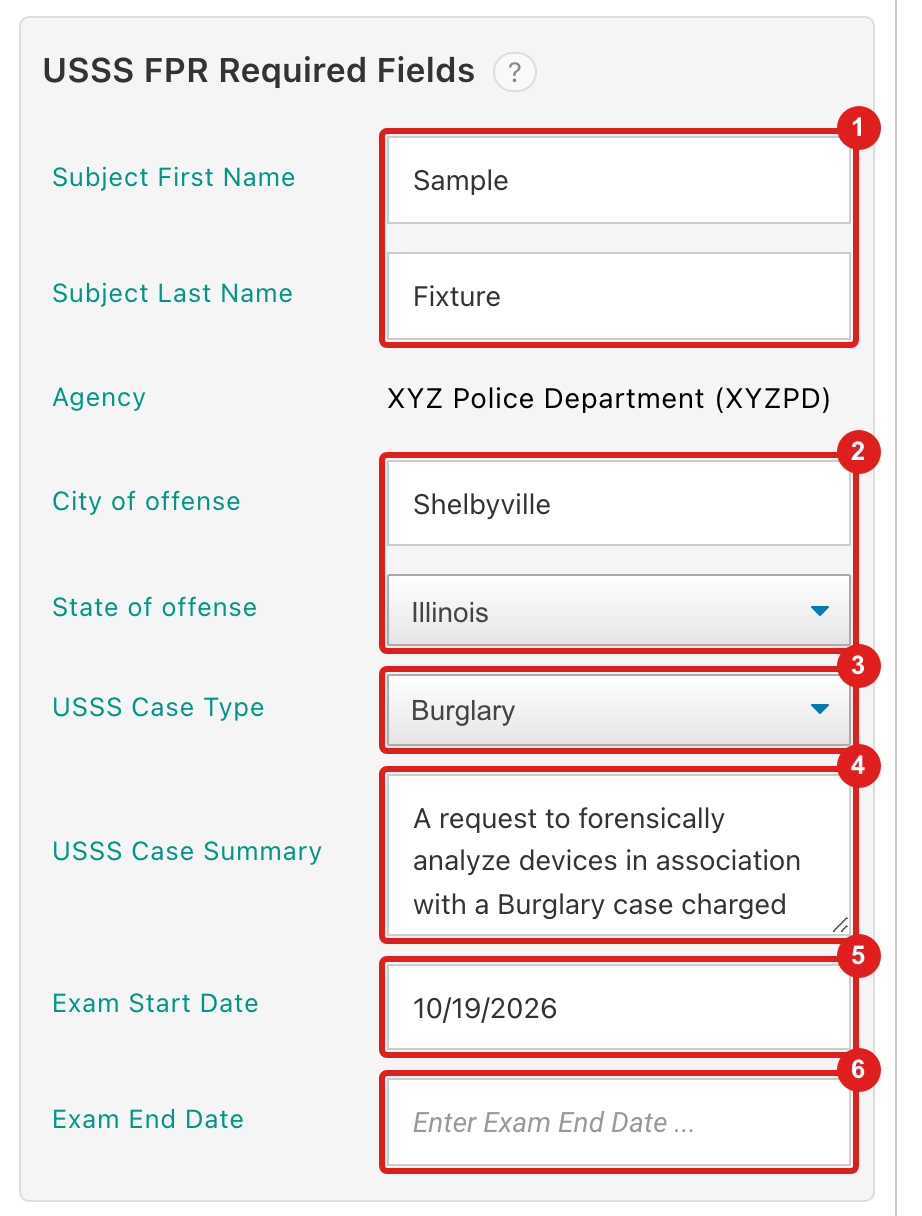
- Subject First Name, Subject Last Name: from the suspect's name.
- City of offense, State of offense: from the requester's Agency. If the agency has no city or state, xBit shows City missing or State missing and an Update Agency link.
- USSS Case Type: from the Case Type, if it is linked to a USSS case type.
- USSS Case Summary: built from the case details, until you type in it.
- Exam Start Date: today.
- Exam End Date: leave it blank until the exam is finished; it can't be a future date.
Link a case type from New Case: if the chosen USSS Case Type isn't linked to the Case Type, a match button appears.
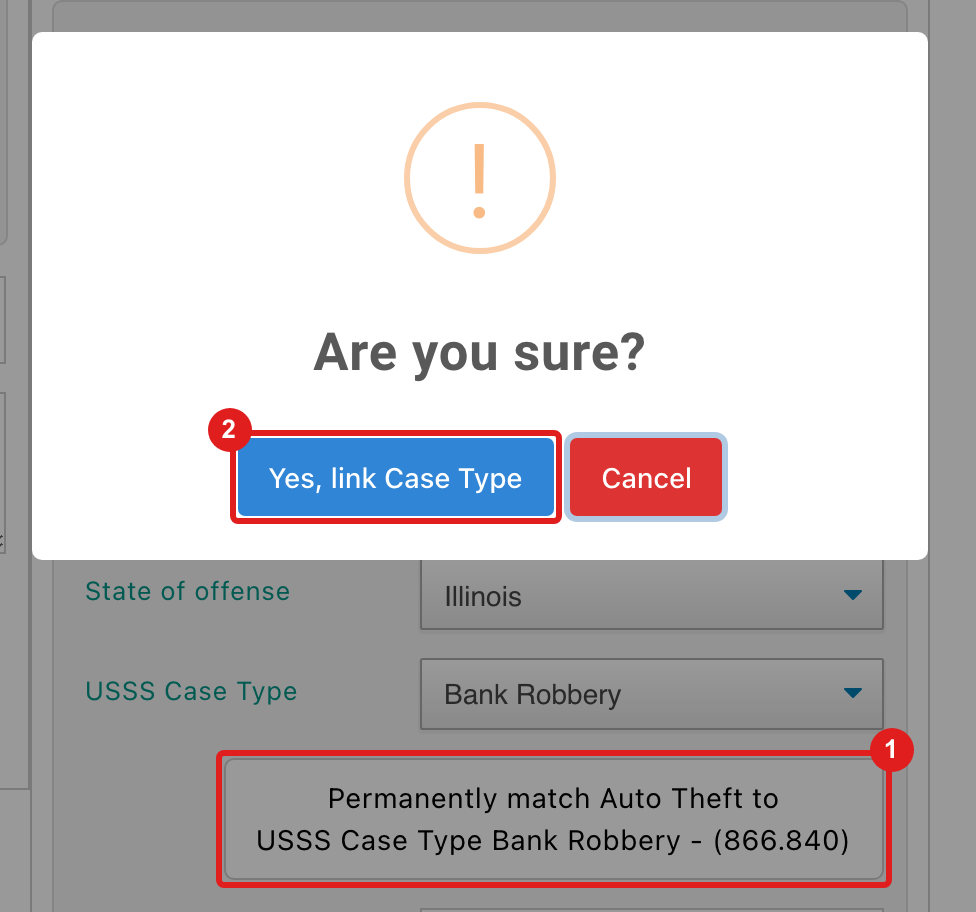
- Click Permanently match case type to USSS Case Type USSS case type.
- Confirm with Yes, link Case Type to use that USSS case type for this case type from now on.
Case USSS Stats tab
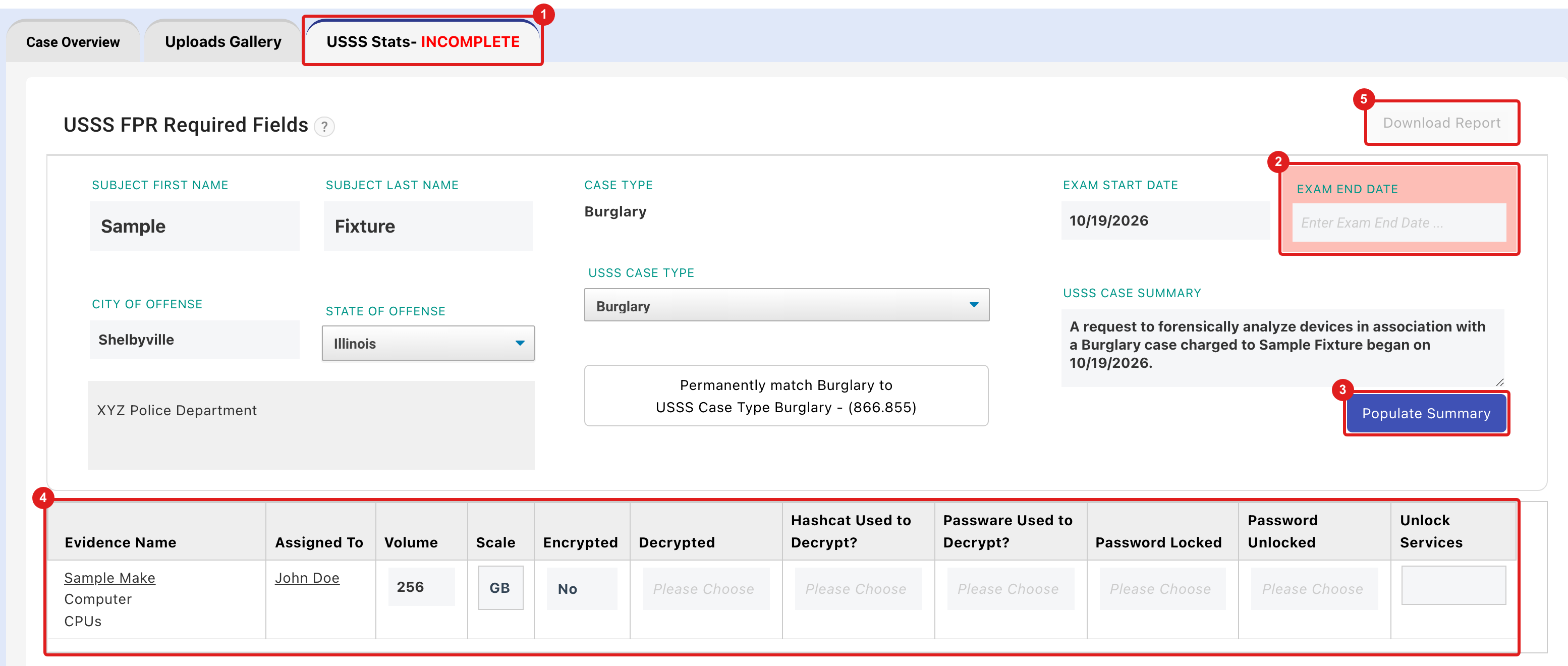
- The tab reads USSS Stats - INCOMPLETE while a required field is empty.
- Empty fields are highlighted.
- Populate Summary rebuilds the USSS Case Summary from the case details.
- The table lists the case's tracked evidence with its USSS fields.
- Download Report downloads the FPR spreadsheet for this case. It is available once every field is filled in.
Exam End Date: enter it here, or in USSS Stats Exam End Date when you change the case's status to Completed.
Evidence
On New Evidence, choose the Evidence Type, then:
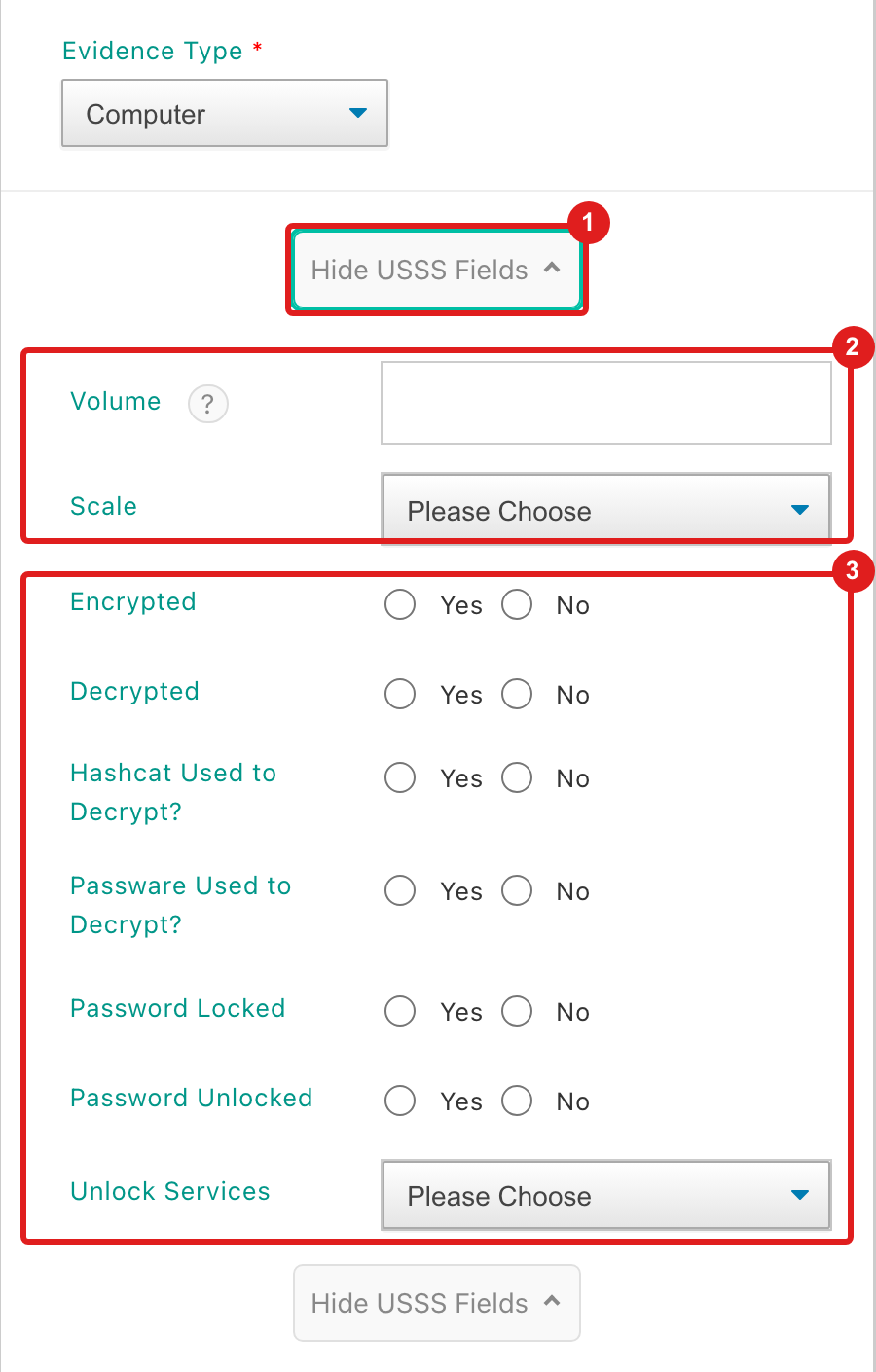
- Click Show USSS Fields (it then reads Hide USSS Fields).
- Enter Volume and Scale. Each device's Volume and Scale are required for the report.
- Answer the encryption and unlock fields.
After saving, the fields appear in the USSS Stats section of the evidence's Evidence & Device Information tab.
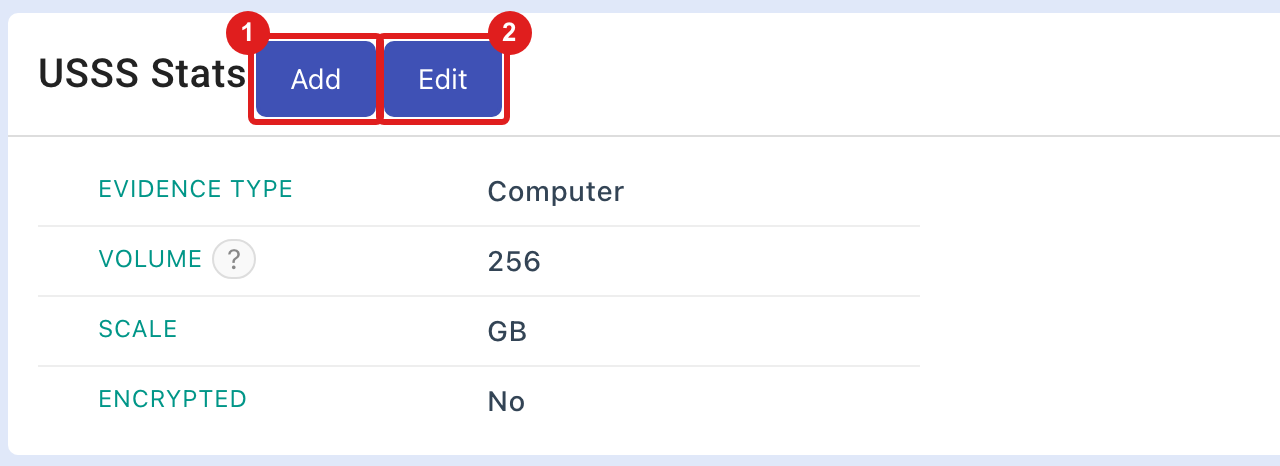
- Add records a related device, such as an SD card found inside a camera.
- Edit changes the fields.
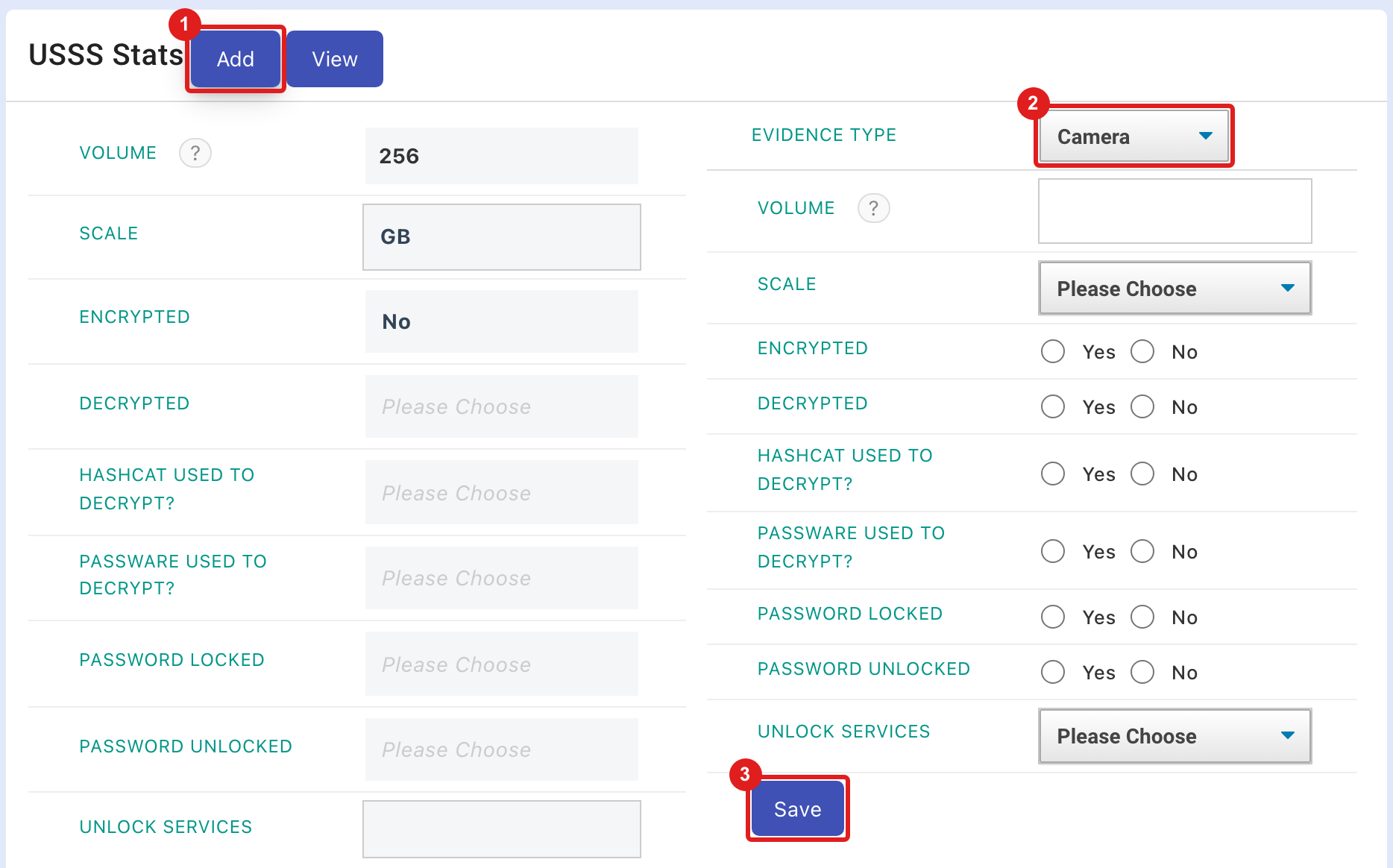
- Click Add. A new device column opens next to the evidence's own fields.
- Choose the device's Evidence Type, then fill in its fields.
- Click Save. A saved device has a Delete button to remove it.
Download the report
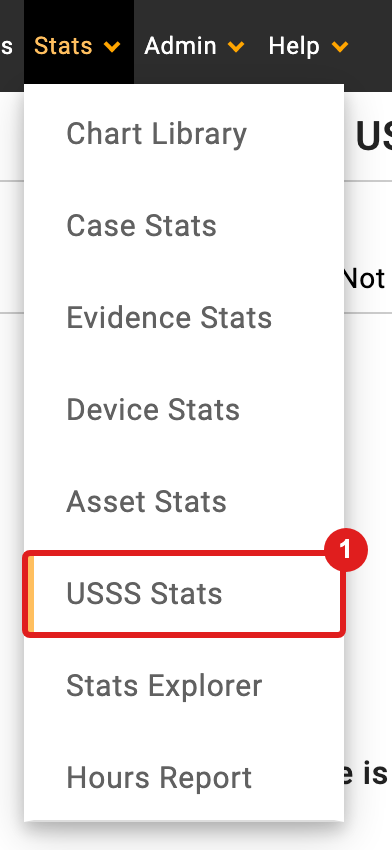
Go to Stats > USSS Stats. Admins and Analysts can open it.

- Reports lists one row per case, with a TOTALS row. The other tabs list the evidence of each USSS Stats Type.
- Choose User: evidence assigned to this user (the evidence's Assigned To), or All. Defaults to you.
- Exam End Date - Choose Month: cases whose exam ended in that month, Exam End Date - empty (the default) or All.
- Refresh: reloads the table. Changing a filter also reloads it.
- Download: downloads the Excel (
.xlsx) file to upload to the FPR.
A case appears only if it has evidence of a tracked USSS Stats Type.
Fix missing fields
If a case is missing a required field, Download shows Unable to generate report.
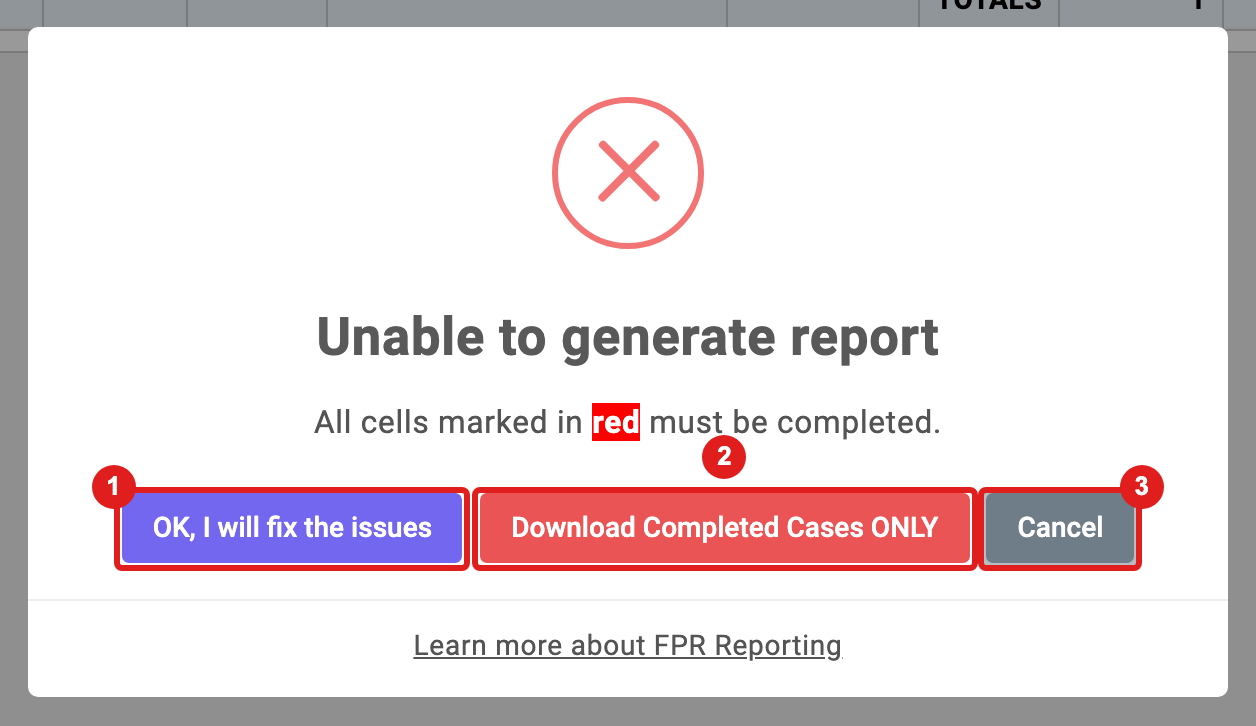
- OK, I will fix the issues: closes the dialog. Missing cells are marked red, with a Fix button on the row.
- Download Completed Cases ONLY: downloads only the complete cases. Cases without a valid USSS Case Type are left out.
- Cancel: closes the dialog.

- Fix opens the case's USSS Stats tab in a new browser tab.
- A red cell is a missing required field.
Required for each case:
- Subject First Name, Subject Last Name, City of offense, State of offense
- a valid USSS Case Type, and the USSS Case Summary
- Exam Start Date and Exam End Date
- Volume and Scale for every tracked device
To find cases still missing an exam end date, set Exam End Date - Choose Month to Exam End Date - empty.