Table View Builder
Table views set the columns in Case Manager, Evidence Manager and other case and evidence lists. Each view picks its fields, their sort and filter options, formatting and what opens when you click a row.
Only Admins can build views; everyone can switch between them (see Use a view). Video: How to use Table View Builder.
Views
Go to Admin > Table View Builder.
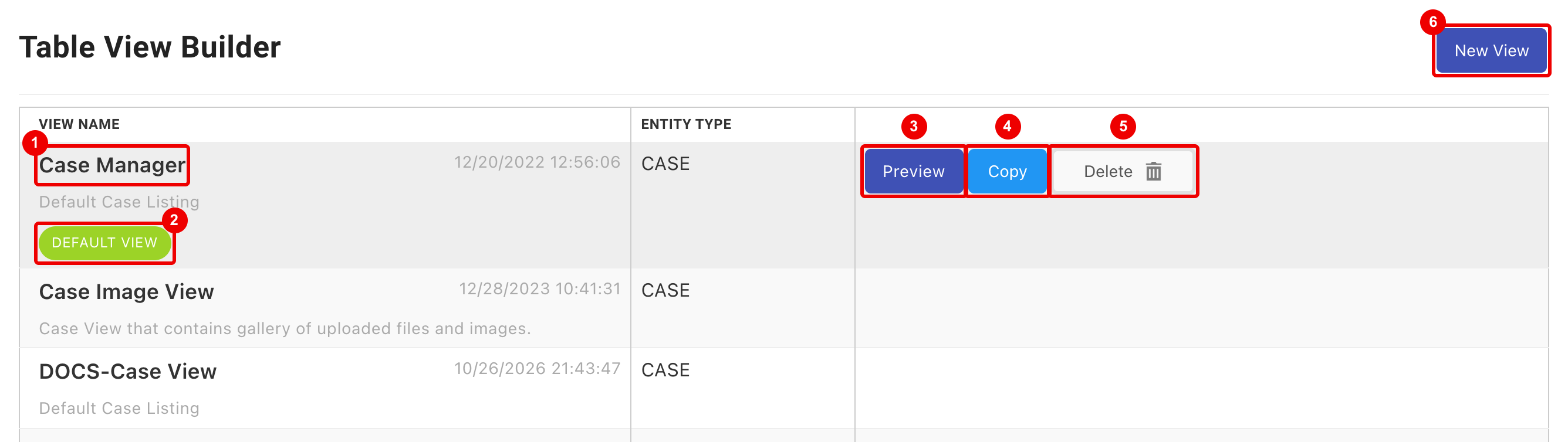
- Click a view to edit it.
- DEFAULT VIEW: the view Case Manager or Evidence Manager opens with.
- Preview: opens the view in a new tab.
- Copy: adds Copy of the view to the list.
- Delete: asks first. You can't delete a default view; make another view the default first.
- New View: choose Case or Evidence. xBit creates an empty view (for example Evidence Manager - Custom View) and opens it.
The actions show when you hover over a row. Entity Type is CASE or EVIDENCE.
Edit a view
Changes save as you make them; there's no Save button for the view.

- Case View Name or Evidence View Name: shown in the menus and the View list.
- Description: shown in the Table View Builder list.
- Open Action: what opens when you click a row (see Open Action).
- Set As Default View: asks you to confirm, then makes this the view Case Manager or Evidence Manager opens with. Hidden on the default view.
- Use default filters: when on, the view opens with xBit's default filters, such as Case Status: Active and a Request Date range. Shown only on views without their own saved filter values.
- Preview: opens the view in a new tab.
- Add Columns: adds one column for each field you pick.
- New View, Copy View and Delete View.
A new view has no columns. Click Load Default Configuration to start from xBit's default Case Manager or Evidence Manager columns, or Add Columns to start from scratch.
Open Action
| Case views | Evidence views |
|---|---|
| Open Case Dashboard Page | Open Evidence Dashboard Page |
| Open Case Gallery Tab | Open Evidence Uploads Page |
| Open Case Status Page | Open Evidence & Device Information Tab |
| Open Case Evidence List | Open Forensic Tools Tab |
| Open Memos Page | Open Chain of Custody Tab |
| Open Expenses Page | Open Review Timeline Tab |
| Open Uploads Page | |
| Open Report Page |
With USSS stats on, case views also offer Open Usss Stats Tab.
Columns
Hover over a column to show its controls.
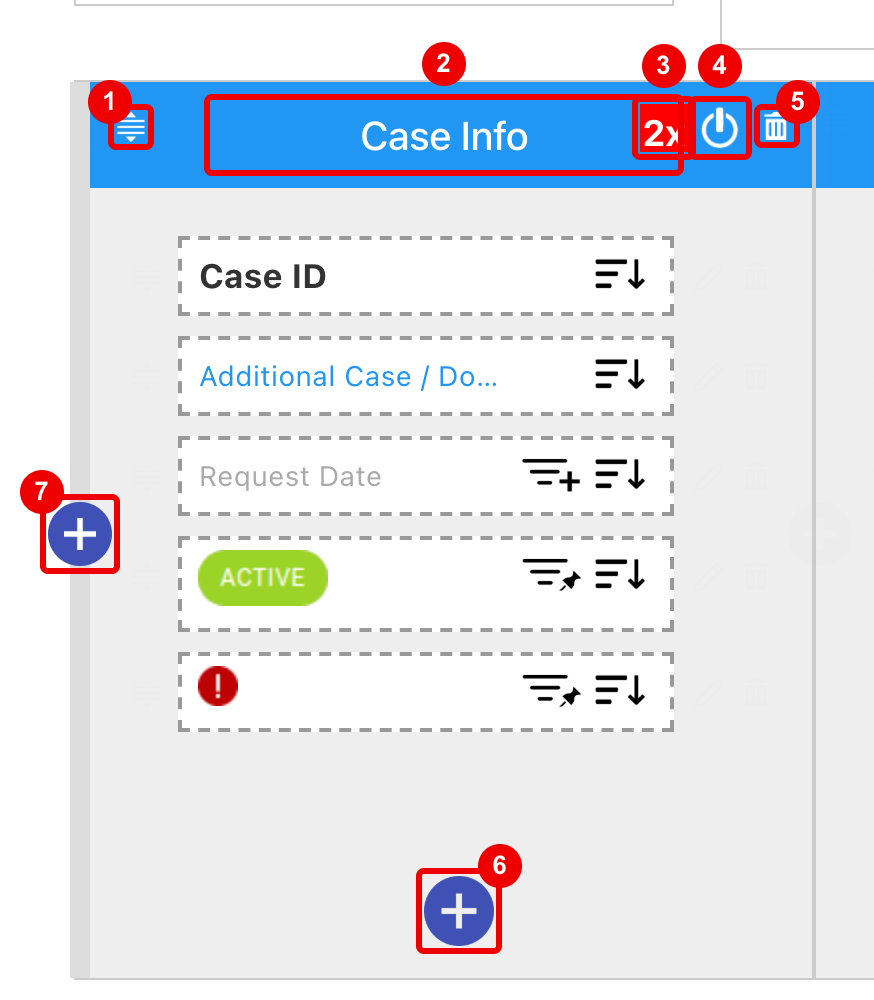
- Drag Column: move the column left or right.
- Edit Column Title: click the title to rename it.
- Change Column Width: click to step through the widths (1x to 5x).
- Show/Hide Column: hide the column without deleting it.
- Delete Column: asks first.
- Add Fields to this Column (see Add fields).
- Add New Column here.
Fields
Hover over a field to show its controls.
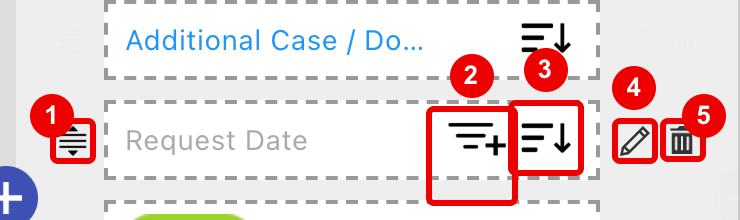
- Drag to reorder the fields in the column.
- Filter.
Click to step through the three settings:
- Pin: Show Filter Pinned to Top, under Pinned Filters.
- Plus: Show Filter, under More Filters.
- Grey: Hide Filter.
- Sort: black when users can sort by the field. Click to turn it on or off.
- Customize Field: opens the field sidebar.
- Remove Field: asks first.
Not every field can be sorted or filtered.
Field sidebar
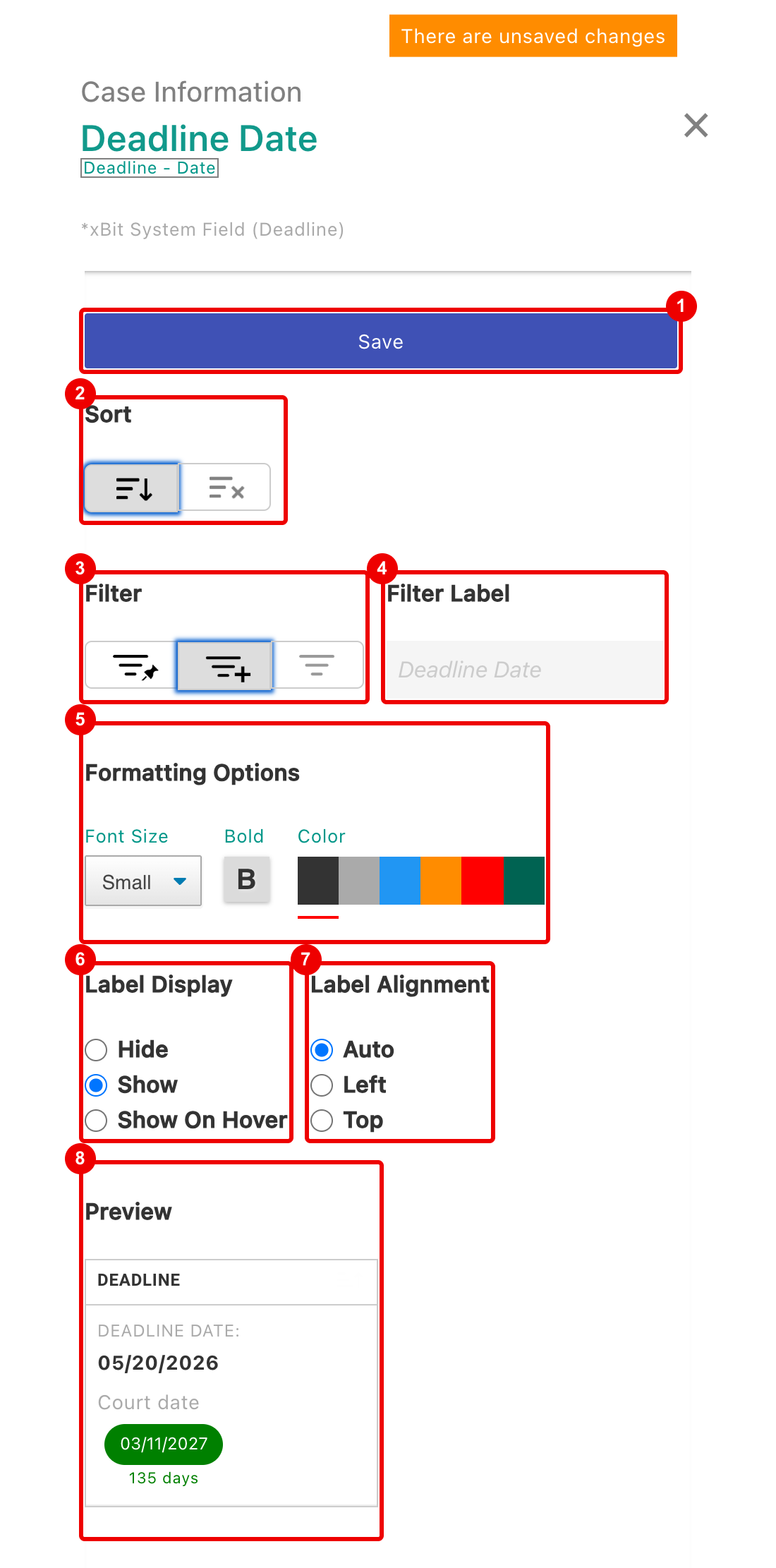
- Save: shown once you change something, with There are unsaved changes. Closing without saving asks whether to Discard changes.
- Sort: on or off.
- Filter: pinned, shown under More Filters, or hidden.
- Filter Label: the filter's name in the filter panel.
- Formatting Options: Font Size, Bold and Color.
- Label Display: Hide, Show or Show On Hover.
- Label Alignment: Auto, Left or Top. Available once Label Display is Show or Show On Hover.
- Preview: the column as it will look.
A ? next to a section means it isn't available for this field.
Add fields
Add Fields to this Column opens Add Item to the column; Add Columns opens the same list but adds one column per item.
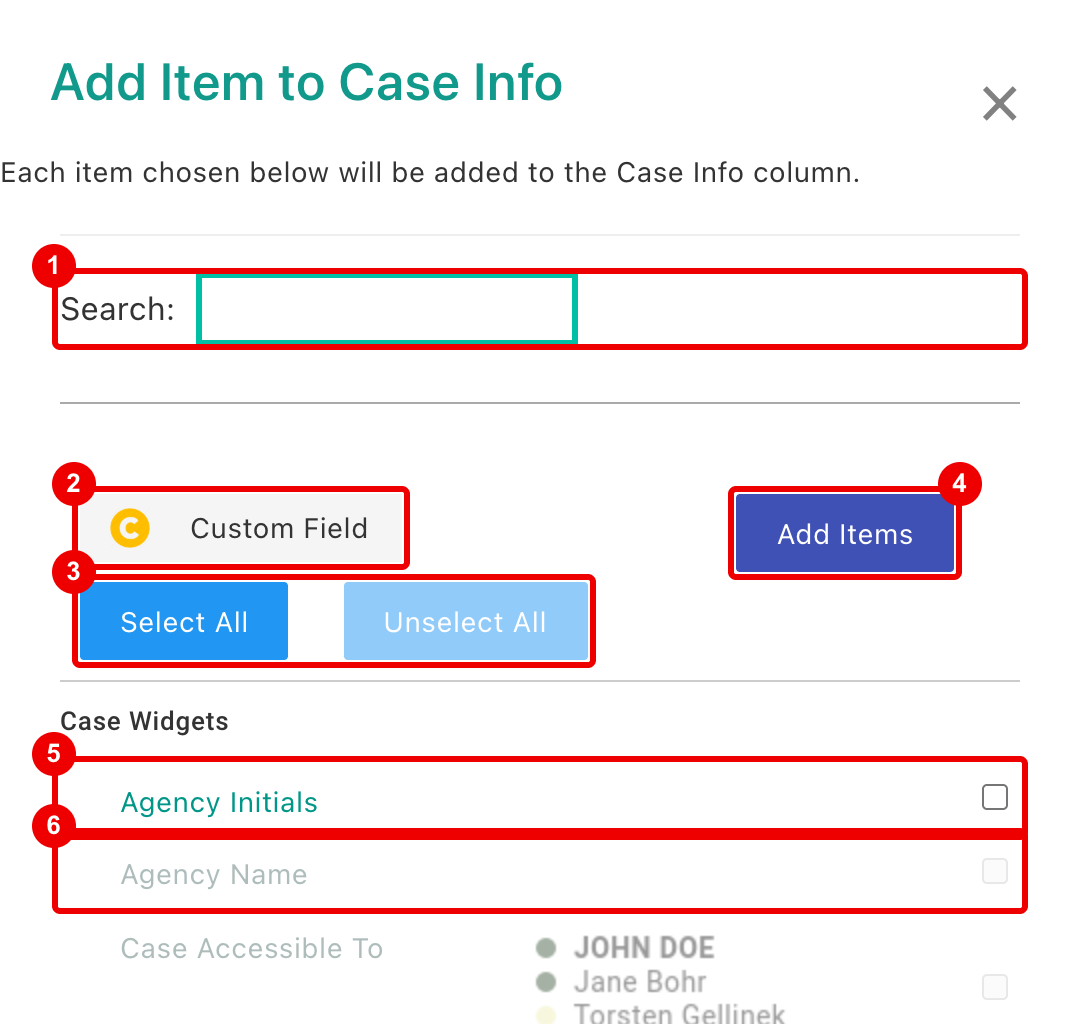
- Search: narrow the list.
- Custom Field: the key for fields your agency added in Form Builder.
- Select All and Unselect All.
- Add Items: adds the checked items.
- Check each item to add.
- Greyed out: already in the view.
The list has xBit widgets (such as Case Accessible To or Case Image Gallery) and the fields of each form section.
Badges
Dropdown and Single Choice fields show their selected option as a colored badge. To set it up, edit the field in Form Builder and turn on Display as Badge.
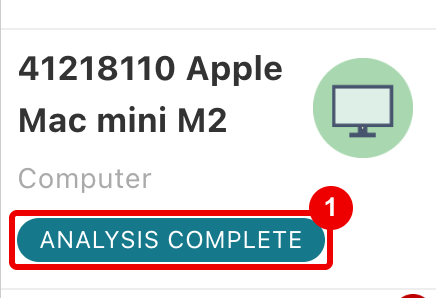
- An Evidence Status badge in Evidence Manager.
Use a view
Views are listed under Cases or Evidence in the menu, and in the View list above the table.
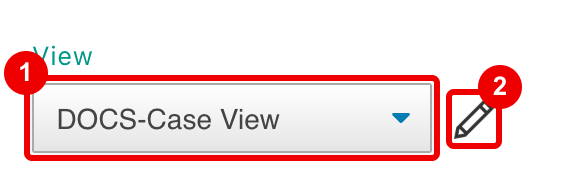
- View: switch to another view of the same type.
- Edit this View: opens it in Table View Builder (Admins only).
For searching a view, see Table View search.
Filters
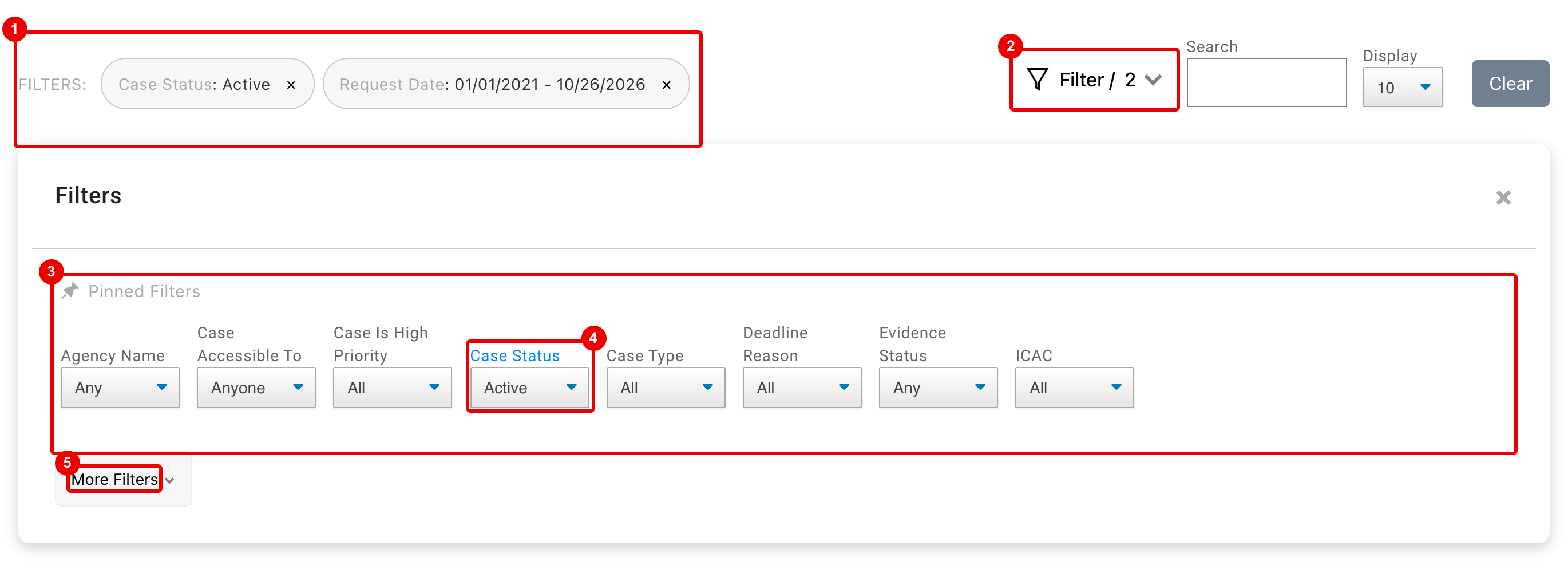
- The filters in use. Click x on one to remove it.
- Filter: opens and closes the panel; the number counts the filters in use.
- Pinned Filters: the fields set to Show Filter Pinned to Top.
- A filter in use is blue.
- More Filters: the fields set to Show Filter.
Clear puts back the view's default filters (see Clear).
Sort
Hover over a column heading to see what it can sort by.
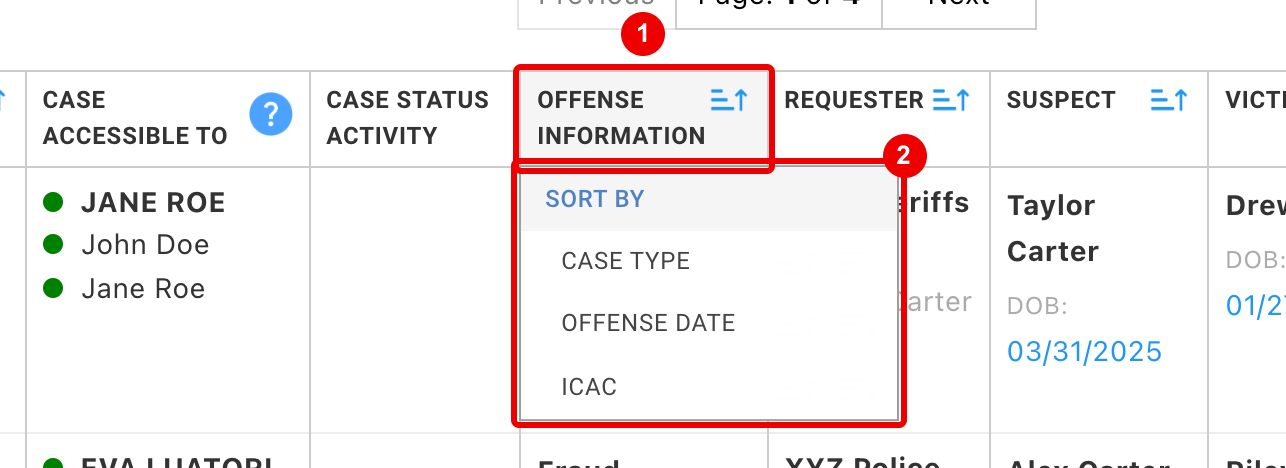
- Column heading: the sort icon shows the column can be sorted.
- Sort By: hover over a field and click the up arrow (Sort Ascending) or down arrow (Sort Descending).
System views
| View | Type | Shows |
|---|---|---|
| Case Manager | Case | The default case list. |
| Case Image View | Case | Cases with the Case Image Gallery widget. |
| Evidence Manager | Evidence | The default evidence list. |
| Evidence Image View | Evidence | Evidence with the Evidence Image Gallery widget. |
| Forensic Software View | Evidence | Evidence with the Forensic Tools widget. |
With Evidence Reviews on, Review Manager and Reviews Assigned to Me are listed too. For the image views, see Image Gallery.
If a system view was deleted, the Table View Builder list shows Restore. Case Manager and Evidence Manager can't be restored; use Load Default Configuration in a new view instead.
Forensic Software View
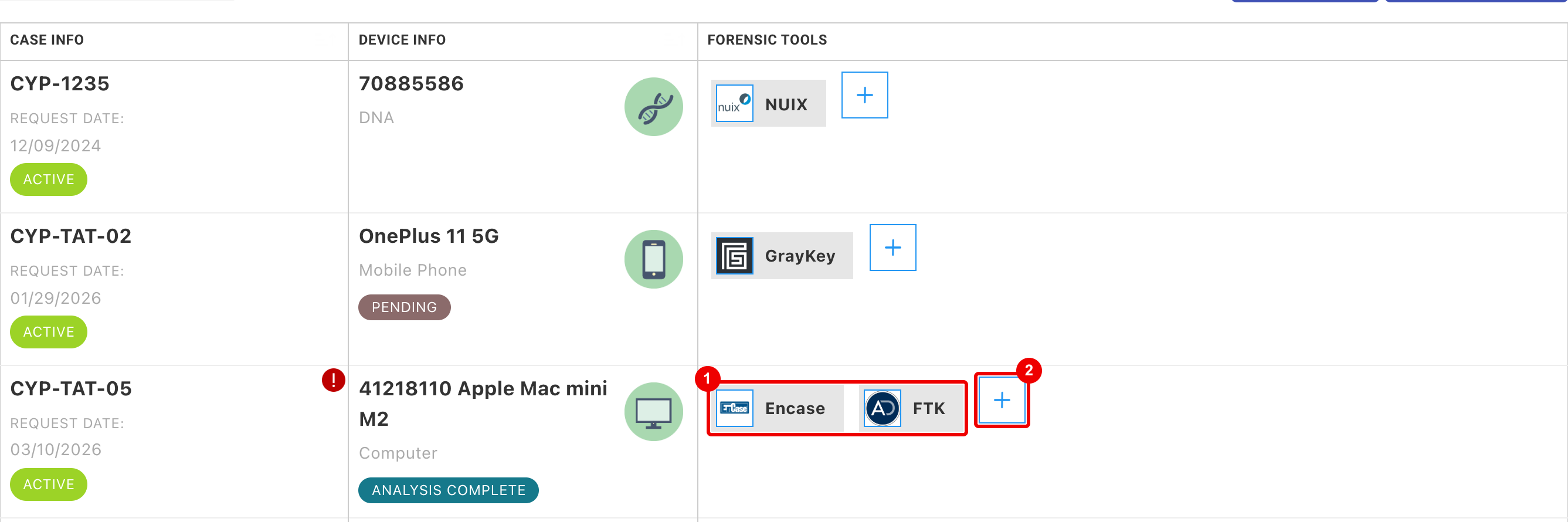
- The tools used on the item. Hover for the tool name and version, if one was recorded; click to open the evidence's Forensic Tools tab.
- Add New Forensic Tool: opens the same tab to add a tool.