Search
Search in the Case Manager and Evidence Manager matches both free text and values in option-based fields. As you type, xBit suggests matching values from every option field and highlights the matching characters.
Continue typing to narrow the suggestions, or include a field name to search only that field. Select a suggestion to apply it as a filter without leaving the search box.
Search text and active filters work together. Results must match the search text and every active filter. The search text can match any searchable field.
Search across option fields
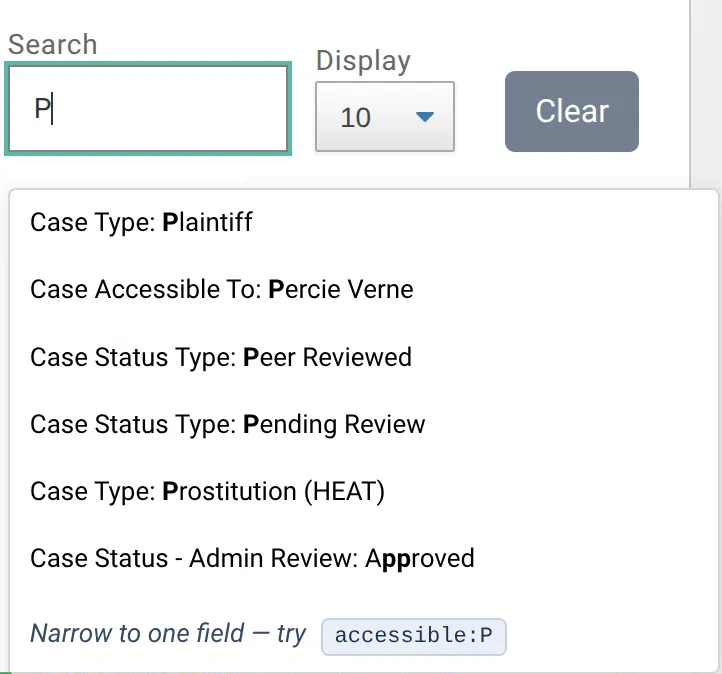
Enter part of a value to see matches from every option-based field.
For example, entering P returns suggestions containing that letter across all option fields.
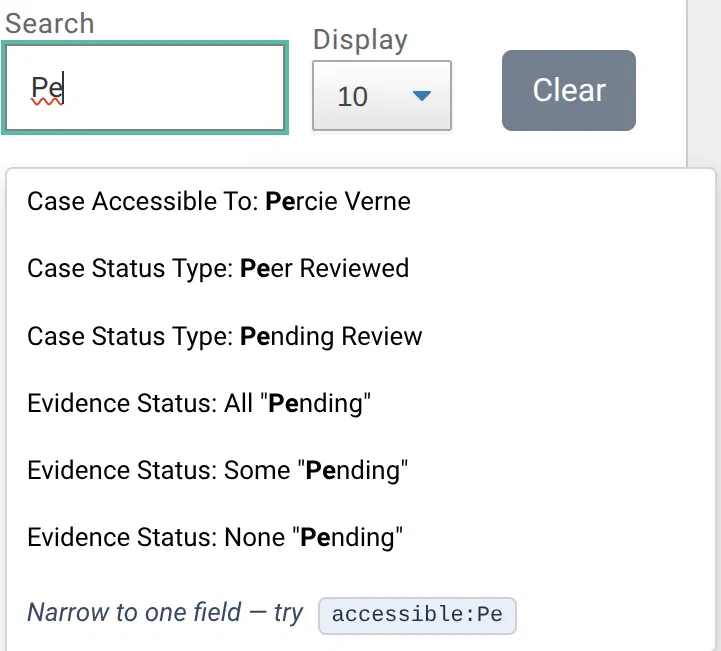
Entering Pe narrows the suggestions and includes matching evidence statuses.
Search a specific field
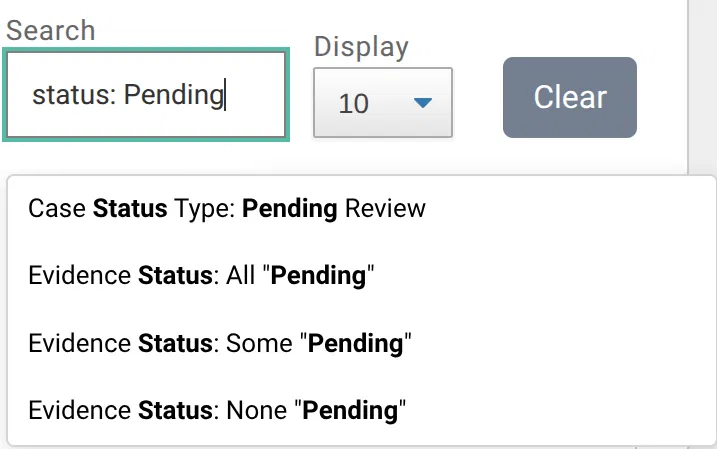
Add a field name followed by a colon to limit the search to matching fields. For example, status: Pending returns suggestions from status fields.
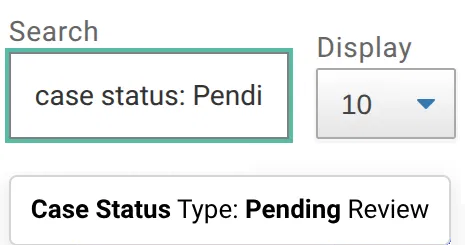
Use the full field name to narrow the results further. For example, case status: Pending returns the matching Case Status suggestion.
The field: value format only narrows the suggestion list. To apply the suggested filter, select it with the mouse or keyboard. Pressing Enter without highlighting a suggestion performs a normal text search for the complete phrase, including the colon.
Work with suggestions
Suggestions are case-insensitive and match text contained anywhere in the field or option name. Up to six matching options appear at a time.
Suggestions are available for select-style filters in the current view, including radio buttons, dropdowns, lists, and multiple-choice fields. Date controls, checkboxes, free-text filters, and empty Any or All options are not suggested.
When many fields match, xBit may display a Narrow to one field hint. Select the hint to rewrite the search with a field name, then continue typing to narrow the results.
An applied option is marked with an ❌. Select it again to remove that filter. Selecting a different option for the same single-select filter replaces the previous option. Filters from different fields can be active together and are combined using AND.
Keyboard controls
- Press the Down Arrow or Up Arrow to move through the suggestions.
- After navigating to a suggestion, press Enter to apply it.
- When a suggestion has focus, press Enter or Space to apply it.
- Press Escape in the search box to close the suggestions. If the box contains text, this also clears the search and refreshes the results.
- Press Escape while a suggestion has focus to close the list and return to the search box without applying it.
- Press the Up Arrow from the first suggestion to return to the search box.
The search box accepts one literal phrase. Multiple words are not treated as separate search terms.
Search evidence status from the Case Manager
A case can contain multiple evidence items, so an evidence-status suggestion provides three matching options:
- All finds cases with at least one evidence item in the selected status and no evidence items in a different status. Evidence without a status does not prevent a match.
- Some finds cases where at least one evidence item has the selected status. Other evidence items may have different statuses.
- None finds cases where no evidence items have the selected status.
For example, Evidence Status: None "Pending" finds cases where none of the evidence is pending. This provides a quick way to identify cases that are clear of a status without opening each case.
A case with no evidence matches None, but does not match All or Some. Selecting another Evidence Status option replaces the previously selected Evidence Status option.
Searching for an evidence-status label as ordinary text works like Some: it finds cases containing at least one evidence item with a matching status. Use a suggestion when you need All or None.
Searchable fields
Case Manager
Case Manager search includes:
- Case ID and custom Case ID
- Agency initials and agency name
- Case type
- Evidence IDs and evidence display names belonging to the case
- Standard and custom case fields containing text
- Displayed values from radio buttons, dropdowns, lists, and multiple-choice fields
- Evidence Status labels
An administrator can disable searching multiple-choice case fields with the Exclude multiple choice search in Table Views performance setting.
Evidence Manager
Evidence Manager search includes:
- Internal evidence record ID, Case ID, and Evidence ID
- Custom Case ID
- Evidence type and evidence display name
- Agency initials and agency name
- Case type
- Assigned users by email, username, first name, or last name
- Current custody location
- Standard and custom evidence-field and evidence-attribute values
Signature and pattern fields are not searched. Option-based fields in the current table view are searchable by their displayed labels.
Clear search and filters
Select Clear to restore the current view's configured defaults. This resets the search text, filters, page number, sorting, and display limit.
Defaults may still include filters. For example, the standard Evidence Manager returns Evidence Completion Status to Active. When Evidence Manager is opened for a specific case, Clear keeps the case restriction. It does not switch to another table view.