Request Submission Manager
Outside agencies send lab requests through the Lab Submission Manager. Admins review them in the Lab Submission Request Manager and add them to the workflow as cases.
How requesters get in
The Lab Submission Manager button is on the xBit login page.
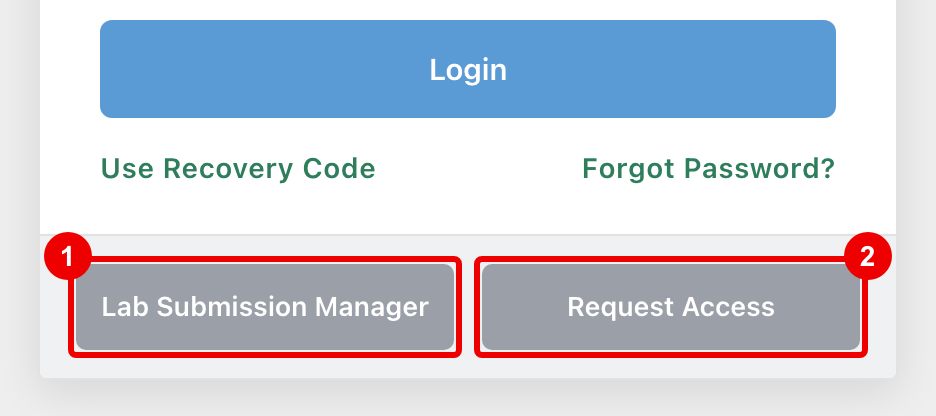
- Lab Submission Manager: opens the request form.
- Request Access: asks an admin for an external user account. Shown only when Allow External User Access Request is on.
How the button works depends on your settings:
| Setup | What the requester does |
|---|---|
| Email (SMTP) on and Allow External User Login on | Enters their Authorized Email Address, then the one-time code xBit emails them. |
| Active Directory, LDAP or Microsoft Entra on | Signs in with their directory account. |
| Neither | Fills in the request without signing in: Lab Submission Request Form Step 1, then Lab Submission Request Form Step 2 for evidence. |
- Allow External User Login and Allow External User Access Request are under
Admin>About / Settings. Both need email (SMTP) set up first. - Approve new requesters and manage their accounts in External Users.
- Each emailed code works once, and requesting a new code cancels the old one. Too many attempts send the requester back to the start. Set the limits in the email (SMTP) settings with External User Max Code-Send Attempts Before Restart and External User Max Code-Verify Attempts Before Restart.
Submit a request (requester)
Signed-in requesters see Lab Submission Requests, a list of their own requests.
- Click New Request, fill in the Lab Submission Request Form, and click Save. The request is saved as a draft.
- Add evidence to the draft.
- Click Submit Request.
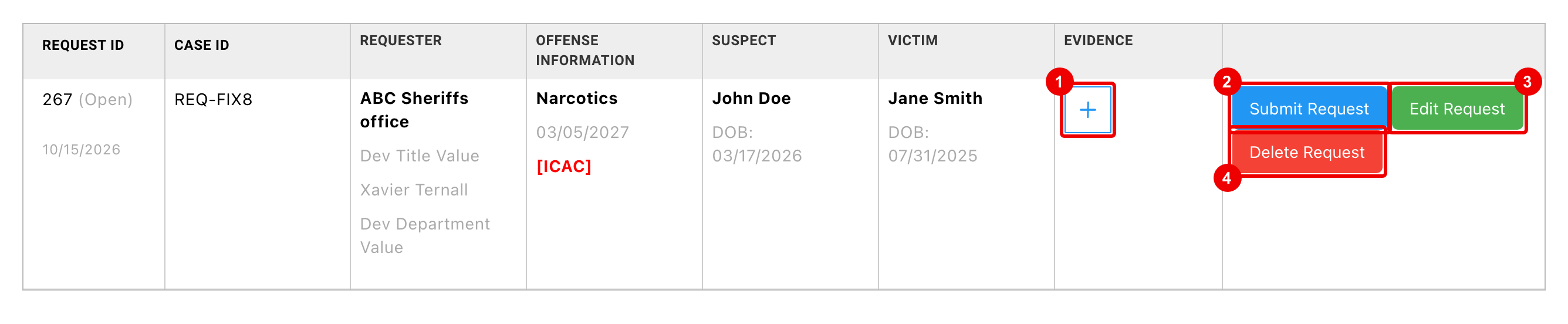
- Add evidence. Each item has its own Upload Files and Chain of Custody sections.
- Submit Request: sends the request to the lab.
- Edit Request: change the request details.
- Delete Request: remove the draft.
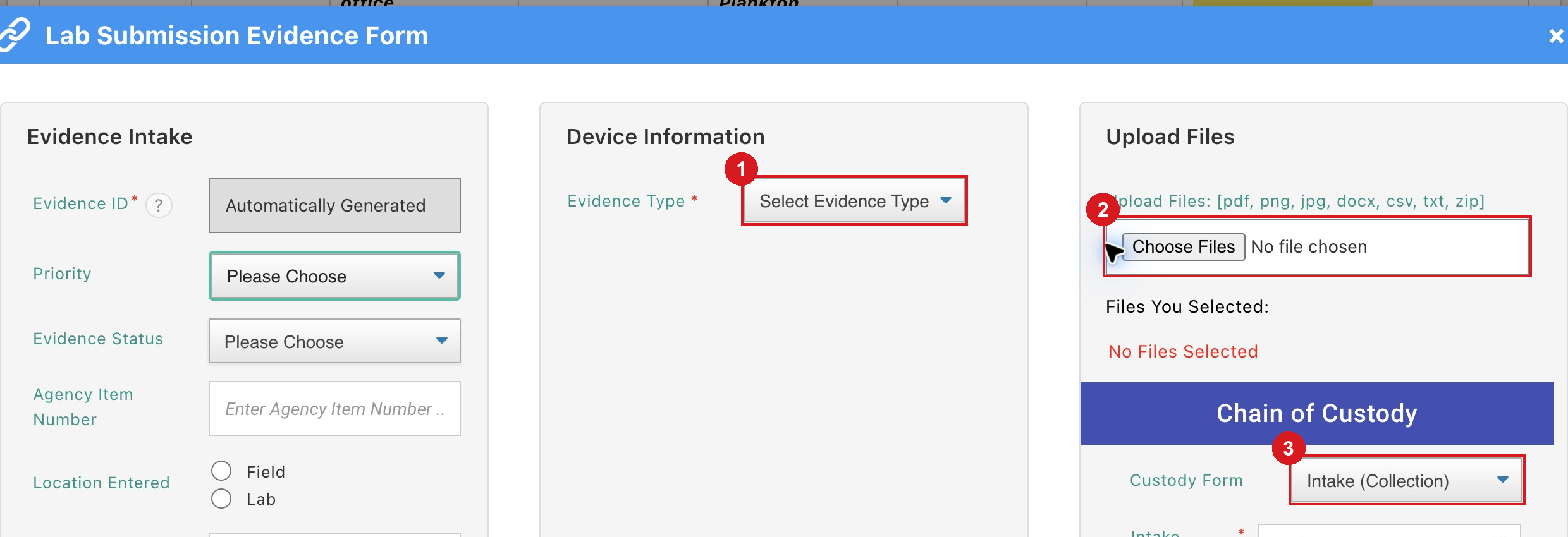
- Choose Evidence Type to load the device fields.
- Upload Files attaches files to this evidence item.
- Choose Custody Form when recording custody information.
After submitting, the request shows Pending Approval and can't be changed.
- Generate Receipt: a receipt for the request.
- Cancel Request: withdraw a request that is still open.
Review requests (admin)
Go to Requests. Only Admins can open it.
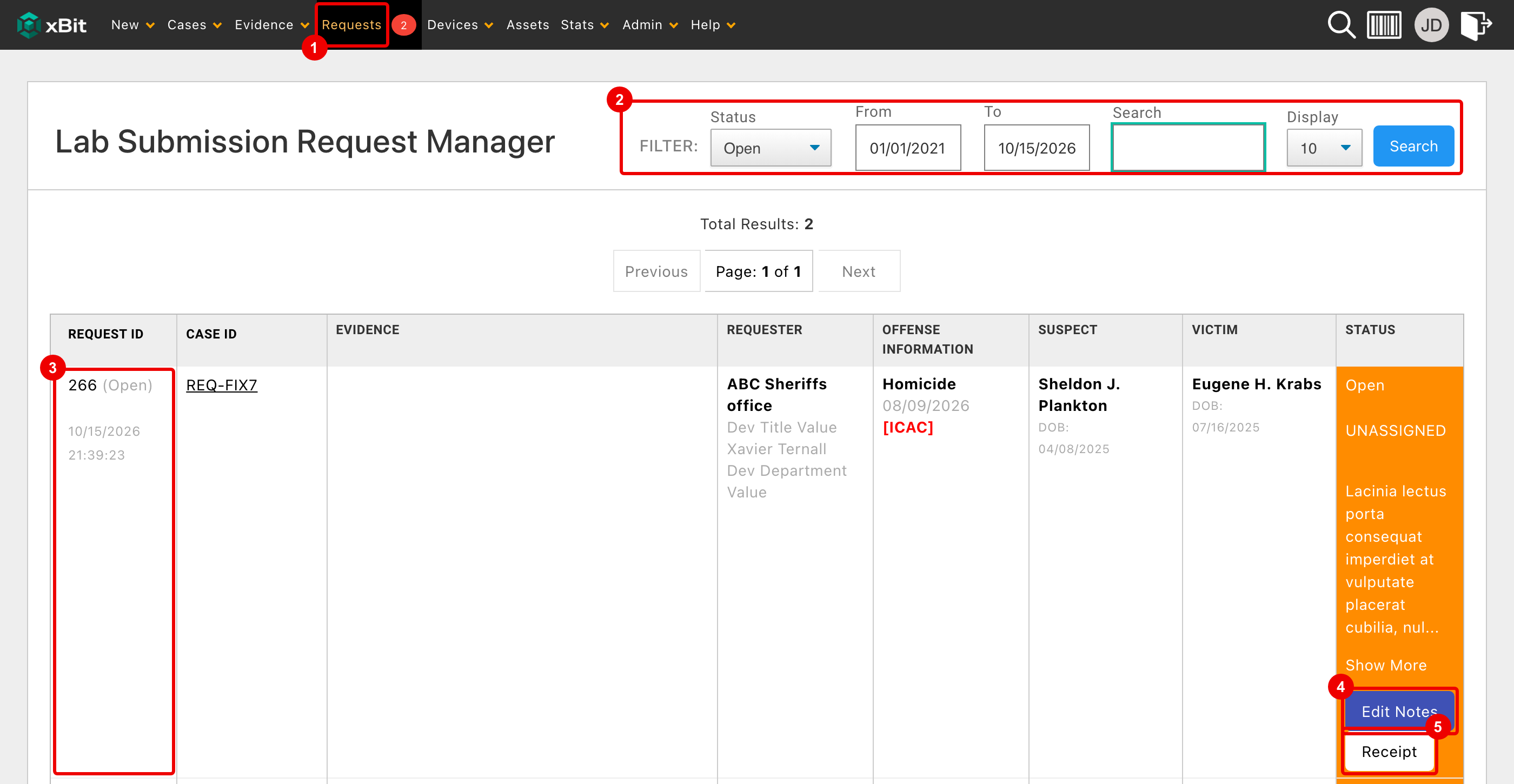
- Requests: the red badge counts submitted requests waiting to be assigned.
- Filter by Status (Open, Closed, Denied, Cancelled, Draft or All), date range and text. Display sets how many rows to show.
- Click a request to open it.
- Edit Notes: notes on the request.
- Receipt: the request's receipt.
The columns show the fields marked In Request Submission Form in Form Builder, grouped by form.
Add to the workflow or deny
Open a request to act on it.
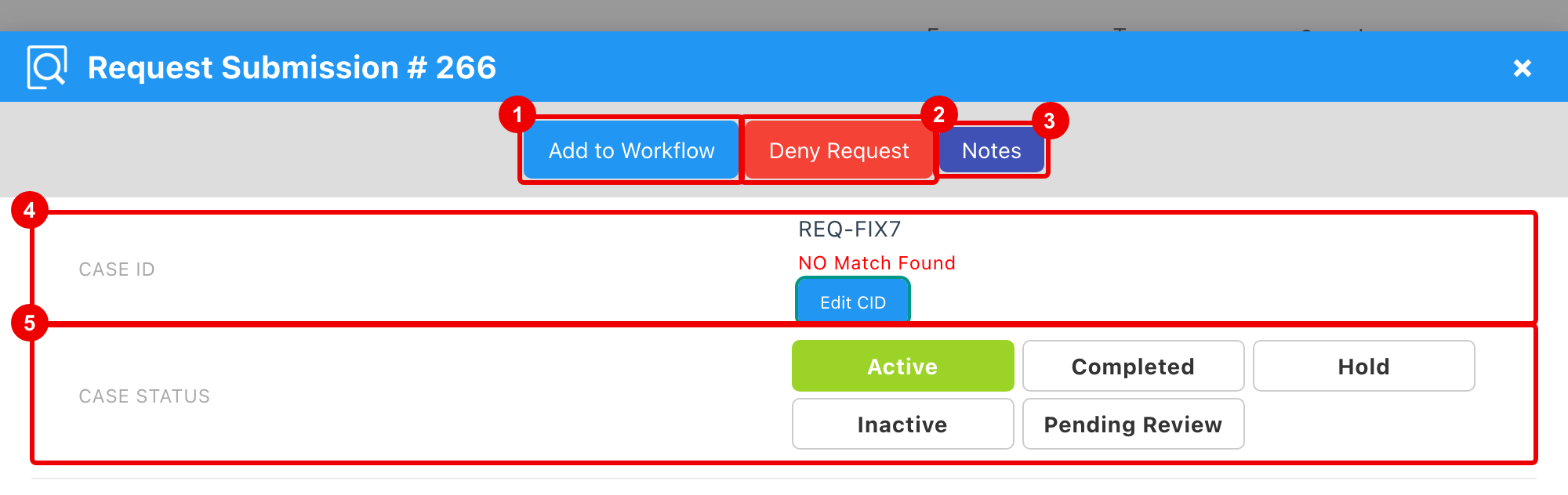
- Add to Workflow: accepts the request.
- If the Case ID matches an existing case, the request's evidence is added to that case.
- If not, xBit creates a new case from the request. The case keeps the request's Request Date, not the date you accepted it.
- Deny Request: you must give a reason. The requester sees it under Case Denied.
- Notes: notes on the request.
- Case ID: shows Match Found or NO Match Found for the ID the requester gave. Click Edit CID to change it, or Use Auto CID to generate one when Auto CID is on.
-
Case Status: the status the case gets. xBit preselects one from your case status rules.
-
Add to Workflow is disabled until the request has a Case ID, unless Auto CID is on.
- Added requests move to Closed, and denied ones to Denied.
Settings
| Setting | Where | What it does |
|---|---|---|
| Allow External User Login | Admin > About / Settings |
Lets registered external users sign in to Lab Submission. |
| Allow External User Access Request | Admin > About / Settings |
Shows Request Access on the login page. |
| Chain of Custody | Admin > About / Settings |
Fully Enabled adds custody entries to the request form. Enabled but missing in Request Manager leaves them out. |
| Lab submission upload memory limit, Lab submission upload time limit | Admin > About / Settings |
Limits for request uploads only, such as 512M and 300 seconds. Leave empty to use the installation's limits; -1 removes the limit. |
| File Upload Maximum size | Admin > About / Settings |
Total size of the files sent with one form. Contact support to change it. |
| Notify on Submitted Request from External Users | Email (SMTP) settings | Emails admins when a request is submitted. |
| In Request Submission Form | Form Builder | Puts a field on the request form. |
| Receipt layout | Admin > Report Builder > Lab Submission Receipt |
The content of the receipt. |