Chain of Custody
Chain of custody records every hand-off of an evidence item: who released it, who received it, when, where it went and why. Each entry is signed on screen and kept on the item's Chain of Custody tab.
There are three kinds of entry, each with its own form:
| Form | Use it for |
|---|---|
| Intake (Collection) | The first entry, when the item comes into custody |
| Exchange (Transfer) | Every hand-off or move after that |
| Final Disposal Authority | Destruction, return, archiving or other disposal |
Admins choose each form's fields in the Form Builder.
Turn it on
Admins turn on Chain of Custody in Admin > About / Settings > General.
Two settings next to it control how strict it is:
- Require Chain of Custody at Evidence Creation: new evidence must have a custody entry.
- Allow Edit and Delete Chain of Custody: lets users correct or remove entries. It can't be on while Conform to ANAB 17025:2017 is on.
In the Form Builder, each evidence type has an Allow Custody Entries switch. Items of a type with it off get no custody entries. A custody form that is disabled in the Form Builder isn't offered anywhere.
Who can do what
| Who | Can |
|---|---|
| Admin, Examiner, Analyst with write access to the case | Add entries; edit them while Allow Edit and Delete Chain of Custody is on |
| Admin | Also delete entries (same setting) |
| Viewers and read-only users | View entries and print reports |
Nobody can add or edit entries while the evidence is locked or under review, or the case is in Pending Review and read-only. Trying shows Cannot perform adding. with these reasons.
Record intake on new evidence
When custody is on, the New Evidence form has a Chain of Custody section.
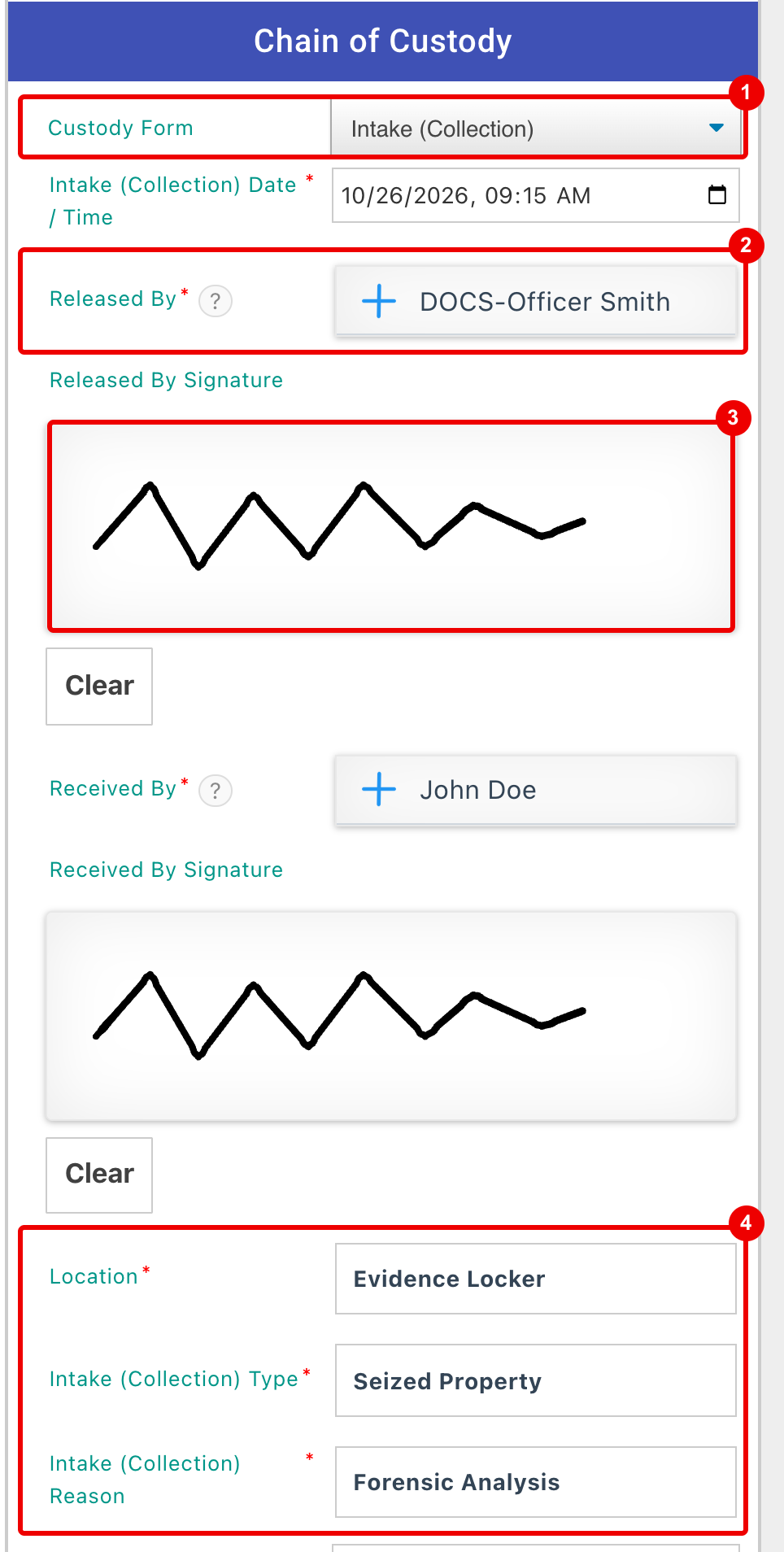
- Custody Form: Intake (Collection) is preselected. Choose No Custody Entry Yet to add custody later; that option is missing when custody is required at creation.
- People fields, such as Released By and Received By: pick an xBit user, or type any other name and press Enter (Type to Filter List or ADD a New Entry).
- Signature pad: sign with the mouse, a stylus or a finger. Clear starts again. Leaving it blank saves the entry unsigned.
- Location, Intake (Collection) Type and Intake (Collection) Reason: choose from lists your Admin manages in the List Manager.
Fields marked with a red asterisk are required. The entry is saved with the evidence when you click Save Evidence.
The Chain of Custody tab
Open an evidence item and click Chain of Custody in the left sidebar. Entries are listed in order of their date and time.
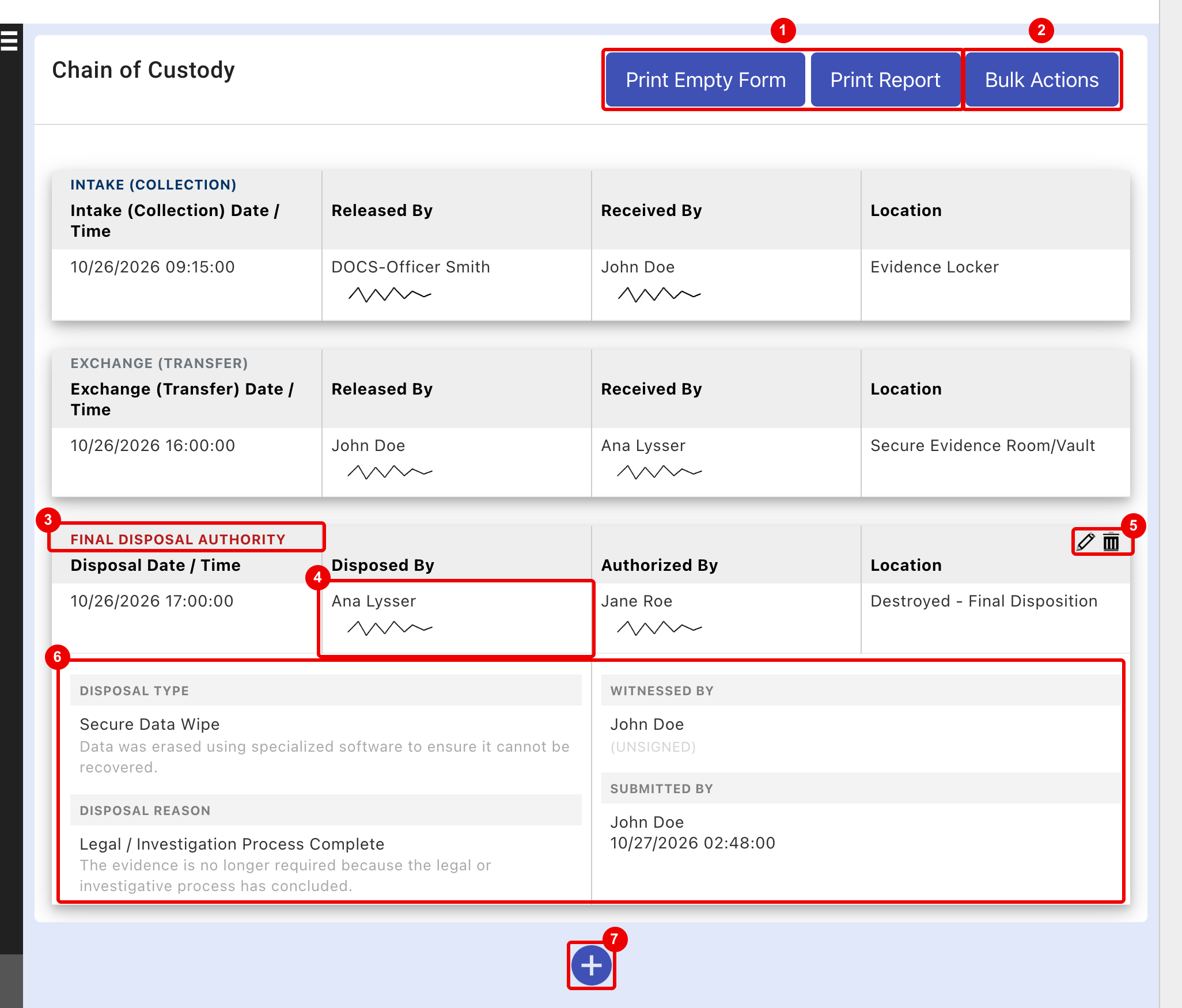
- Print Empty Form and Print Report (see Reports).
- Bulk Actions: add an entry to several items of the case at once (see Bulk entries).
- The entry's form.
- Each person is shown with their signature.
- Edit (pencil) and delete (bin): shown when you hover over an entry, if you're allowed (see Edit or delete an entry).
- Click an entry to show the rest of its fields, including Submitted by: who saved it and when. The arrows at the top of the list expand or collapse every entry.
- +: add an entry (see Add an entry).
The Location of the most recently added entry becomes the item's location. It shows in the evidence sidebar under LOCATION and in evidence lists.
Add an entry
- On the Chain of Custody tab, hover over + at the bottom of the list.
- Click the form you need.
- Fill in the form and click Submit Entry.
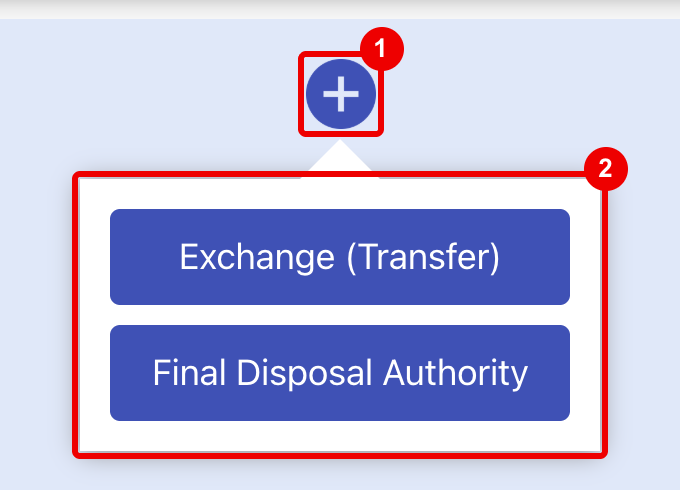
- +: when only one form is available, clicking it opens that form straight away.
- The forms you can add. Intake (Collection) is offered only while the item has no entries.
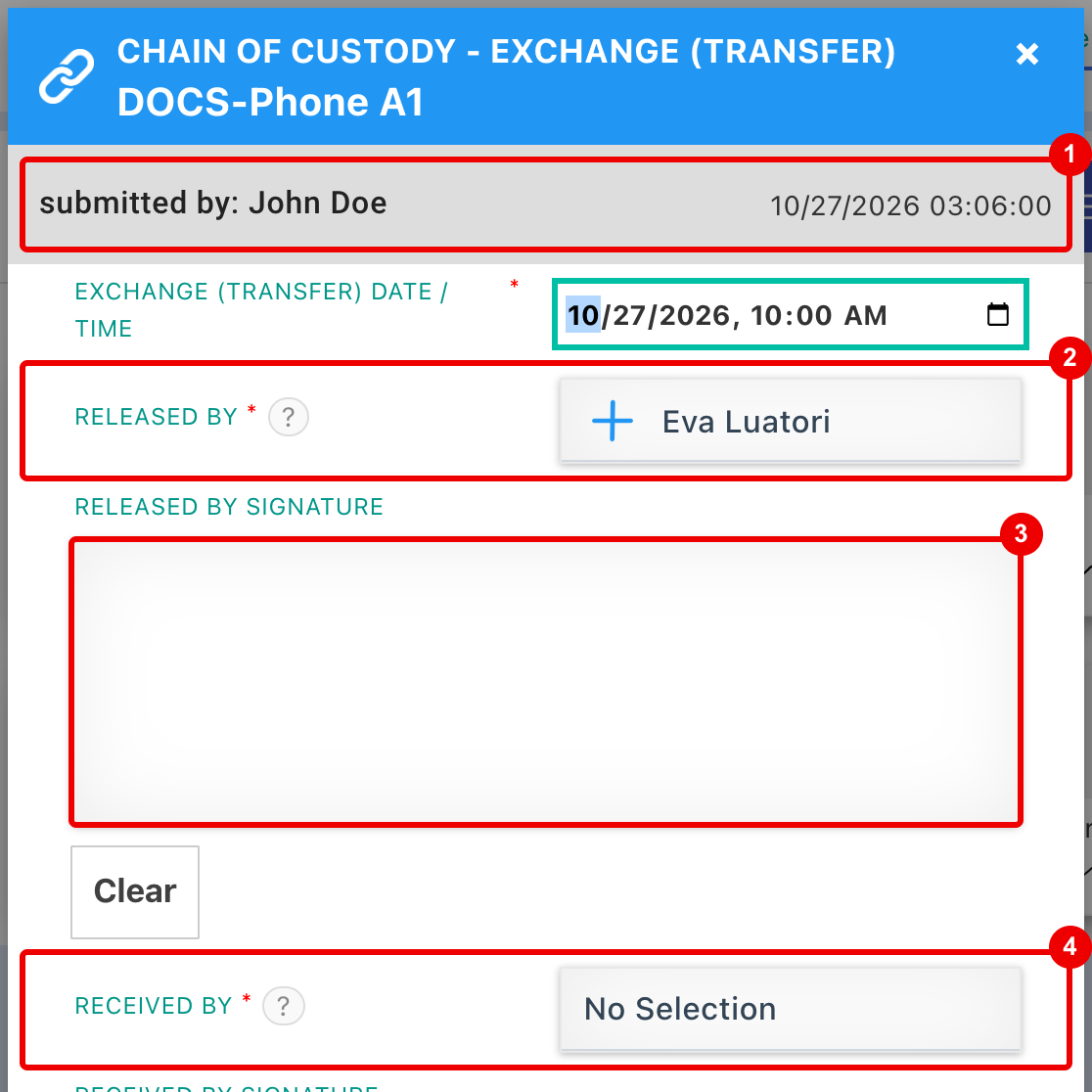
- submitted by: you, and the current date and time. Both are saved with the entry.
- Released By is filled in with the Received By person of the item's last entry. Change it if someone else handed the item over.
- Each person signs in their own signature pad.
- Received By: who now has the item.
The forms ask for:
| Form | Fields |
|---|---|
| Exchange (Transfer) | Date and time, Released By and Received By with signatures, Location, Exchange (Transfer) Type and Exchange (Transfer) Reason, Location Moved To, Tracking Details, Condition, Additional Info, Submission Date |
| Final Disposal Authority | Disposal Date / Time, Disposed By and Authorized By with signatures, Location, Disposal Type, Disposal Reason, Released to Lawful Owner, Property Owner Details, Additional Info, Witnessed By with signature, Submission Date |
These are the default fields; the Form Builder decides which appear and which are required. A disposal entry doesn't close the item: you can still add entries after it.
Closing a form you've started asks Closing with Unsaved Changes: choose Continue Editing or Close without saving.
Bulk entries
Add the same entry to several items in one go. xBit checks every item first and saves all the entries or none.
From the Chain of Custody tab:
- Hover over Bulk Actions and choose a form.
- Untick any items the entry doesn't apply to.
- Fill in the form and click Submit Entry. Released By isn't filled in for you in bulk.
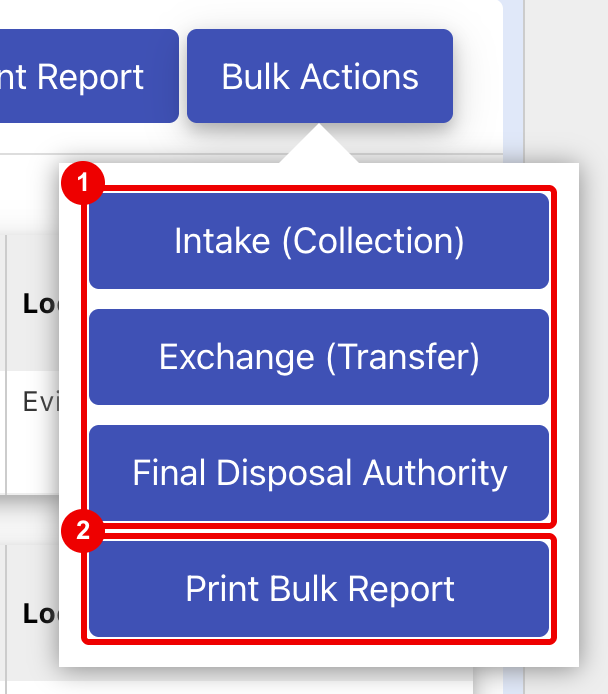
- One option per form. They act on the whole case, so Intake (Collection) is listed even when items already have an intake.
- Print Bulk Report (see Reports).
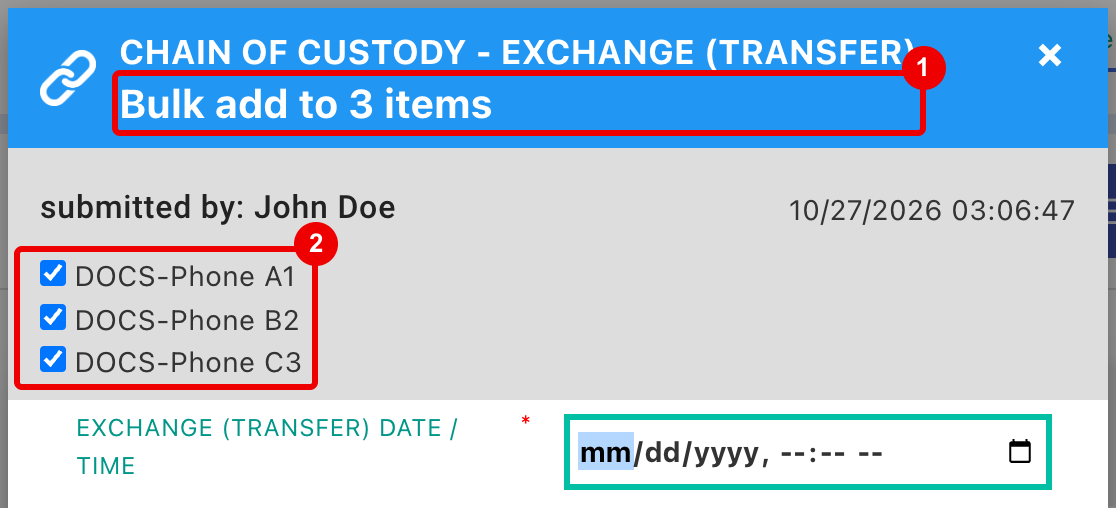
- Bulk add to 3 items: how many items the form covers.
- Every item in the case, ticked.
Evidence > Bulk Chain of Custody in the case menu opens the first item's tab with the bulk Intake (Collection) form for every item in the case.
From an evidence list
Evidence lists, such as the case's Case Evidence list or the Evidence Manager, have bulk custody actions for users with write access.
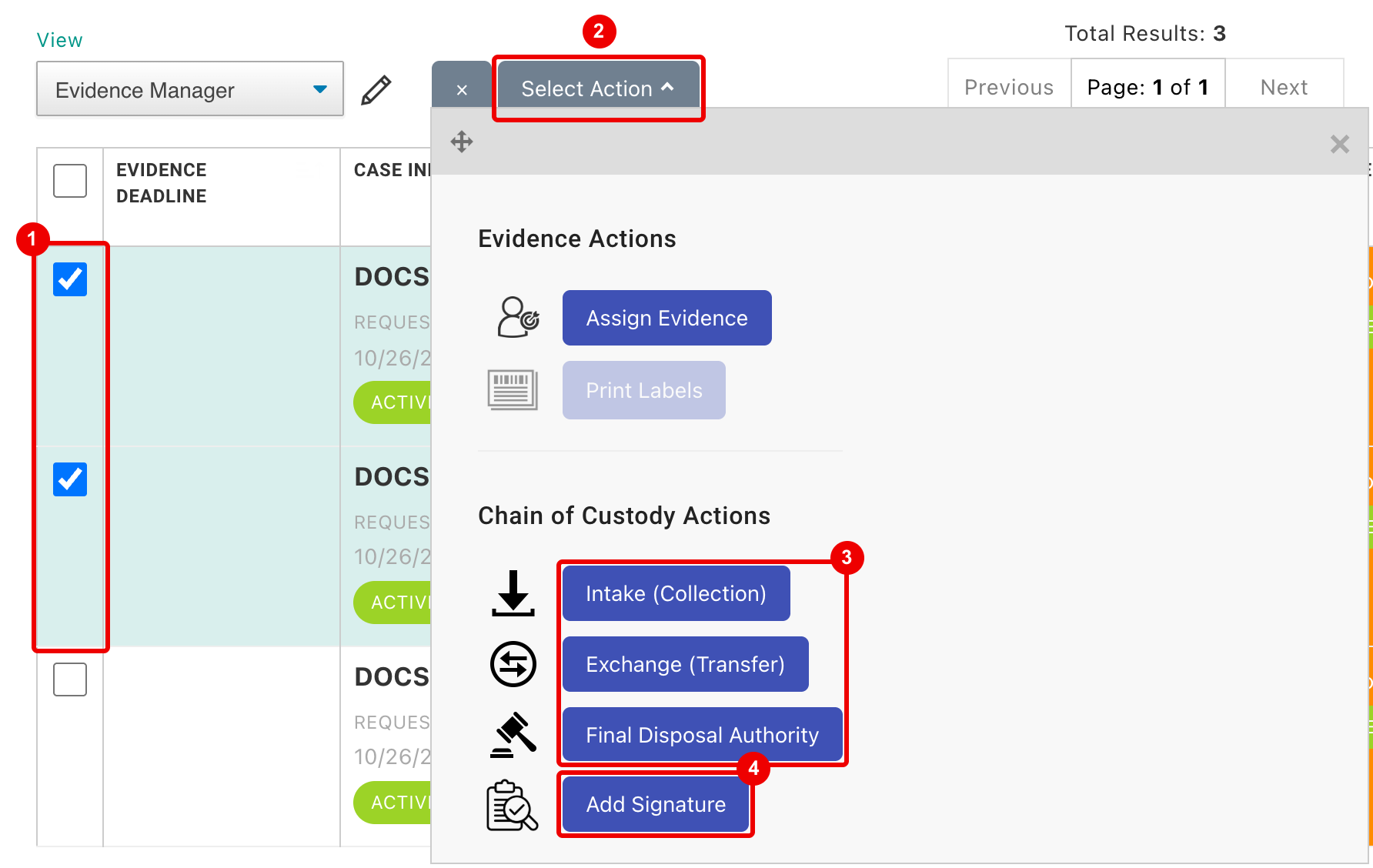
- Click Bulk Actions above the list, then tick the items.
- Click Select Action.
- Chain of Custody Actions: a button per form. Each turns on once xBit has checked you can add custody to every ticked item.
- Add Signature: adds signatures to the latest entry of each ticked item. The form shows only the signature pads.
Edit or delete an entry
Needs Allow Edit and Delete Chain of Custody, and Conform to ANAB 17025:2017 off.
- Edit: hover over the entry and click the pencil. The form opens with the saved values; change them and click Submit Entry.
- Delete (Admins): hover over the entry and click the bin, then confirm Are you sure? with Yes, delete it!. This can't be undone.
Adding, changing and deleting entries is recorded in the case audit.
Reports
| Button | What you get |
|---|---|
| Print Report | A Word file with the item's full custody history, signatures included, under the case number, evidence, case type, agency and barcode. |
| Print Empty Form | A blank Word Chain of Custody Entry Form for the item, to fill in by hand. |
| Print Bulk Report (in Bulk Actions) | A report for several items of the case, in Word or PDF. |
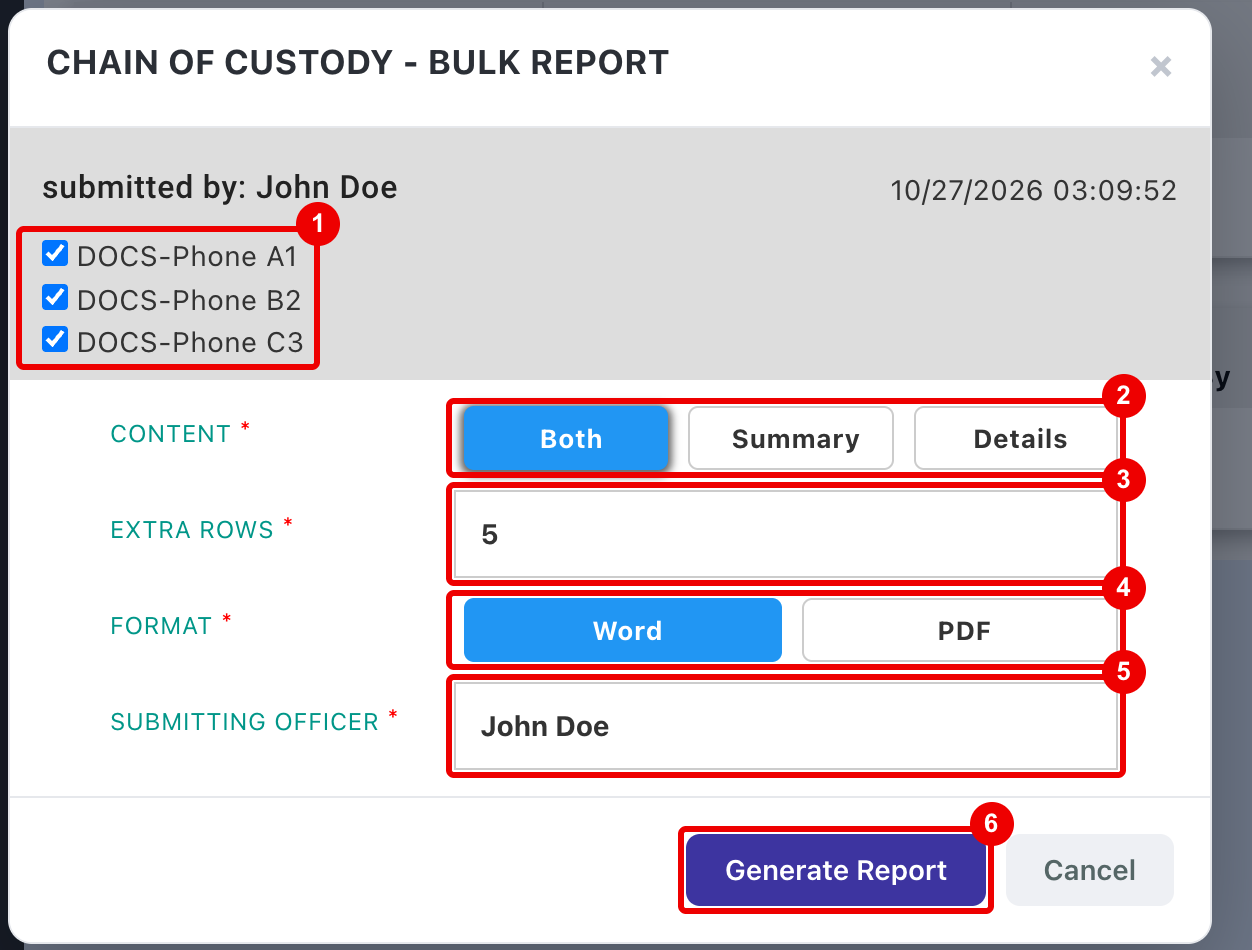
- The items to include.
- Content: Both, Summary (one table for all items) or Details (each item's full history).
- Extra Rows: blank rows added to the summary table.
- Format: Word or PDF.
- Submitting Officer: the name printed on the report.
- Generate Report downloads the file.
Extra Rows and Submitting Officer are hidden while Summary is selected. Case reports can include custody too; see Report Builder.
Related features
- Lab Submission: custody entered on a request becomes the item's intake when the request is added to the workflow, marked EXTERNAL REQUEST - SUBMITTED BY. See Request Submission Manager.
- Barcodes: there's no custody scan mode. Scan the item's barcode to open it, then add the entry. The custody report prints the item's barcode.
- Labels: print evidence labels with the Label Builder.
- Table views: a view's Open Action can be Open Chain of Custody Tab. See Table View Builder.
- API: read the custody forms through the API.
- Video: Chain of Custody 2.0.