Setup Page
A new xBit system opens the Setup page until its first agency and admin exist.
You need your license file, License.teelkey. If you can't find it, download it from the Customer Portal or contact Teel Tech.
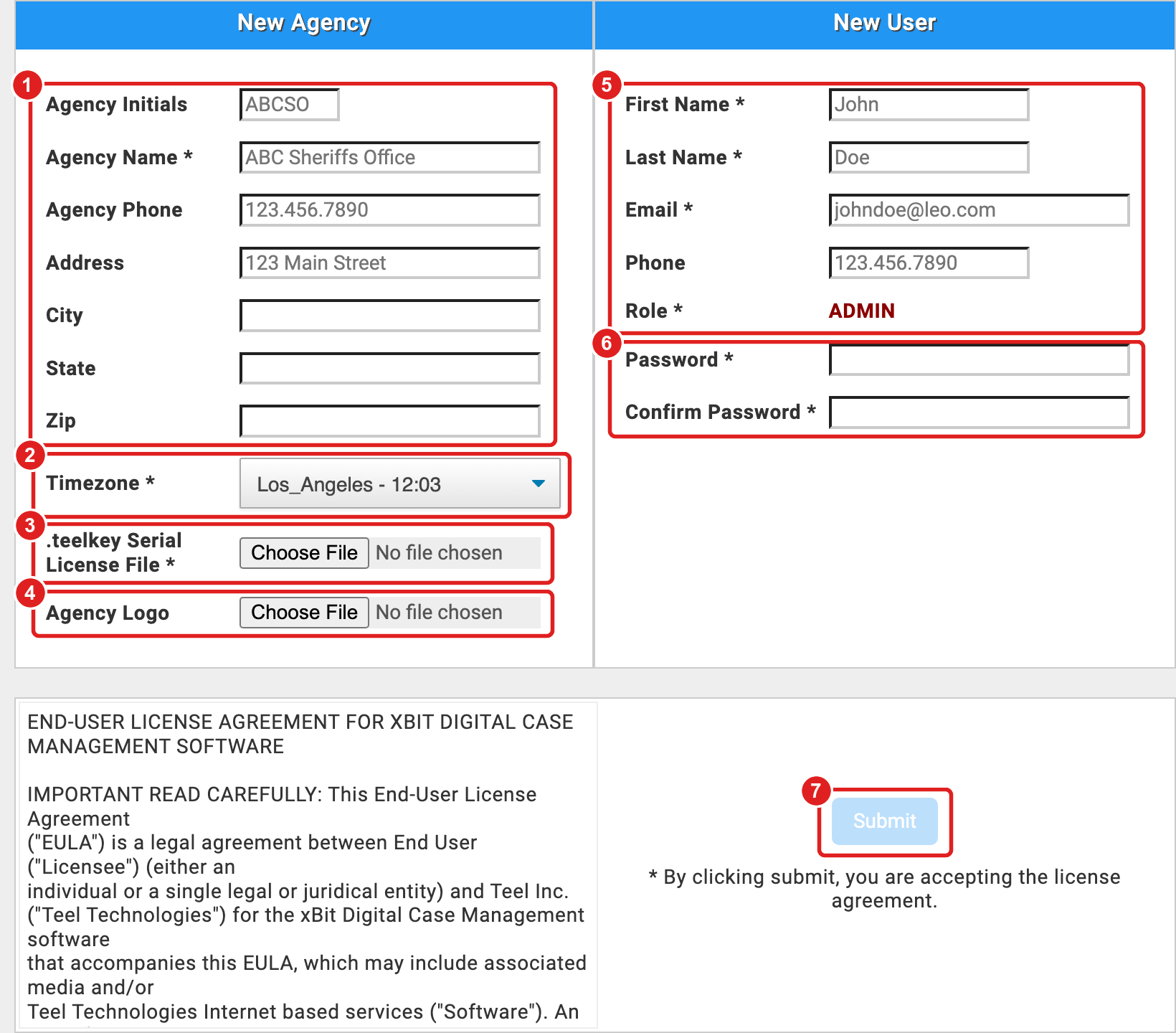
- New Agency: your agency's details. Only Agency Name is required. Leave Agency Initials empty to use the first letter of each word of the name.
- Timezone: starts as your browser's time zone. Type a city name to jump to it.
- .teelkey Serial License File: click Choose File and select
License.teelkey. xBit checks it straight away and shows Invalid or expired license... if it can't be used. - Agency Logo (optional): a JPEG or PNG.
- New User: the first admin. Their Email is also their username.
- Password and Confirm Password. See the rules below.
- Submit: available once every required field is valid. Clicking it accepts the license agreement shown beside it.
xBit then opens the login page. Sign in with the email and password you just entered.
Password rules
- 8 to 35 characters.
- At least one lowercase letter, one uppercase letter, one number and one special character, such as
! @ # $ % & * ?. - If xBit shows Invalid Password!, hover over the ? next to it for the full list of special characters.
Write the password down somewhere safe. If you're the only admin and email isn't set up yet, nobody can reset it.
Next steps
- Set up email and a second admin. See Important Settings.
- Renew or replace your license under
Admin>About / Settings>License Info. See License Info.