Memos
Memos are the case notes in xBit: what was done, when, by whom and for how long. A memo belongs to a case and can point to one evidence item, its Reference Exhibit.
- Case memo: Reference Exhibit is Case Memo.
- Evidence memo: tied to one evidence item, and also listed on that item.
The Hour(s) Worked and Entry Date of every memo feed the Hours Report.
Who can do what
| Who | Can |
|---|---|
| Admin | Add memos; edit and delete any memo |
| Examiner, Analyst with write access to the case | Add memos; edit and delete their own |
| Examiner, with Allow Examiners to Edit Each Other's Memos on | Also edit other users' memos, but not delete them |
| Viewers and read-only users | View memos and print memo reports |
Nobody can add, edit or delete memos while the case is read-only or pending review. An evidence memo also needs the item to be editable: not locked and not under review. With Conform to ANAB 17025:2017 on, nobody can edit or delete memos, Admins included.
Related settings
Admins set these in Admin > About / Settings > General.
| Setting | Effect |
|---|---|
| Memo Signature | Required (default), Optional or Disabled: whether the new memo form asks for a signature. |
| Allow Examiners to Edit Each Other's Memos | See the table above and Memo editing. |
| Conform to ANAB 17025:2017 | Memos can't be edited or deleted. See ANAB 17025:2017. |
The Memo Type choices come from the Memo Type list in the List Manager.
Add a memo
Start from any of these:
- The case menu:
New>Memo, or + on the case's Memos page. - New Memo in the Memos section of the case dashboard's right sidebar.
- + in an evidence item's Memos panel (Dashboard tab), or New Memo while it has none; the item is preselected.
- The top menu:
New>Memo. The form then also asks for the Case ID.
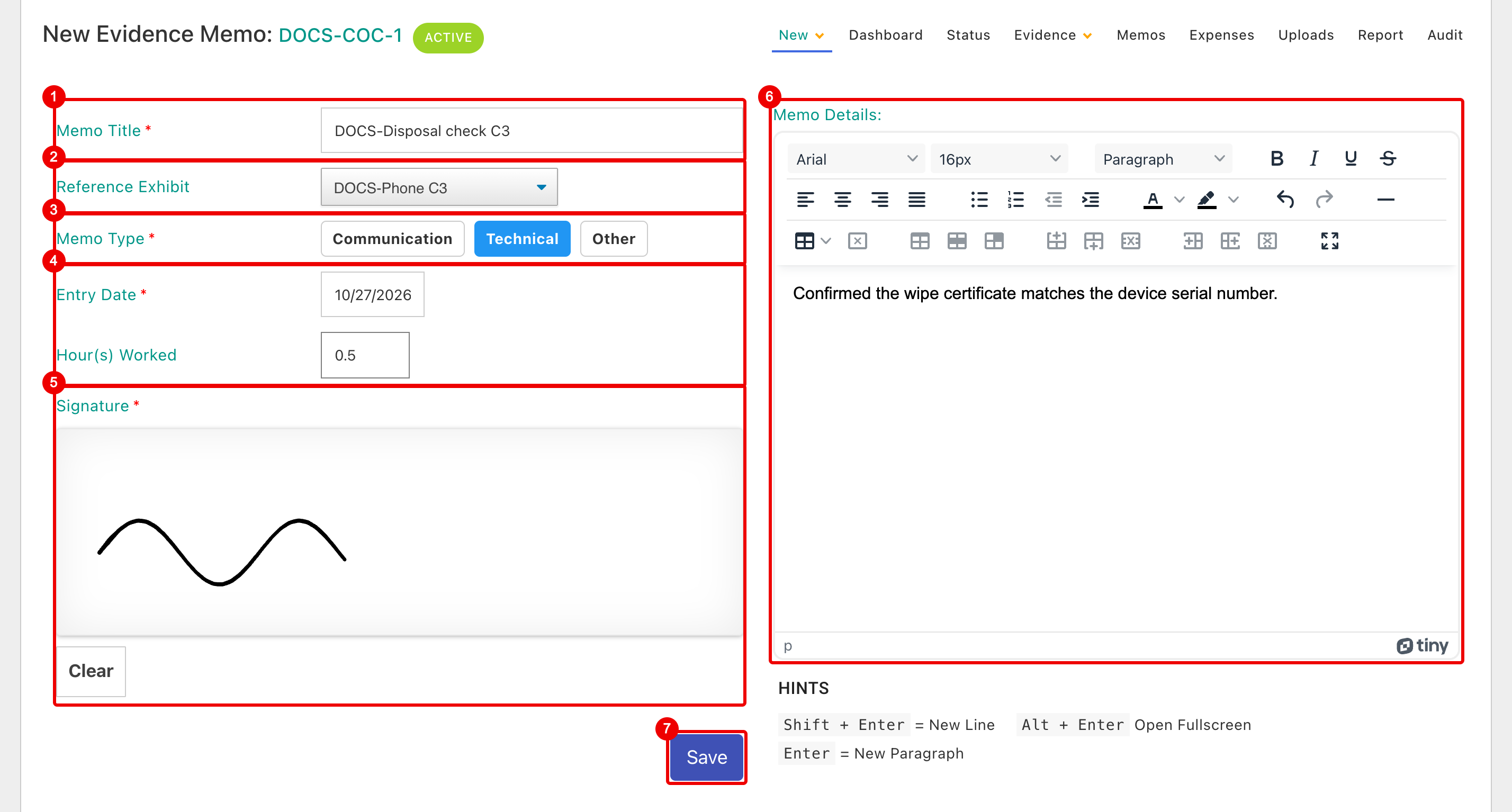
- Memo Title: required, up to 150 characters.
- Reference Exhibit: Case Memo, or an evidence item of the case. Items you can't edit are greyed out.
- Memo Type: required.
- Entry Date (required, today by default) and Hour(s) Worked (0 to 999, in steps of 0.1). The Hours Report uses both, so enter the date the work was done.
- Signature: sign with the mouse, a stylus or a finger; Clear starts again. Hidden when Memo Signature is Disabled, and optional when it's Optional.
- Memo Details: the memo itself, with formatting, tables and pasted images.
- Save adds the memo and opens it on the case's Memos page.
Each memo gets the next number in its case (Case Memo ID), and the date and time you saved it (Timestamp).
The Memos page
Open a case and click Memos in the case menu. The page lists every memo of the case, case and evidence memos together.
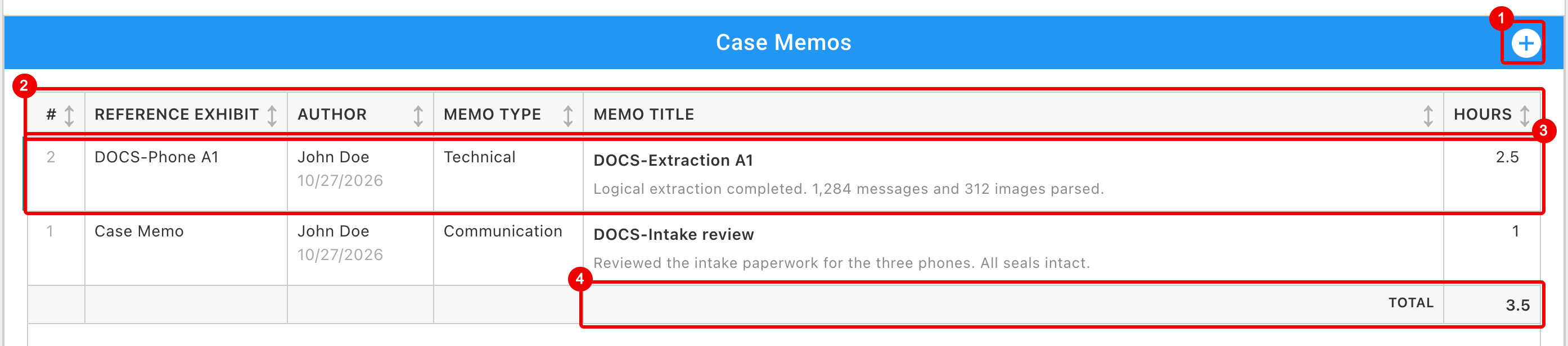
- +: add a memo (Alt+A).
- Click a column header to sort by it; click again to reverse. The list opens newest Entry Date first.
- A memo: number, Reference Exhibit, author with Entry Date, Memo Type, title with the start of the text, and Hours.
- TOTAL: hours of all the case's memos.
Click a memo, or select it with the arrow keys and press Enter, to open it.
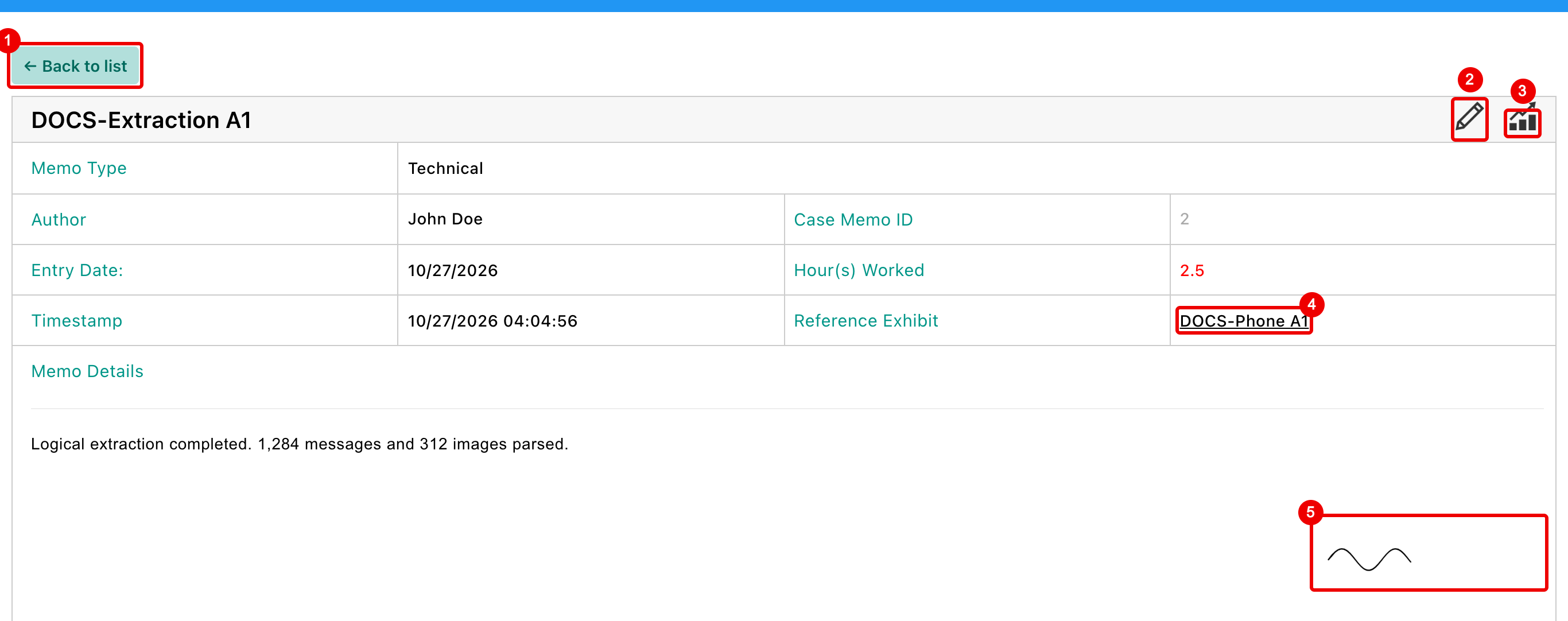
- Back to list.
- Edit (pencil): shown only if you may edit this memo (see Edit or delete a memo).
- Create Memo Report: opens the memo as a PDF (see Print a memo).
- Reference Exhibit: opens the evidence item.
- The signature, if the memo has one.
Other places memos show
- Case dashboard: the Memos section of the right sidebar lists the case's memos by Entry Date, newest first. See Right sidebar.
- Evidence item: the Memos panel on the Dashboard tab lists the item's memos and their Total Hours. See Dashboard tab.
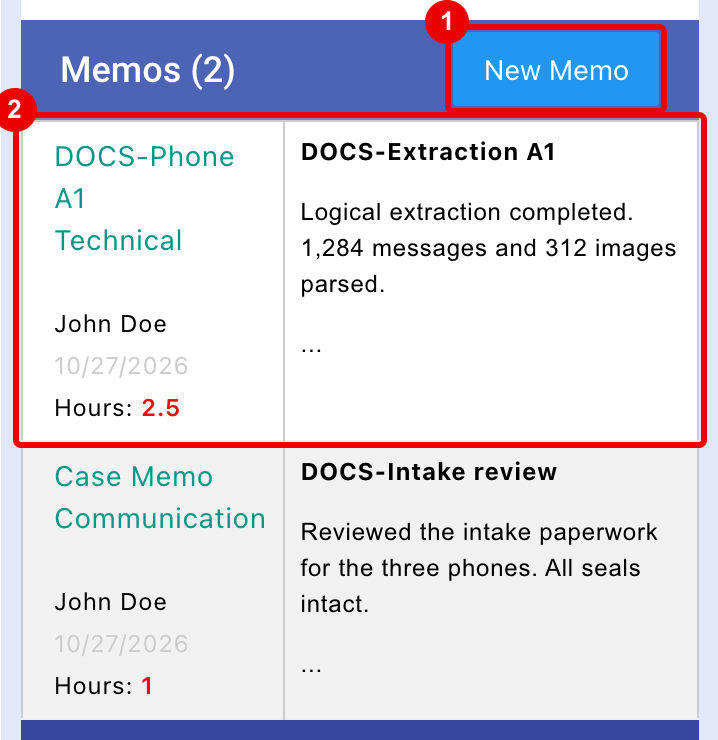
- New Memo: shown to users who can add memos.
- A memo: Reference Exhibit, Memo Type, author, Entry Date, hours, title and text. Click it to see the whole memo in a View Memo window, with Create Memo Report.
Edit or delete a memo
- On the Memos page, open the memo and click the pencil.
- Change what you need in Edit Memo.
- Click Save, or Remove to delete the memo.
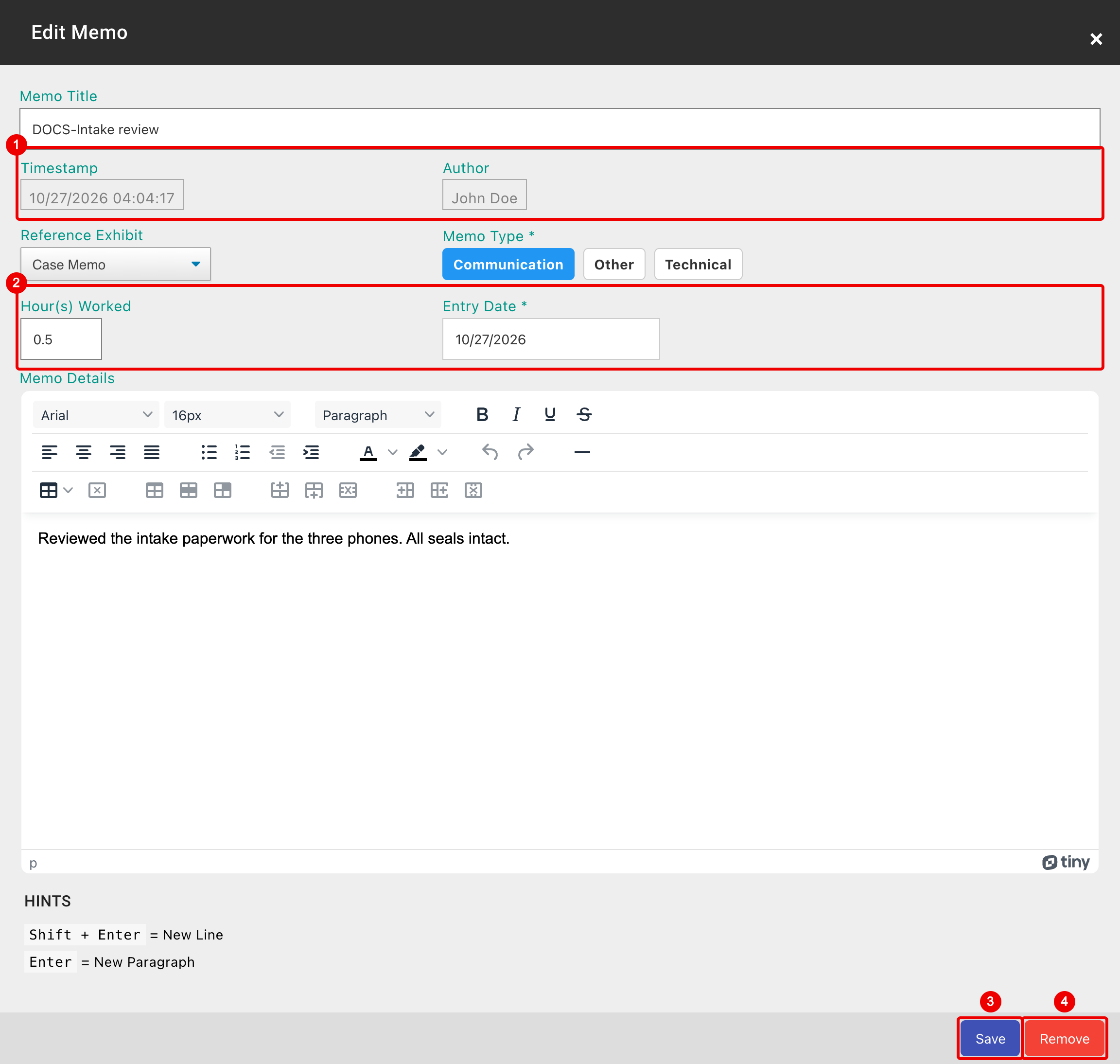
- Timestamp and Author can't be changed.
- Hour(s) Worked and Entry Date: correct them here, and the Hours Report follows.
- Save.
- Remove: only for Admins and the memo's author. Confirm Are you sure you want to delete the memo? with Yes; this can't be undone.
You can also change the title, Reference Exhibit, Memo Type and text. The signature can't be changed or added after the memo is saved.
Print a memo
Create Memo Report opens the memo as a PDF. It shows the memo's title, Memo ID, Memo Date, hours, created time, case, Reference Exhibit, text, author and signature. Each page is marked CONTROLLED DOCUMENT with the print date.
To include memos in a full case report, use the Report Builder.
Audit
Adding and editing memos is recorded in the case audit, with the memo's text.
Related features
- Hours Report: hours from all memos, by agency, case and evidence item. See Hours Report.
- Stats charts: memo hours can be a chart's Metric, and memo dates its time axis. See Case and Evidence Stats.
- Search: memo text is searched with the case. See Search.
- Table views: a view's Open Action can be Open Memos Page. See Table View Builder.
- API: read and post memos through the API.