Expenses
Expenses record what a case costs: staff time, consumables and shipping. An expense belongs to a case and can point to one evidence item, its Reference Exhibit.
- Case expense: Reference Exhibit is Case Expense.
- Evidence expense: tied to one evidence item, and also listed on that item.
Expense hours don't feed the Hours Report, which counts memo hours only. They do feed the stats charts (see Related features).
Who can do what
| Who | Can |
|---|---|
| Admin, Examiner, Analyst with write access to the case | Add expenses; edit and delete any expense of the case, not only their own |
| Viewers and read-only users | View the case's expenses |
Nobody can add, edit or delete expenses while the case is read-only or pending review. An evidence expense also needs the item to be editable: not locked and not under review.
Lists behind the form
Admins set up the choices before anyone adds expenses.
| Form field | Where it comes from |
|---|---|
| Department/Unit | Department / Unit Manager |
| Expense Type | Expense Type list in the List Manager: Labor, Consumables and Shipping |
| Task Type (Labor) | Expense Task Type list; its Rate is the cost per hour |
| Consumable (Consumables) | Expense Consumable list; its Cost is the price per unit |
Add an expense
Start from any of these:
- The case menu:
New>Expense, or + on the case's Expenses page. - New Expense in the Expenses section of the case dashboard's right sidebar.
- + in an evidence item's Expenses panel (Dashboard tab), or New Expense while it has none; the item is preselected.
- The top menu:
New>Expense. The form then also asks for the Case ID, and Save stays off until you pick one.
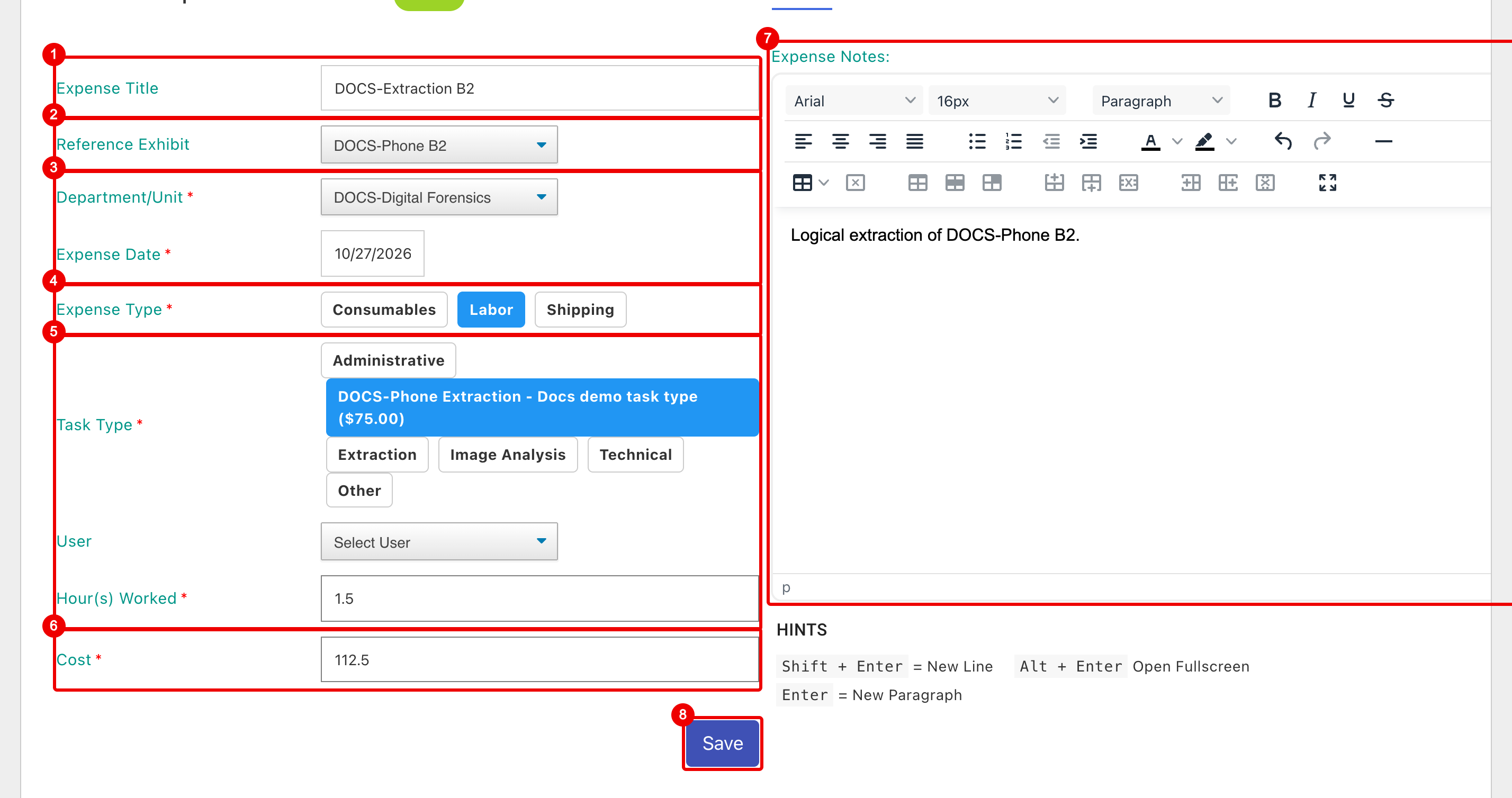
- Expense Title: optional, up to 100 characters.
- Reference Exhibit: Case Expense, or an evidence item of the case. Items you can't edit show (Read Only) and can't be picked.
- Department/Unit (required) and Expense Date (required, today by default).
- Expense Type: the fields below change with it.
- Labor only: Task Type (with its rate) and Hour(s) Worked (required). The labor is recorded under your name, whatever you pick in User.
- Cost: required. xBit fills it in as hours x rate for Labor, and quantity x unit cost for Consumables; you can overwrite it. Shipping has no extra fields: enter the cost.
- Expense Notes: details, with formatting, tables and pasted images.
- Save adds the expense and opens it on the case's Expenses page.
For Consumables, the form shows Consumable and Quantity (required) instead of the Labor fields.
The Expenses page
Open a case and click Expenses in the case menu. The page, Case Expenses, lists every expense of the case, case and evidence expenses together.
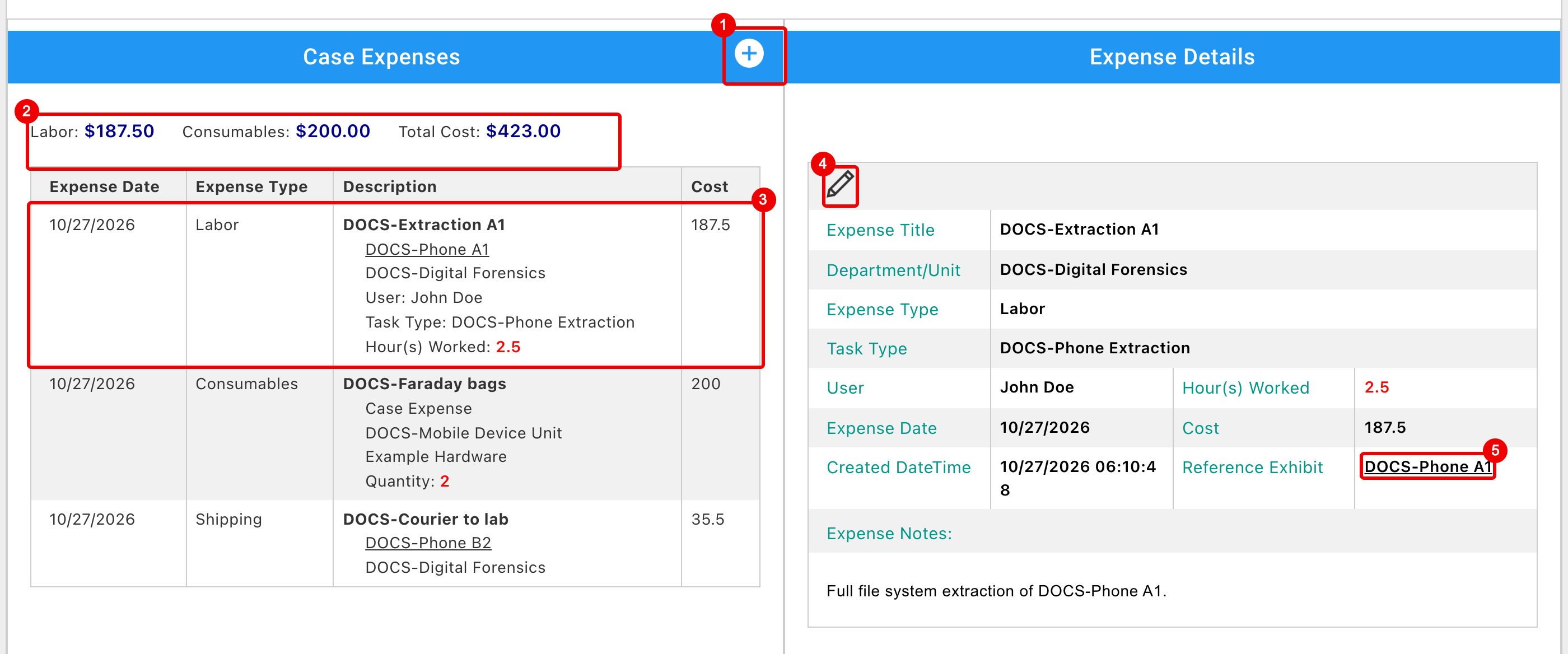
- +: add an expense (Alt+A).
- Totals: Labor, Consumables and Total Cost, which also includes Shipping.
- An expense: Expense Date, Expense Type, title, Reference Exhibit, department, the type's details and Cost. Click it, or select it with the arrow keys and press Enter, to show its details.
- Edit (pencil): shown to users who can edit the case's expenses.
- Reference Exhibit: opens the evidence item.
Expense Details also shows Created DateTime and the Expense Notes. A case with no expenses shows Keep track of agency expenses and a New Expense button.
Other places expenses show
- Case dashboard: the Expenses section of the right sidebar. See Right sidebar.
- Evidence item: the Expenses panel on the Dashboard tab lists the item's expenses with cost, date and type. The pencil next to a title opens the expense on the Expenses page. See Dashboard tab.
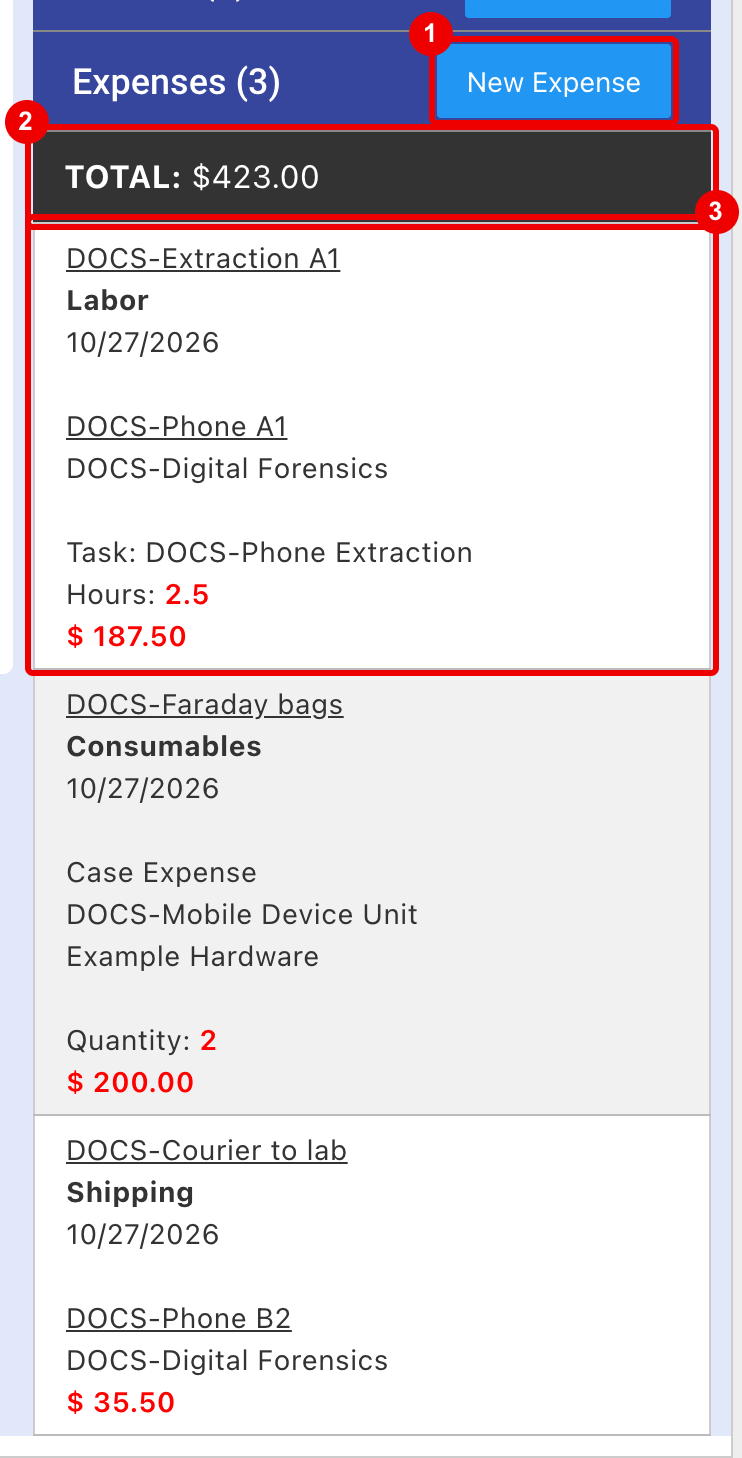
- New Expense: shown to users who can add expenses.
- TOTAL: cost of all the case's expenses.
- An expense: title, type, date, Reference Exhibit, department, task and hours or quantity, and cost. Click the title to open it on the Expenses page.
Edit or delete an expense
- On the Expenses page, select the expense and click the pencil.
- Change what you need in Edit Expense.
- Click Update, or Remove to delete the expense.
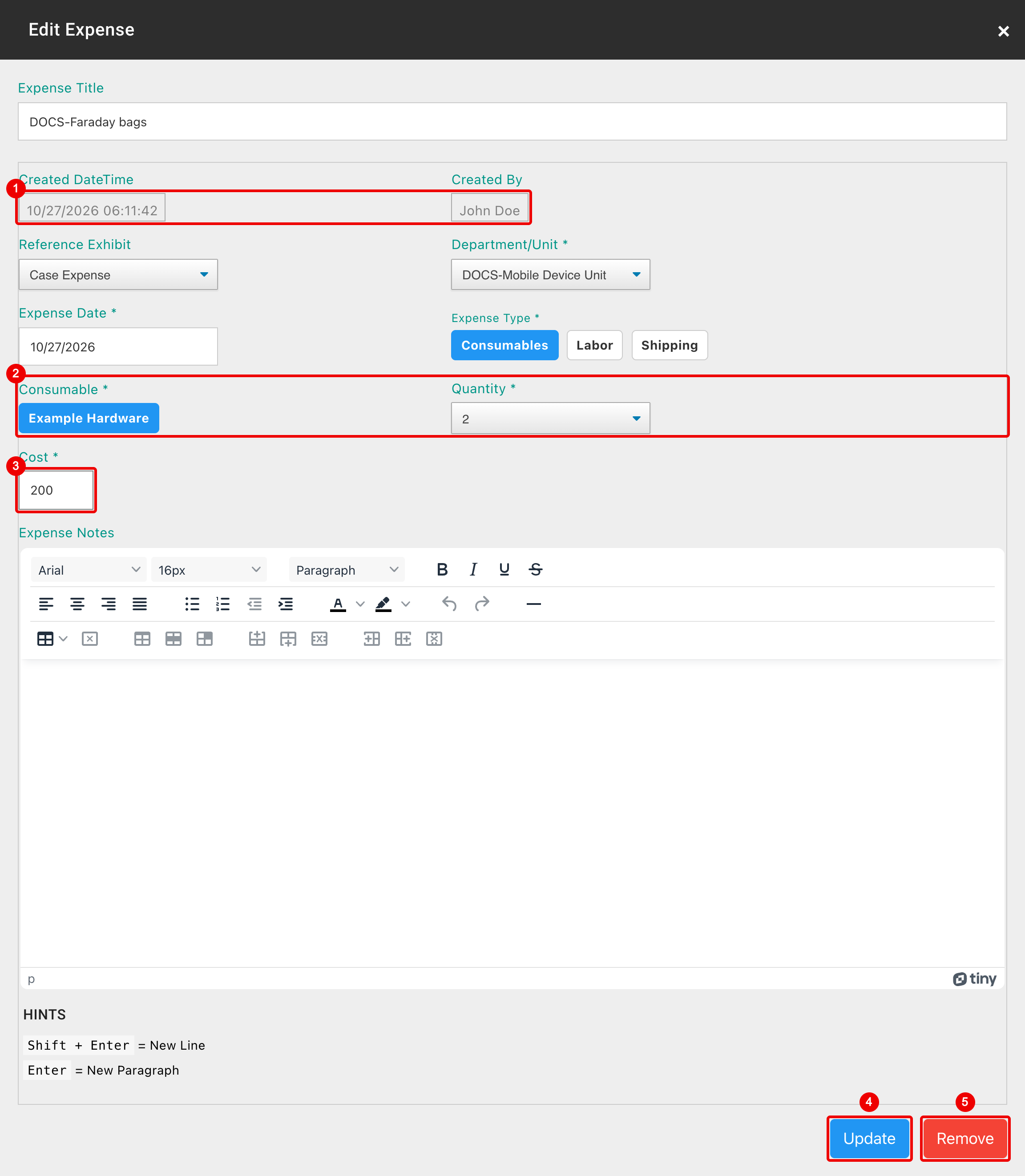
- Created DateTime and Created By can't be changed here.
- The type's fields; here Consumable and Quantity (1 to 100).
- Cost: changing Hour(s) Worked or Quantity recalculates it.
- Update.
- Remove: confirm with Yes; this can't be undone.
You can also change the title, Reference Exhibit, Department/Unit, Expense Date, Expense Type and notes.
Reports and audit
- Case reports: the Report Builder can add an expenses table to a case report, with date, department, type, details, cost and notes.
- Audit: adding, editing and deleting expenses is recorded in the case audit.
Related features
- Stats charts: expenses, Labor hours and Consumables quantity can be a chart's Metric, and the expense date its time axis. See Case and Evidence Stats.
- Stats Explorer: the same metrics, grouped by Expense Type and Expense Subtype. See Stats Explorer.
- Search: expenses are found by global search. See Search.
- Table views: a view's Open Action can be Open Expenses Page. See Table View Builder.
- Memos: hours worked for the Hours Report go on memos, not expenses. See Memos.
- API: read, add, change and delete expenses through the API.