Devices
The Devices menu has two tools:
Device Lookup: the APEx database of phones and other mobile devices, with the extraction methods and tools known to work on each.Device Inventory: your lab's own count of devices on hand, such as phones, hard drives and thumb drives.
Everyone sees the menu; there is no setting to turn on.
| Who | Can |
|---|---|
| Admin | Everything on this page; sees inventory from every agency |
| Examiner, Analyst, Viewer | Use Device Lookup; view and search their own agency's inventory |
Device Lookup
Go to Devices > Device Lookup.
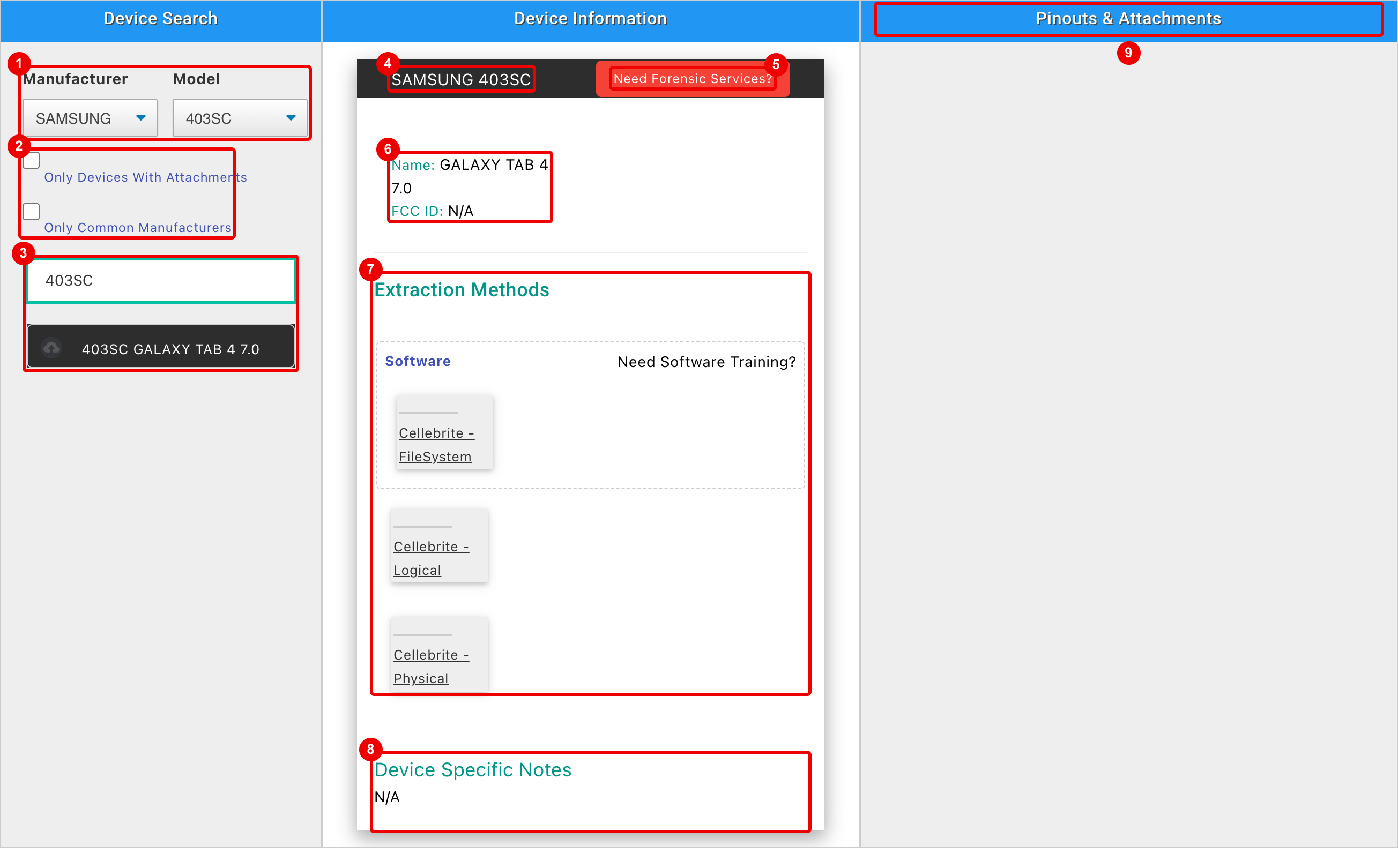
- Manufacturer and Model: pick a device to show its details.
- Only Devices With Attachments and Only Common Manufacturers narrow the list below.
- Search for Make/Model... filters the manufacturer list as you type. Click a manufacturer to show its models, then click a model to open it.
- The selected device.
- Need Forensic Services? opens Teel Tech's website.
- Name and FCC ID (N/A when not known).
- Extraction Methods: each method with the tools that support it. Click a tool for its notes, instructions and uploads; the training link opens the matching course. No Methods Found! means APEx lists none.
- Device Specific Notes.
- Pinouts & Attachments: pinout images and files for the device, marked Verified, Community Submitted or Untested. Click the thumbs up (Worked) or down (Did Not Work) to rate one.
PhoneScoop and iFixit links show next to Name when APEx has them.
Device Inventory
Go to Devices > Device Inventory.
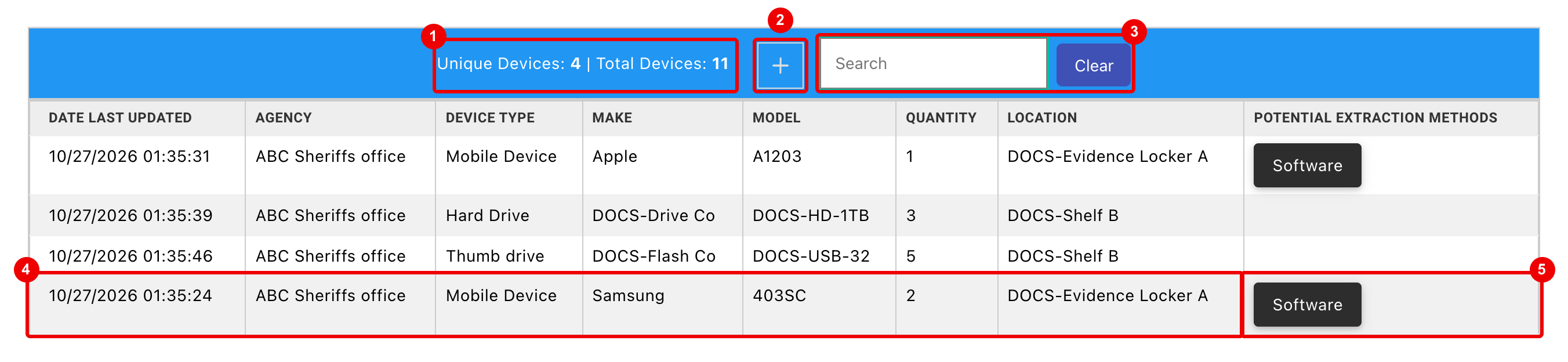
- Unique Devices counts rows; Total Devices adds up their Quantity.
- + adds a device (Admins only).
- Search matches Make, Model and Location as you type; Clear resets it. While searching, only Unique Devices updates.
- Click a row to open the device.
- Potential Extraction Methods: methods from Device Lookup when Make and Model match an APEx device.
The list is sorted by make, then model. New devices belong to the agency of the Admin who adds them; see Agency Manager.
Add, edit or remove a device
Admins click + to open New Device, or click a row to open Edit Device.
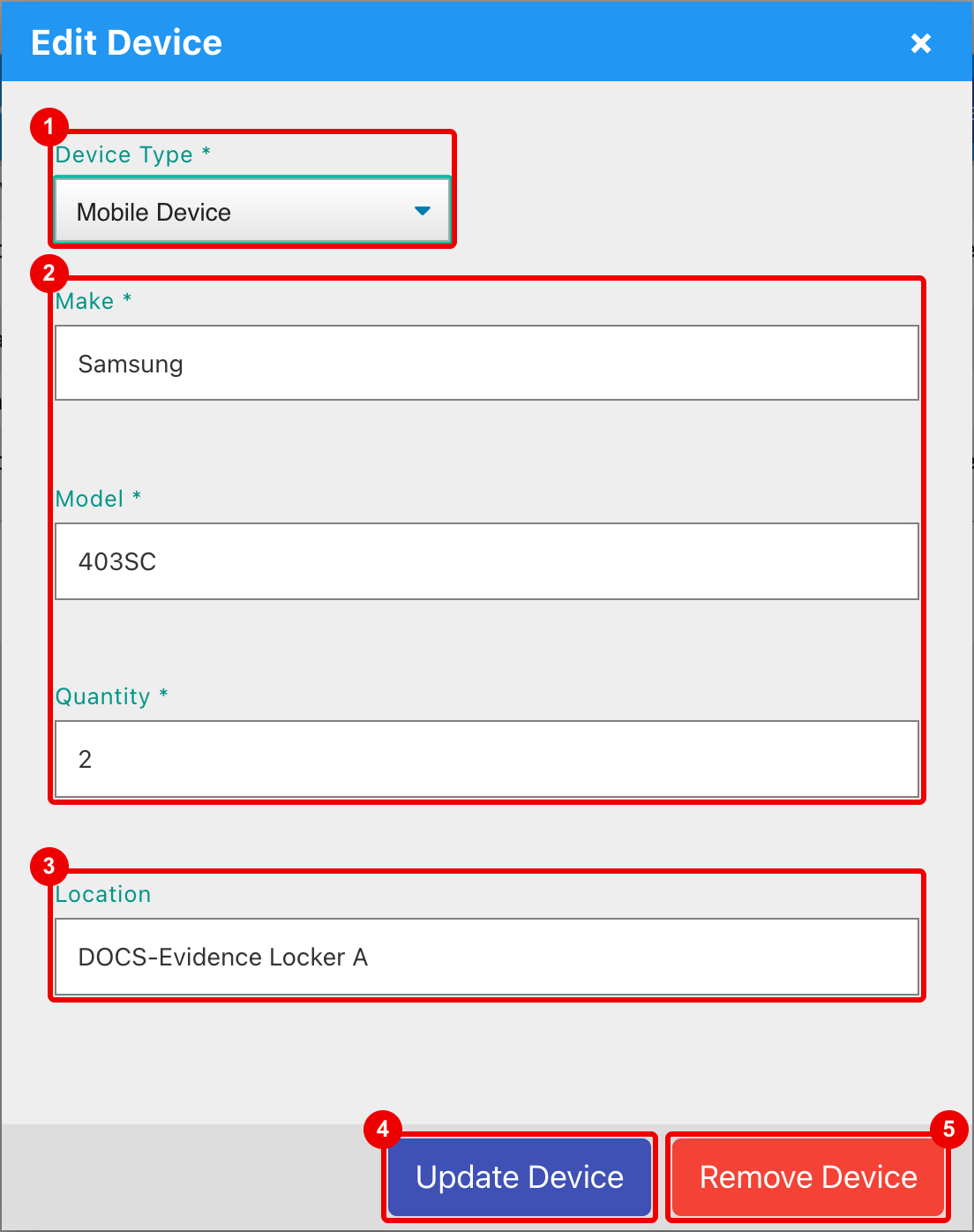
- Device Type: Mobile Device (the default), Hard Drive, Thumb drive or Other.
- Make, Model and Quantity are required. To get Potential Extraction Methods, enter the make and model as Device Lookup shows them.
- Location is optional.
- Update Device saves (Submit Device on a new device).
- Remove Device deletes it after Are you sure you want to delete the device?. This can't be undone.
Field limits: Make and Model 35 characters, Location 50. Other users can open a device but see no buttons.
Devices on evidence
When you add evidence whose form has Make and Model fields, such as Mobile Phone, xBit checks Device Lookup as you type.
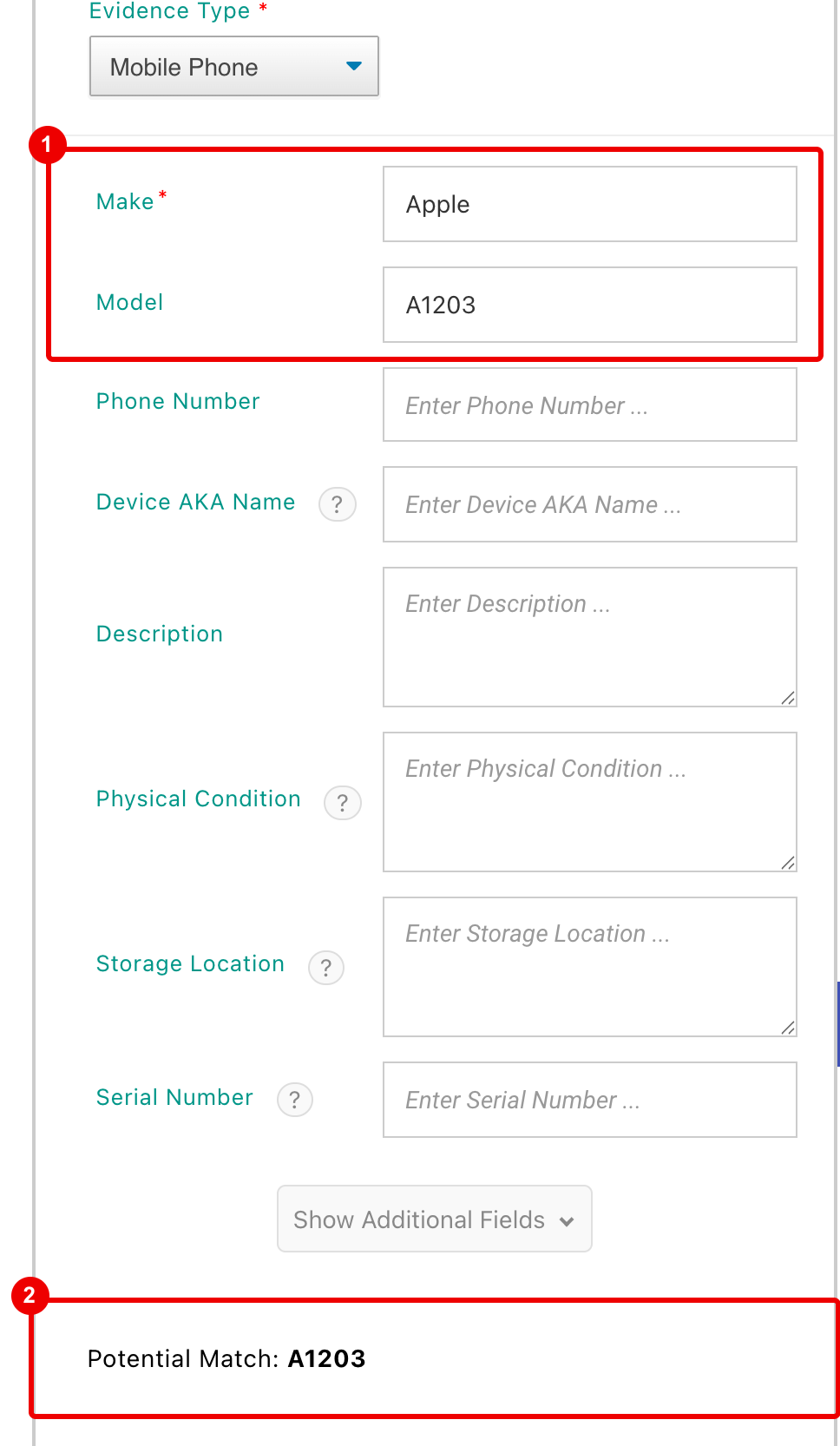
- Type at least two characters in Make and in Model.
- Potential Match shows a Device Lookup model that fits. Nothing shows when there is no match.
After saving, if the evidence's Make and Model match a Device Lookup device exactly, its Dashboard shows an APEx Entry Found panel with the same details and extraction methods.