Auto CID
xBit can generate the Case ID for every new case from a template, such as ABCSO-[Y]-[M]-[D]-[#].
Only Admins can set it up.
Turn it on
- Go to
Admin>About / Settings>Generaland switch on Auto Case ID. - The first time, xBit opens the Automatic Case ID page to set up the template. Auto CID stays OFF until you click Save there.
Once it's on, the page is under Admin > Auto CID.
To let users change a generated ID, also turn on Edit Case ID in About / Settings.
Set up the template
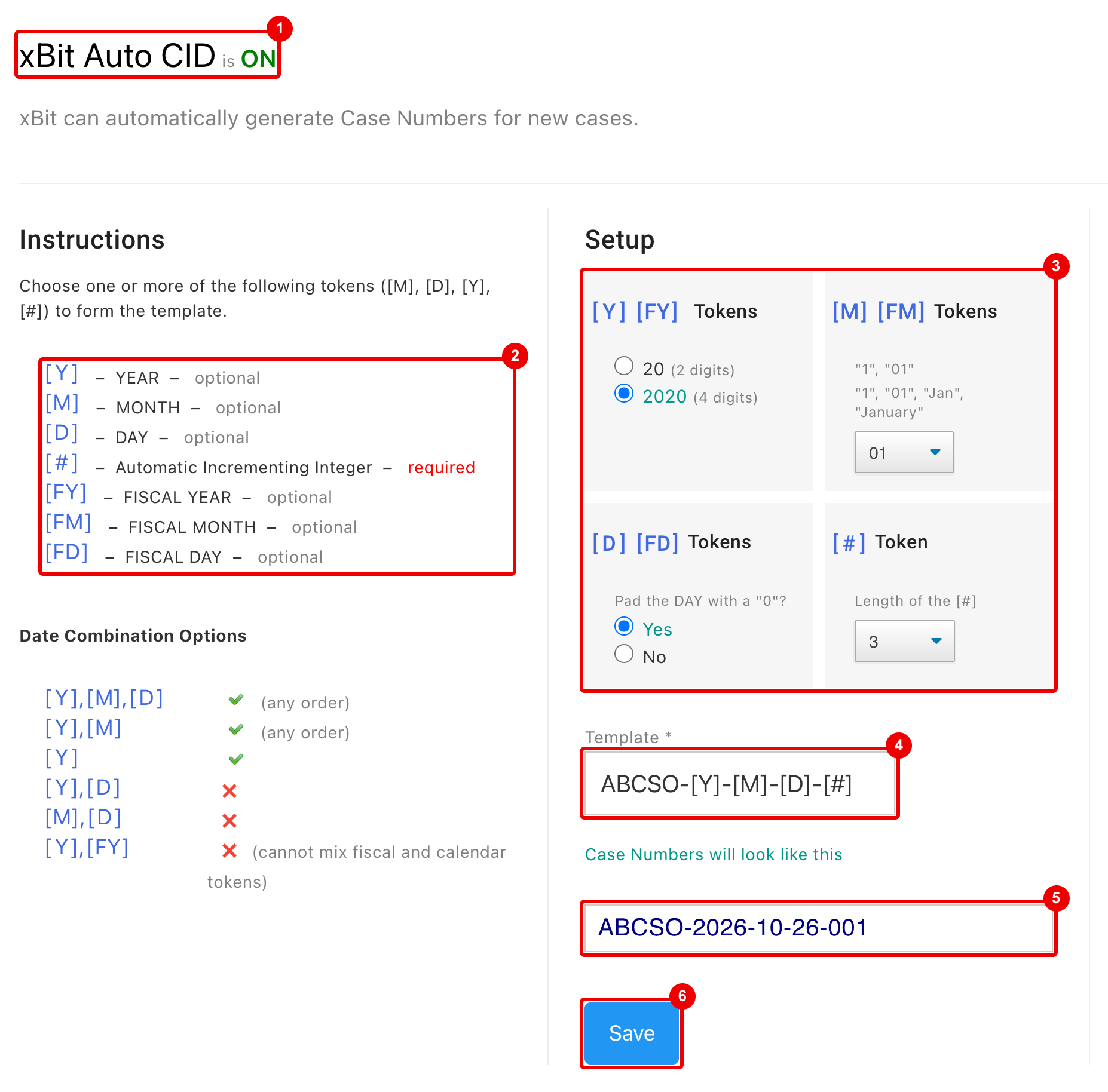
- xBit Auto CID is ON or OFF.
- The tokens you can use (see Tokens).
- How each token is written:
- [Y] [FY] Tokens: 20 (2 digits) or 2020 (4 digits).
- [M] [FM] Tokens:
1,01,JanorJanuary. - [D] [FD] Tokens: Pad the DAY with a "0"? Yes or No.
- [#] Token: Length of the [#], 1 to 9 digits. Shorter numbers get leading zeros.
- Template: the tokens plus any fixed text, such as your agency's initials.
- Case Numbers will look like this: a preview of the next Case ID.
- Save.
The right of the page shows two worked examples.
Tokens
| Token | Inserts |
|---|---|
| [#] | A running number. Required. |
| [Y], [M], [D] | Today's year, month and day. |
| [FY], [FM], [FD] | The fiscal year, fiscal month and day. |
Rules, checked when you click Save:
- The template must include [#].
- [M] needs [Y], and [D] needs both [Y] and [M]. They can be in any order.
- Don't mix calendar and fiscal tokens.
[#] is the lowest number not already used by a case or request with the same ID. So a template with [D] starts again at 1 each day, one with [M] each month, and one with only [Y] each year.
Fiscal tokens
Fiscal tokens follow Start of Fiscal Year in About / Settings.
- [FY]: the year the fiscal year ends in. With a fiscal year starting in October, cases from October 2026 get 2027.
- [FM]: the month of the fiscal year, so October is 1.
It's always a number; choose
1or01. - [FD]: the day of the month.
New cases

- With Edit Case ID off, the Case ID field reads Auto Case ID Enabled. xBit assigns the ID when you click Create Case.
If Auto Case ID is on but no template is saved, New Case shows Auto CID is enabled but not set with a Setup button.
For requests, the Request Manager offers Use Auto CID; see Lab Submission Request Manager.
Evidence IDs
In an Evidence ID template, the [CID] token inserts the case's Case ID: the generated one, or the edited one if a user changed it. Set the template on the Evidence ID field of Evidence Intake in Form Builder.
Barcodes that match the Case ID
If the Barcode field on Case Information matches the Case ID (see Barcode field), the generated IDs must fit the site's Barcode Type. When they don't, a warning appears under the preview.
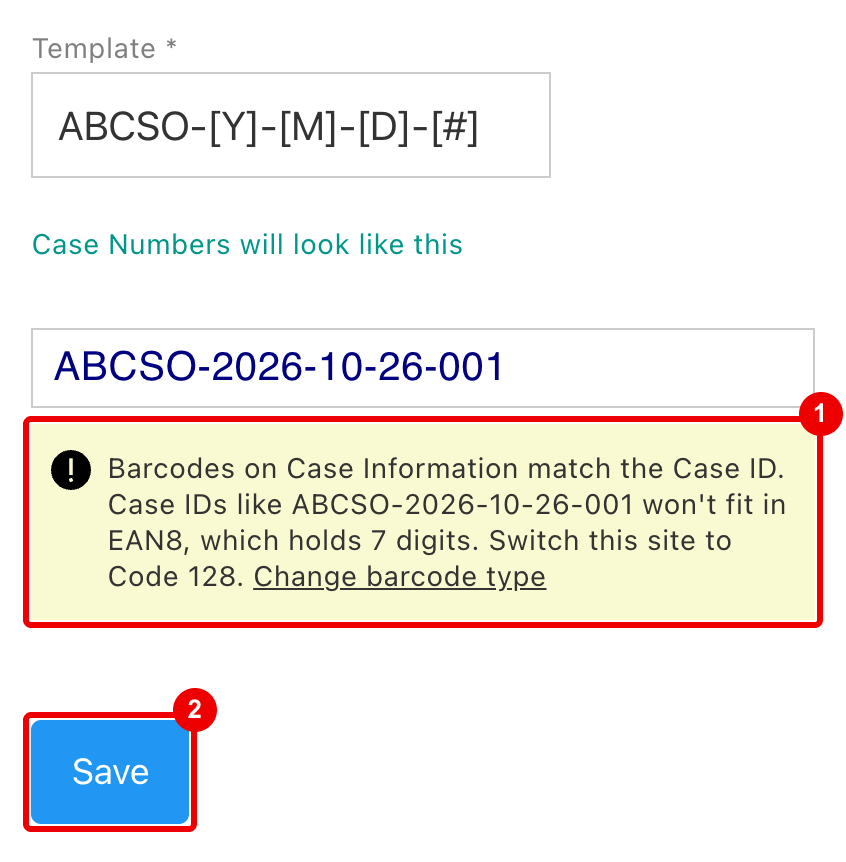
- The warning names an ID that won't fit. Change barcode type opens Barcode Type in About / Settings, in a new tab.
- Clicking Save while the warning shows asks Save anyway?.
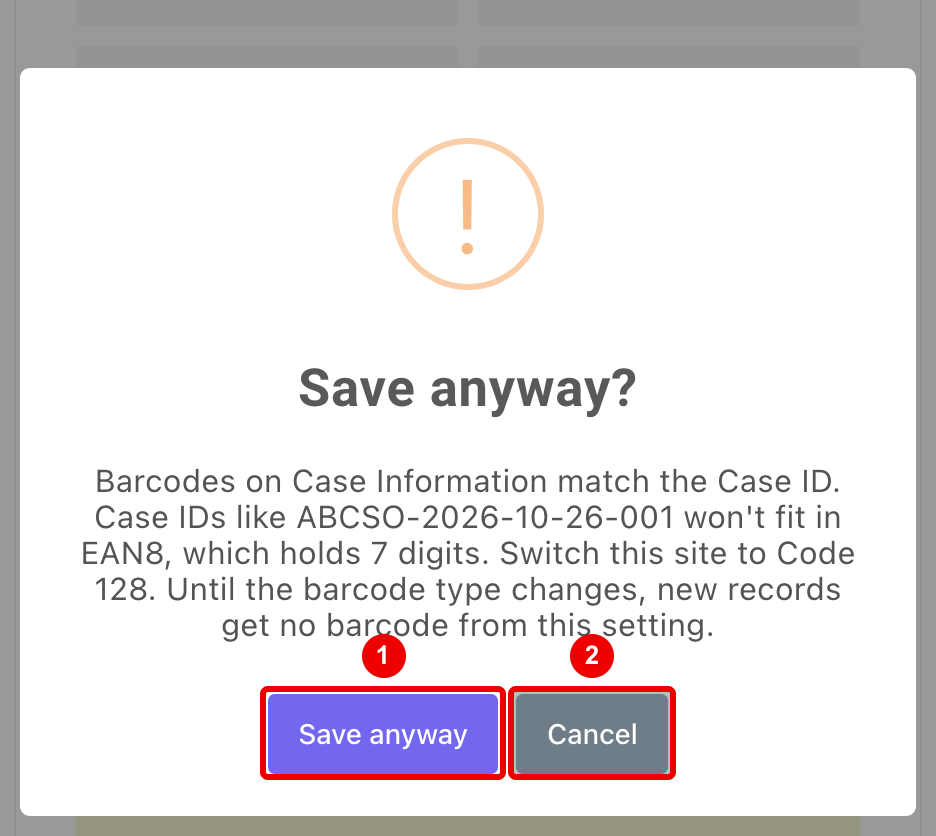
- Save anyway: saves the template. Until the barcode type changes, new cases get no barcode from the Case ID.
- Cancel: keeps editing.
To fix it, switch Barcode Type to CODE_128 in About / Settings, or change the template. See Barcodes.