Evidence Reviews
Evidence reviews let colleagues and supervisors review each evidence item, comment and record a result. Every step is logged on the evidence's Review Timeline.
Review levels
There are two levels. Each can be turned on separately and renamed (for example "Technical" and "Supervisor").
| Level | Who can review |
|---|---|
| Review Level 1 | Admins, Examiners and Analysts. |
| Review Level 2 | Admins, or non-Viewer staff who already have a Level 2 review request. |
- Viewers can't review.
- Reviewers need write access to the case.
- The person the evidence is assigned to can't review it, unless Autoreviewer is on.
Set up reviews
Go to Admin > About / Settings, Evidence Reviews tab. Changes apply to reviews that haven't started yet.
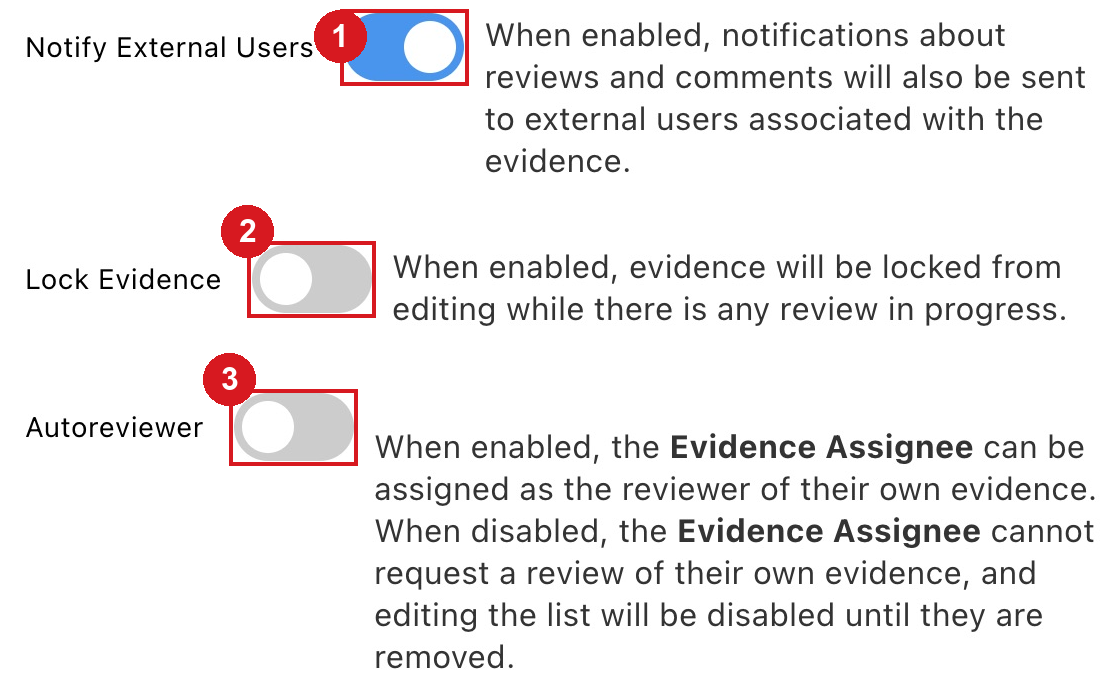
- Notify External Users: also send review and comment notifications to external users linked to the evidence.
- Lock Evidence: no one can edit the evidence while a review is in progress. Required when ANAB 17025:2017 is on.
- Autoreviewer: lets the evidence assignee review their own evidence.
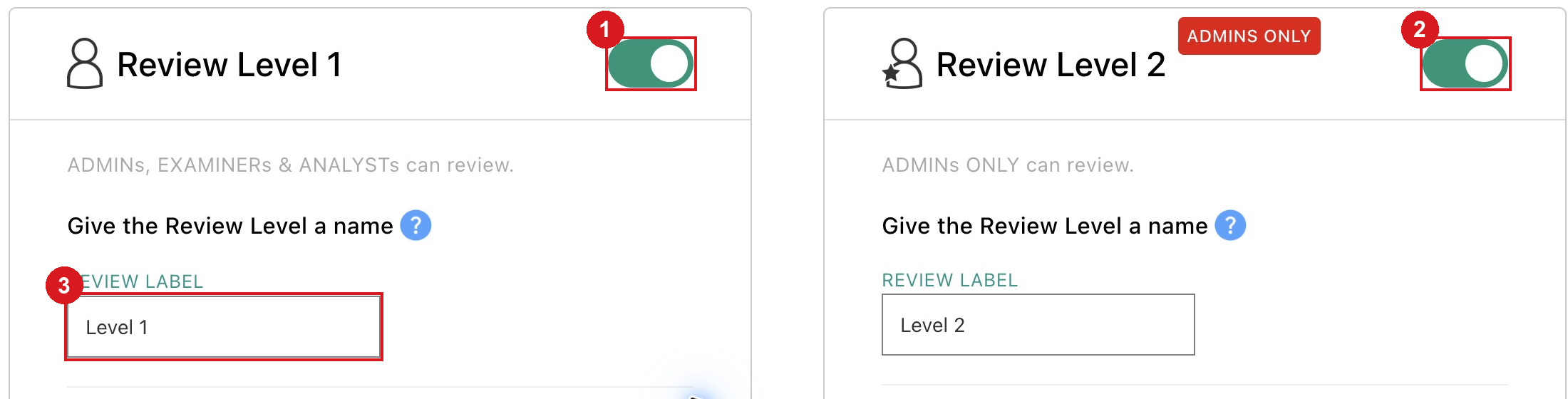
- Enable Review Level 1.
- Enable Review Level 2 separately.
- REVIEW LABEL sets the name shown across xBit. It can't contain the word "Review".
Below each label, Choose selects default reviewers (users or groups), who are requested automatically on new evidence. Review Level 1 Form / Review Level 2 Form opens the review form in Form Builder.
Review emails are controlled on the E-MAIL / SMTP tab: Notify on Reviewer Request and Notify on Review Start.
Review an evidence item
On the View Evidence page, the review controls are in the right column. Their names follow your review labels; the steps below use the defaults.
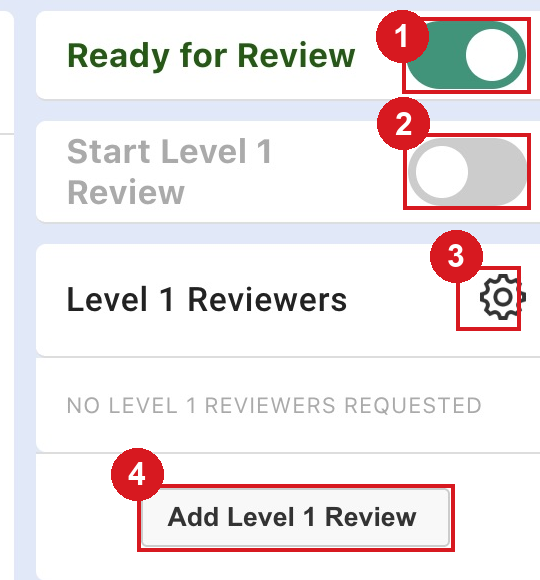
- Ready for Review makes the evidence available for reviews.
- Start Level 1 Review indicates a review is in progress.
- The gear selects reviewers.
- Add Level 1 Review opens the review form.
To complete a review:
- Turn on Ready for Review when the evidence is ready.
- Under Level 1 Reviewers (or Level 2 Reviewers), click the gear to request reviewers.
- The reviewer turns on Start Level 1 Review so others know the review is under way.
-
The reviewer clicks Add Level 1 Review, fills in the form and clicks Submit Review.
- Send notifications emails the requested reviewers and anyone who worked on the evidence.
-
Turning Ready for Review off stops any reviews in progress, after a warning. Reviewers are emailed if review notifications are on.
- Anyone who can review may add a review, even if they weren't requested.
Review Timeline

The Review Timeline lists reviews, comments, reviewer requests and review starts. Click Reply to answer a review, or Add Comment to comment without reviewing.
Manage reviews across evidence
Two evidence views are built in:
- Review Manager: review status, toggles, reviewers and actions for all evidence.
- Reviews Assigned to Me: only the evidence you were asked to review.

Select evidence items and open the bulk actions menu > Review Actions to do the same steps for many items at once:
- Ready for Review
- Begin your Review
- Request Level 1 Reviewers / Request Level 2 Reviewers: Request, Dismiss pending requests, Replace them or Delete all reviews from the chosen users.
- Level 1 Review / Level 2 Review
The same widgets (review toggles, reviewers, review buttons and timeline) can be added to your own evidence views in the Table View Builder.