Audit Logs
xBit records actions such as sign-ins, setting changes and edits to cases and evidence. There are two views:
- System log: every entry, for Admins only.
- Case audit: the entries for one case, for anyone who can open the case.
System log
Go to Admin > Audit Logs.
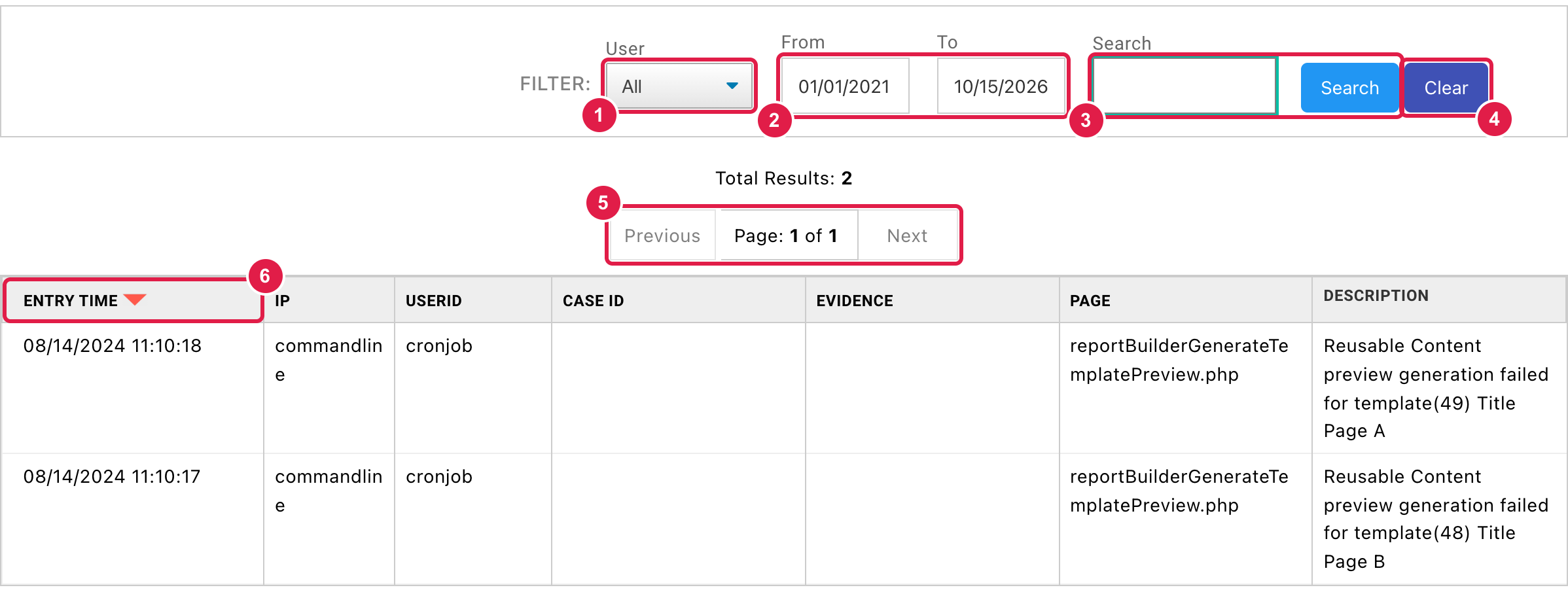
- User: show one user's entries, or All. No User ID lists entries recorded without a user.
- From and To: the date range.
- Search: enter text and click Search. It matches the user ID, IP, page, description, case ID and evidence name, and only returns entries linked to an evidence item.
- Clear: reset the filters.
- Previous and Next: 100 entries per page.
- Click a column heading to sort.
| Column | Shows |
|---|---|
| Entry Time | When it happened. |
| IP | Where the request came from. Background jobs show commandline. |
| UserID | Who did it. |
| Case ID | The case, if any. The heading uses your Case ID label. |
| Evidence | The evidence item, if any. |
| Page | The xBit page or script that made the change. |
| Description | What changed. |
Case audit
Open a case and click Audit in the case menu.

- Open Download all logs.
- Choose Download all logs as JSON for raw entries.
-
Choose Download all logs as PDF for a readable report.
-
Entries are listed newest first, one card per change.
- Printing a case or evidence label adds an entry with the value of each field on the label. A bulk label print adds one to each evidence item printed.
- Download all logs: choose Download all logs as PDF for a readable report, or Download all logs as JSON for the raw data.
- On each entry:
- Copy link: copies a direct link to that entry.
- Request Information: the IP address, URL and script of the request.
- Previous and Following: step to the neighbouring entries.
- Download: saves that entry as JSON.