Stats Explorer
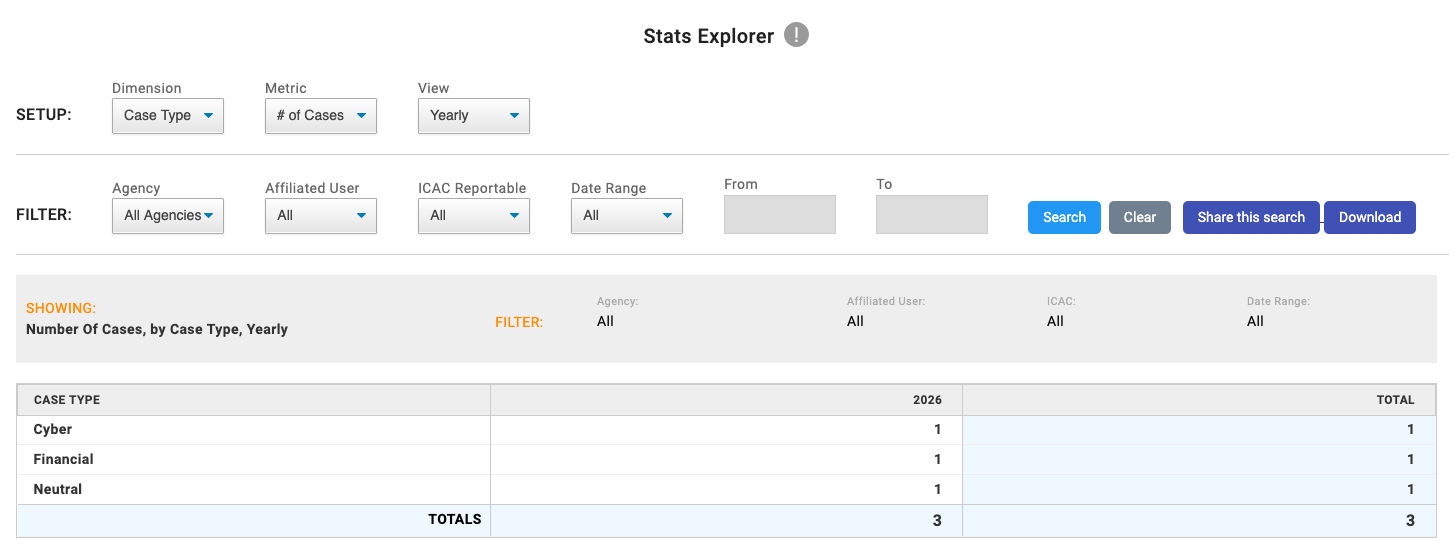
- Go to
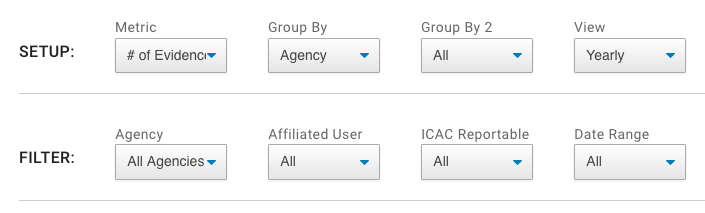
Stats>Stats Explorer, or click any slice or bar on a Case or Evidence Stats chart to open it on that group. - In the first dropdown, choose a Group By field to group the results by, such as a standard field or a custom field.
- Optionally, choose a second Group By level to break each group down further.
- Choose a Metric to measure, such as counts or number-based values.
- Apply any available filters, such as date range, user, agency, or other field-based filters, to narrow the results.
- Review the generated chart or table to compare values across the selected groups, and drill into a group to see the matching cases or evidence.
- Share the search, download the results with the CSV download option, or save the search to My Reports.
Notes
- If you create a dropdown (in form builder) it will automatically be added to your Stats Explorer Group By dropdown options.
- If you create a field that captures a number (Integer or decimal) it will automatically be added to the Metric dropdown. These allow you to create your own unique stats.
- Expense Type and Expense Subtype are available for both grouping and filtering expense data.
- Labor Hours (Labor expense types) and Consumables Quantity (Consumables) are available as metrics, and on Case and Evidence Stats charts.
- When you open Stats Explorer from a Case or Evidence Stats chart, the chart's filters and the page's filters are carried over.
- USSS statistics for cases and evidence can be drilled into to view the matching cases and evidence.
- The Volume metric is only shown when USSS is enabled.