Uploads
Uploads are files attached to a case: photos, PDFs, documents and other files. An upload belongs to the case and can point to one evidence item, its Reference Exhibit.
- Case upload: Reference Exhibit is Case Upload.
- Evidence upload: tied to one evidence item, and also shown on that item.
To show uploads as thumbnails in Case Manager or Evidence Manager, see Image Gallery.
Who can do what
| Who | Can |
|---|---|
| Admin, Examiner, Analyst with write access to the case | Upload files; delete any upload of the case, not only their own |
| Viewers and read-only users | View and download the case's uploads |
Nobody can upload or delete while the case is read-only or pending review. An evidence upload also needs the item to be editable: not locked and not under review.
Where to upload
- The case menu:
New>Upload, or Uploads. - New Upload on the case dashboard's Uploads Gallery tab (see below).
- An evidence item's Dashboard tab: + on Image Uploads or File Uploads, or New Upload / New File while they're empty; the item is preselected. See Dashboard tab.
- The top menu:
New>Upload. The form then also asks for the Case ID. - New Evidence: Item Attachments > Upload Files attaches files to the item you're creating.
- Add New Upload in an image gallery.
Files also arrive from two other places:
- Lab submissions: when a request is added to the workflow, the files attached to its evidence become uploads of the new evidence items. See Request Submission Manager.
- File Upload fields on case and evidence forms (set up in Form Builder): their files are listed with the uploads.
Upload files
Open a case and click Uploads in the case menu. The page shows the upload form on the left and Case Uploads on the right.
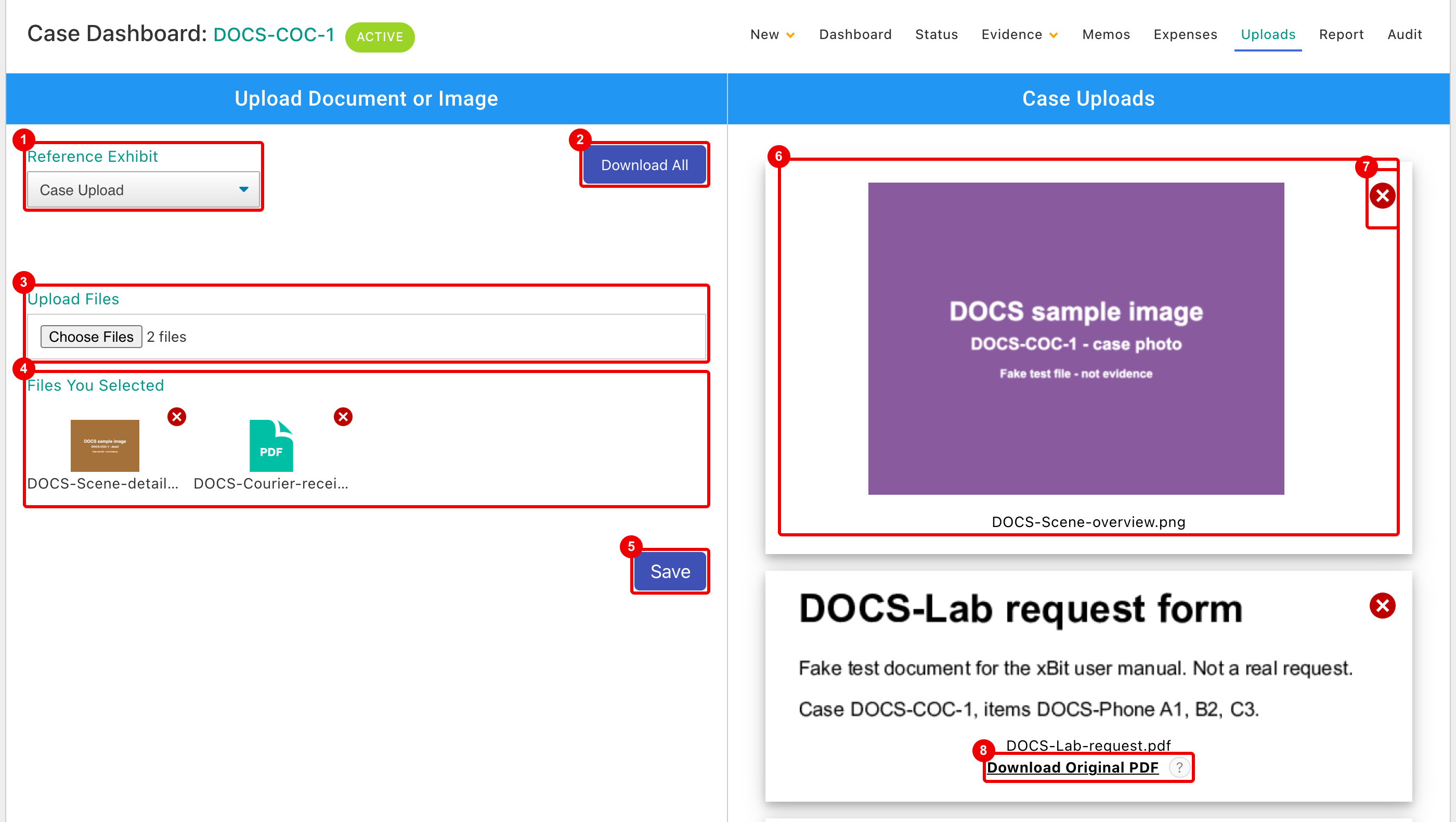
- Reference Exhibit: Case Upload, or an evidence item of the case. Choosing an item also lists that item's uploads on the right.
- Download All: a ZIP of every upload of the case, case and evidence uploads together.
- Upload Files: click Choose Files and pick one or more files. Choose again to add more.
- Files You Selected: click a file's × to drop it before saving.
- Save uploads the files; it stays off until you pick a file.
- An upload: click the preview or name to open the file in a new tab.
- Delete Attachment (see Delete an upload).
- Download Original PDF: see PDFs.
If an evidence item can't be edited, picking it turns the form off with Cannot edit selected evidence. On a read-only case, the form shows Case is read only.
File types and size
- The file picker offers images, videos, PDFs, Word and Excel files, PowerPoint (
.ppt), text and ZIP files. - Each file, and all the files you send at once, must be smaller than File Upload Maximum size. It's set for your installation; see About / Settings.
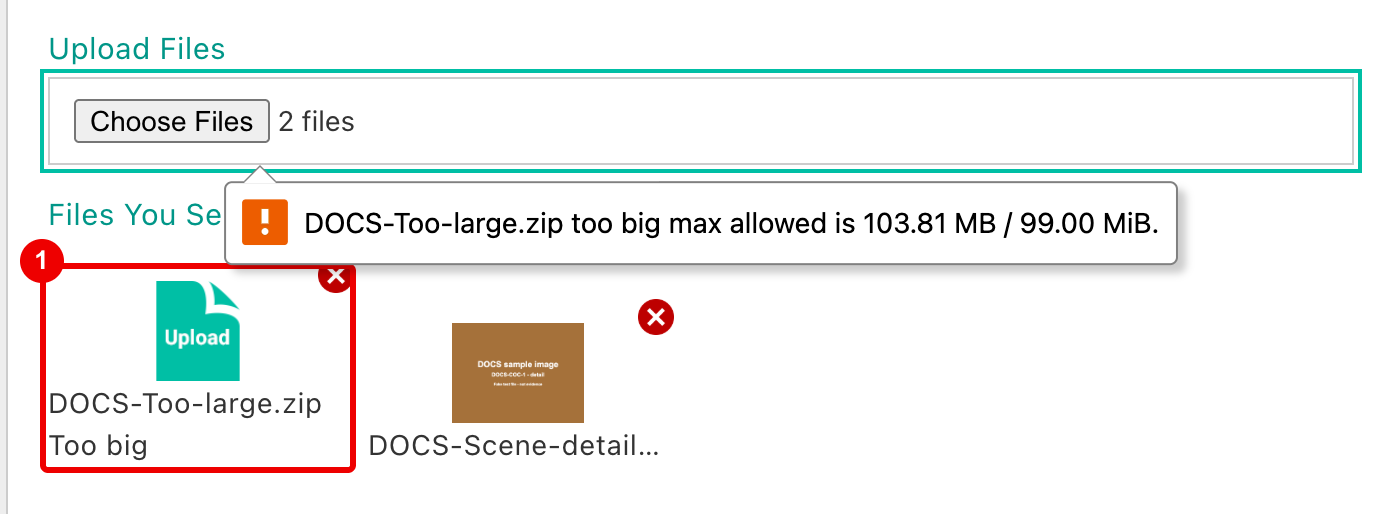
- A file over the limit is marked Too big. The browser message gives the limit, for example too big max allowed is 103.81 MB / 99.00 MiB. Remove the file with × before saving.
File names
- A file with the same name as an upload already in the same place (the case, or the same evidence item) is not added. xBit shows File already exists. Please rename the file and try again.
- Uploads keep their name in xBit, but spaces and symbols are dropped from the stored file, for example in Download All (
DOCS-Lab-request.pdfbecomesDOCSLabrequest.pdf). - Uploads can't be renamed: delete the upload and upload the renamed file.
View and download
- Previews: images show as pictures, PDFs as their first page, and other files as a file-type icon.
- Open: click a preview or name; the file opens in a new tab, where you can save it.
- Download All: downloads
case-<Case ID>-uploads.zipfrom the Uploads page. - File missing from server: the upload is listed, but its file can't be found.
Links to uploads only work for users who can see the case.
PDFs
xBit flattens every uploaded PDF and shows the flattened copy, so fillable fields and layers become part of the page. It keeps the original, which Download Original PDF downloads.
- Until flattening finishes, the upload shows its status, such as Flattening pending or Flattening in progress.
- A preview being prepared shows File upload in progress. Please check back later.
- Both run in the background, usually within a few minutes.
Delete an upload
- On the Uploads page, choose the upload's Reference Exhibit so it's listed.
- Click Delete Attachment (the red ×).
- Confirm.
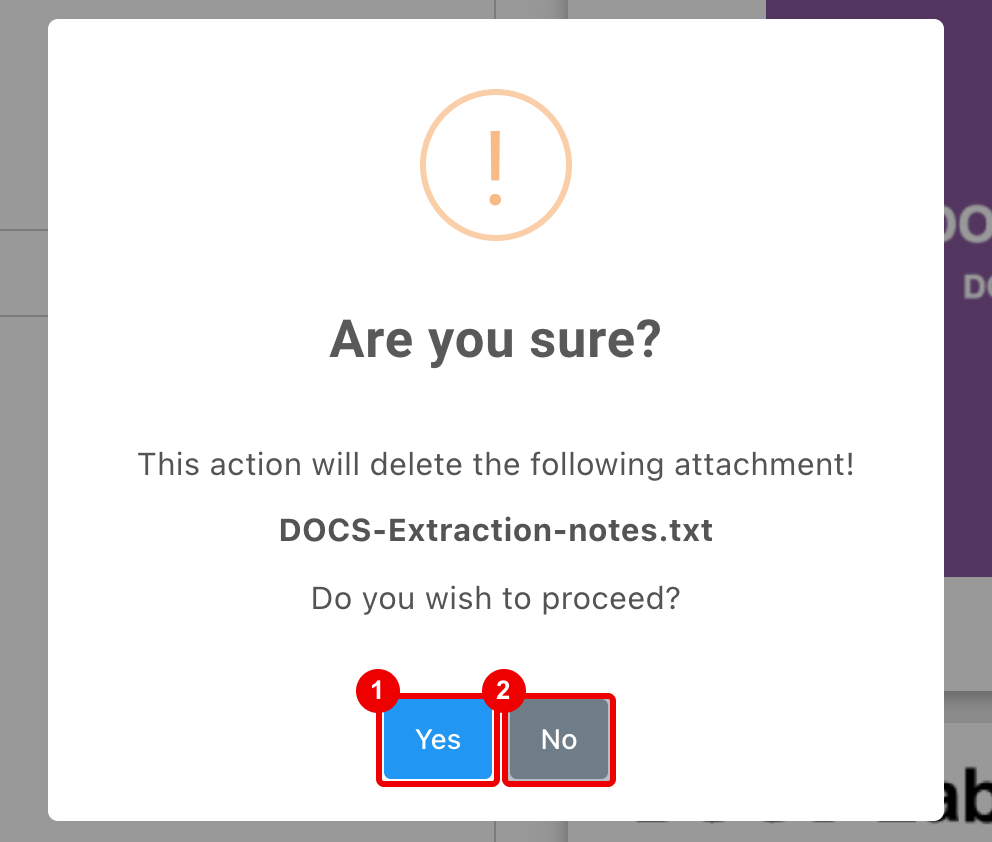
- Yes: deletes the upload.
- No: keeps it.
The upload disappears from xBit, and the deletion is recorded in the case audit. The red × also shows on files from File Upload fields; it removes the file from its field.
Uploads Gallery tab
The case dashboard's Uploads Gallery tab shows every upload of the case at once.
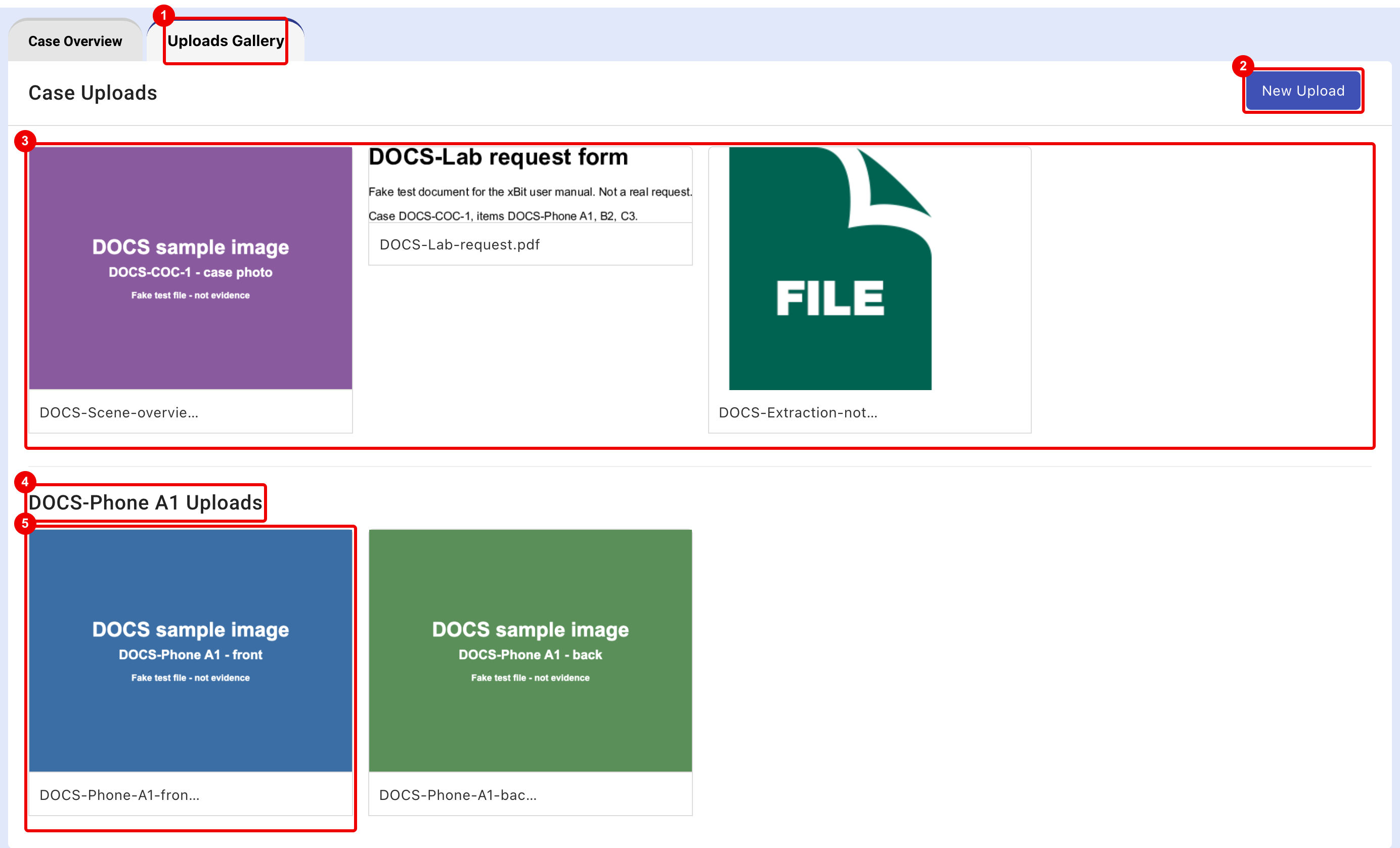
- Uploads Gallery: next to Case Overview.
- New Upload: opens the Uploads page; shown to users who can edit the case.
- Case Uploads: uploads not tied to an evidence item.
- Each evidence item's uploads follow, loading as you scroll. Click the heading to open the item.
- Click a file to open it in a new tab.
Reports, search and audit
- Case reports: choose uploads to list or embed, and download them in a ZIP with the report. See Uploads and ZIP downloads.
- Search: global search finds text inside uploads. See Text inside attachments.
- Audit: uploads and deletions show in the case audit as Uploaded File For Case and Removed Uploaded File For Case, with the file's details.
- Table views: a view's Open Action can be Open Uploads Page, Open Case Gallery Tab or Open Evidence Uploads Page. See Table View Builder.
- API: the API has no upload endpoints.
Related settings
| Setting | Where | Effect |
|---|---|---|
| File Upload Maximum size | Admin > About / Settings |
Read-only limit for one upload; contact support to change it. See About / Settings. |
| Lab submission upload memory limit, Lab submission upload time limit | Admin > About / Settings |
Limits for lab submission uploads only. See Lab submission uploads. |
| Lock Evidence | Admin > About / Settings |
Lets users lock an item; a locked item takes no new uploads. |
| Allow Searching By Content | A File Upload field in Form Builder | Global search reads the field's files. |