Asset Manager
The Asset Manager tracks your lab's equipment, software and licenses: who holds each item, what it cost, when it expires and which grant paid for it.
Click Assets in the top menu.
Admins, Examiners and Analysts see the menu item; Viewers don't.
There is no setting to turn on.
| Who | Can |
|---|---|
| Admin | Everything on this page |
| Examiner, Analyst | View, filter and download the list; take an asset no xBit user holds and give back their own |
The asset list
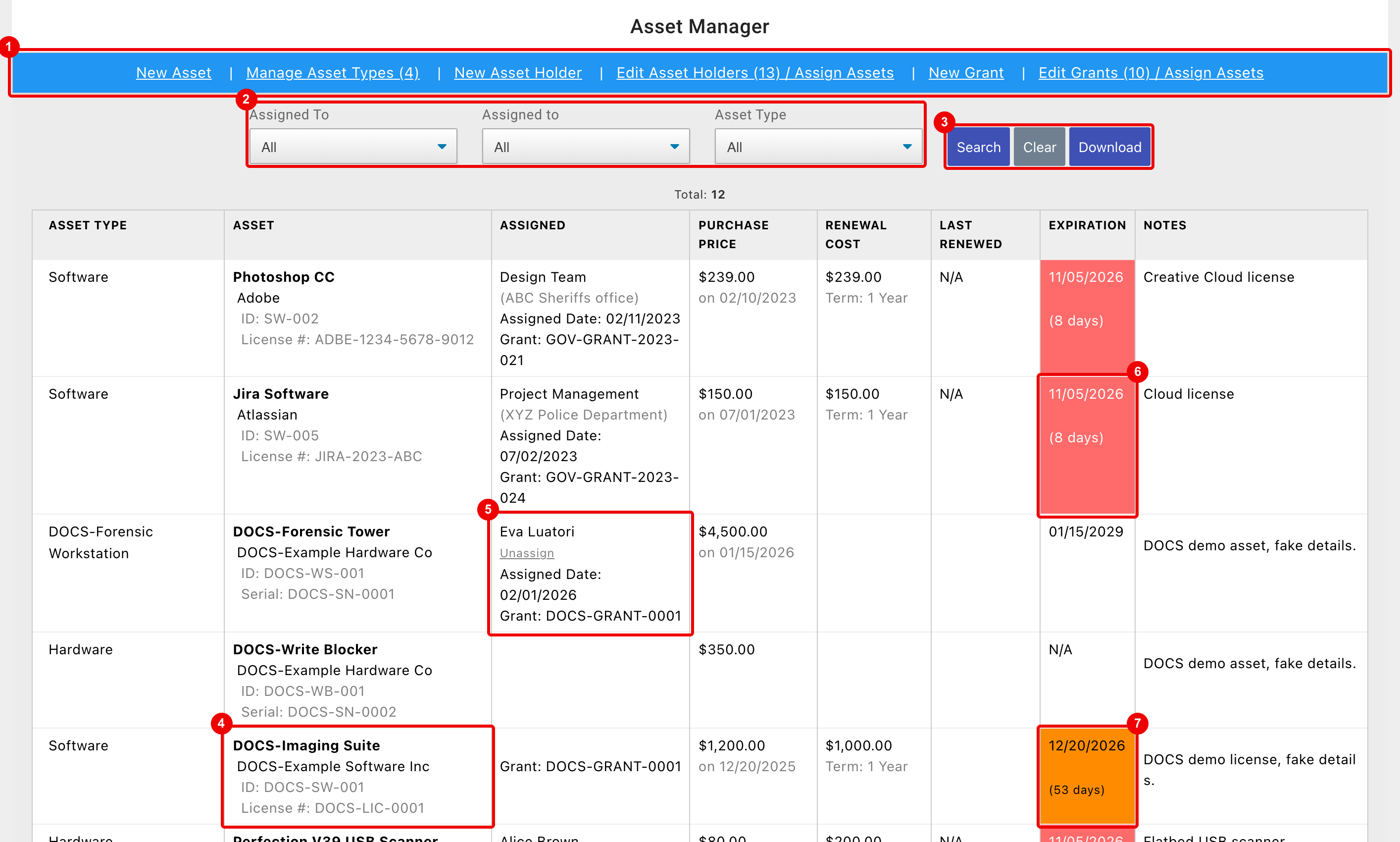
- Admin menu bar: New Asset, Manage Asset Types, New Asset Holder, Edit Asset Holders / Assign Assets, New Grant and Edit Grants / Assign Assets. The numbers in brackets are counts.
- Filters, from left to right: agency (labelled Assigned To), asset holder (Assigned to) and Asset Type.
- Search applies the filters, Clear resets them and Download saves the filtered list as an Excel file (see Download).
- Asset: name, company, ID (the Asset #), License # and Serial.
- Holder, with Unassign, the Assigned Date and the Grant.
- Expires in under 30 days, or has expired (EXPIRED): red.
- Expires in 30 to 89 days: orange. Both show the days left.
Admins click a row to edit that asset. Total shows how many assets match the filters.
Add or edit an asset
Add at least one asset type first. Until then, the menu bar shows PLEASE ADD AT LEAST ONE ASSET TYPE BEFORE YOU ADD ASSETS instead of New Asset.
- Click New Asset, or click an asset's row to edit it.
- Fill in the form and click Save.
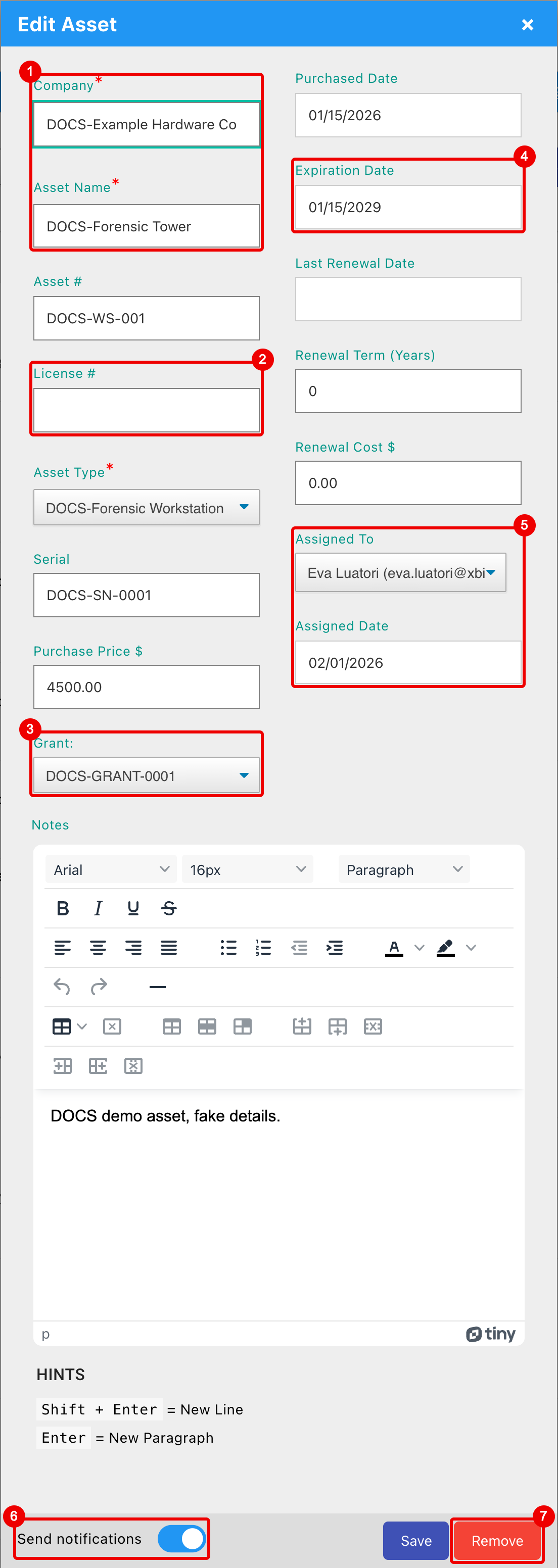
- Company and Asset Name are required, as is Asset Type.
- License # must be unique. A number already in use shows Duplicate - Please choose another and disables Save.
- Grant: the government grant that paid for it.
- Expiration Date: drives the colours in the list and the expiry reminder.
- Assigned To: an xBit user or another asset holder, and the Assigned Date.
- Send notifications: emails the assigned xBit user (see Emails).
- Remove: deletes the asset after You won't be able to revert this! (edit only).
The other fields are optional: Asset #, Serial, Purchase Price $, Purchased Date, Last Renewal Date, Renewal Term (Years), Renewal Cost $ and Notes.
Field limits: Company, Asset Name and Serial 50 characters, Asset # 75.
Asset types
Click Manage Asset Types to open Asset Types.
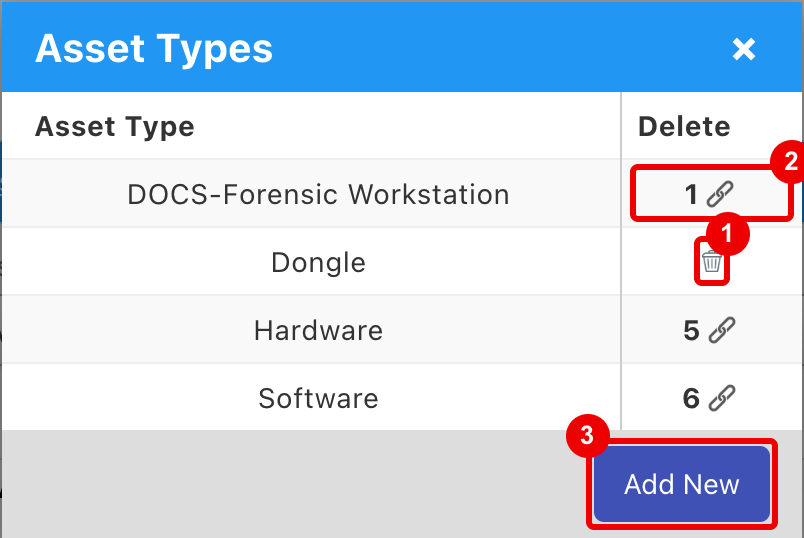
- Delete icon: shown for types no asset uses. Click it and confirm with Yes.
- Types in use show how many assets use them instead, and can't be deleted.
- Add New: type the name and click OK.
Types can't be renamed: add a new one, move the assets to it, then delete the old one.
Government grants
Track the grants that funded your assets. Each asset can belong to one grant. Grant types come from the Government Grant Type list in the List Manager (Federal and State by default).
Add a grant:
- Click New Grant.
- Enter Grant ID, Grant Type and Expiration Date (all required; the date starts as today) and optional Notes.
- Under Assign Assets to New Grant, tick the assets it paid for.
- Click Save.
Edit a grant: click Edit Grants / Assign Assets, then click a grant in the list.
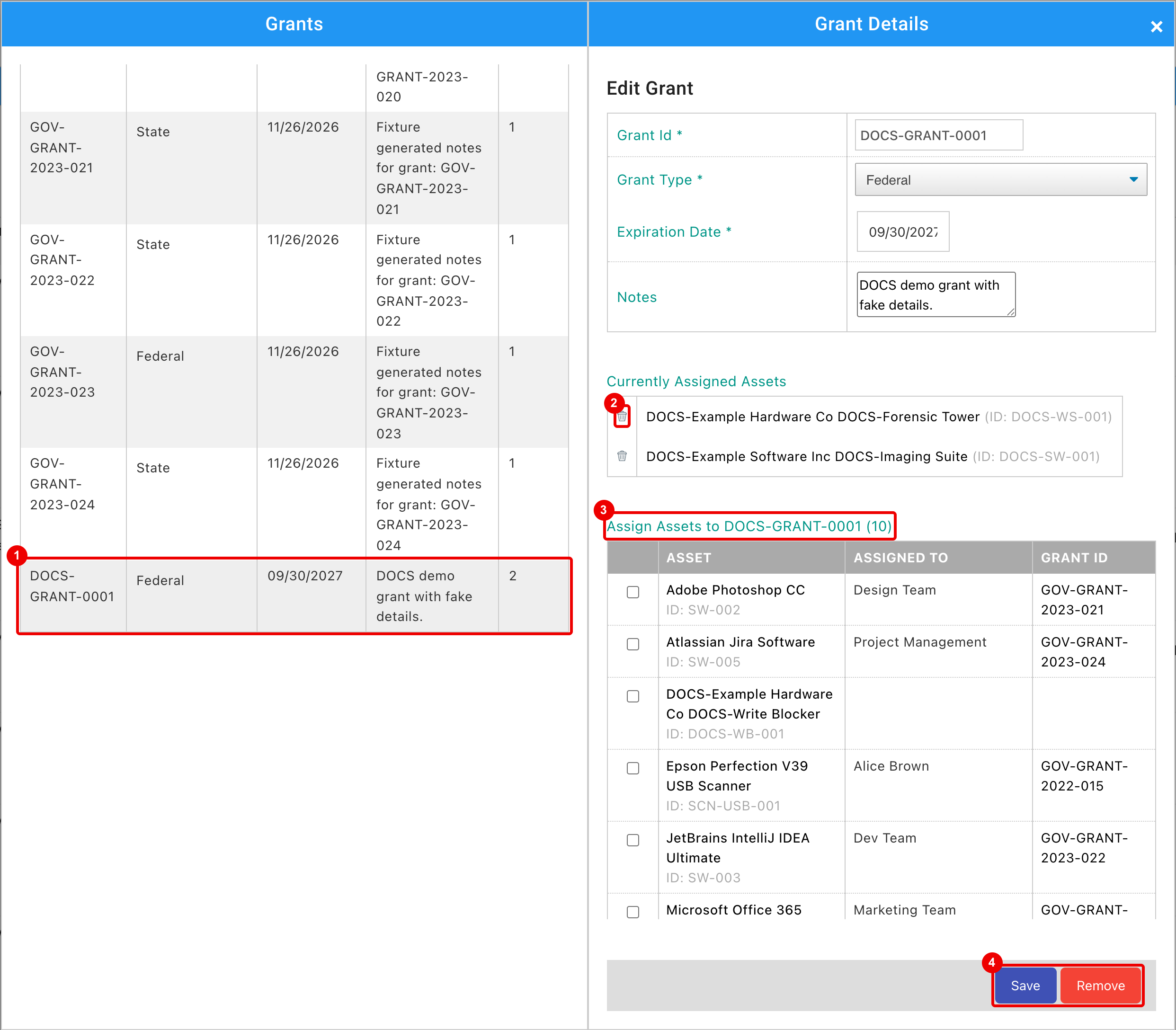
- Grant list with the number of Assets for each.
- Delete icon: removes the asset from this grant at once.
- Assign Assets to: tick assets to add; the GRANT ID column shows the grant they move from.
- Save, or Remove to delete the grant after Delete Grant?. Its assets stay, with no grant.
Asset holders
Assets can be assigned to xBit users or to other holders, such as a team or someone without an xBit account.
Add a holder:
- Click New Asset Holder.
- Enter a Name.
- Choose an Existing Agency, or pick New Agency and type a name to add it to the Agency Manager.
- Optionally tick assets under Assign Assets to New Asset Holder.
- Click Save.
Edit holders: click Edit Asset Holders / Assign Assets, then click a holder.
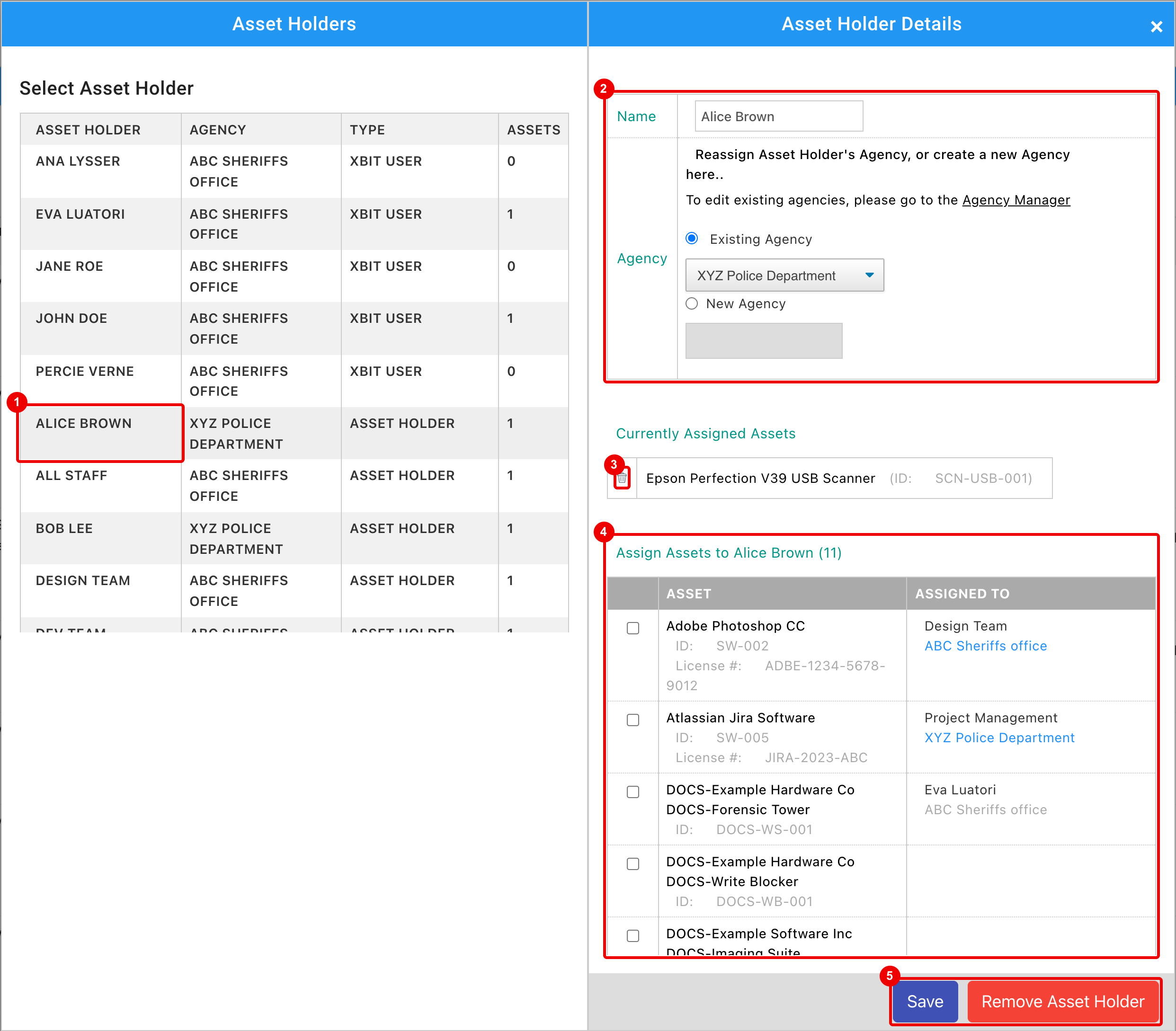
- Holder list: xBit users (xBit User) and other holders (Asset Holder), with their Assets count.
- Name and Agency (other holders only). To edit an xBit user, use Groups / Users.
- Delete icon: unassigns the asset from this holder.
- Assign Assets to: tick assets to move to this holder (no email is sent).
- Save, or Remove Asset Holder (other holders only). Their assets become unassigned.
Examiners and analysts
Examiners and Analysts see the list without the admin menu bar, and can't open assets.
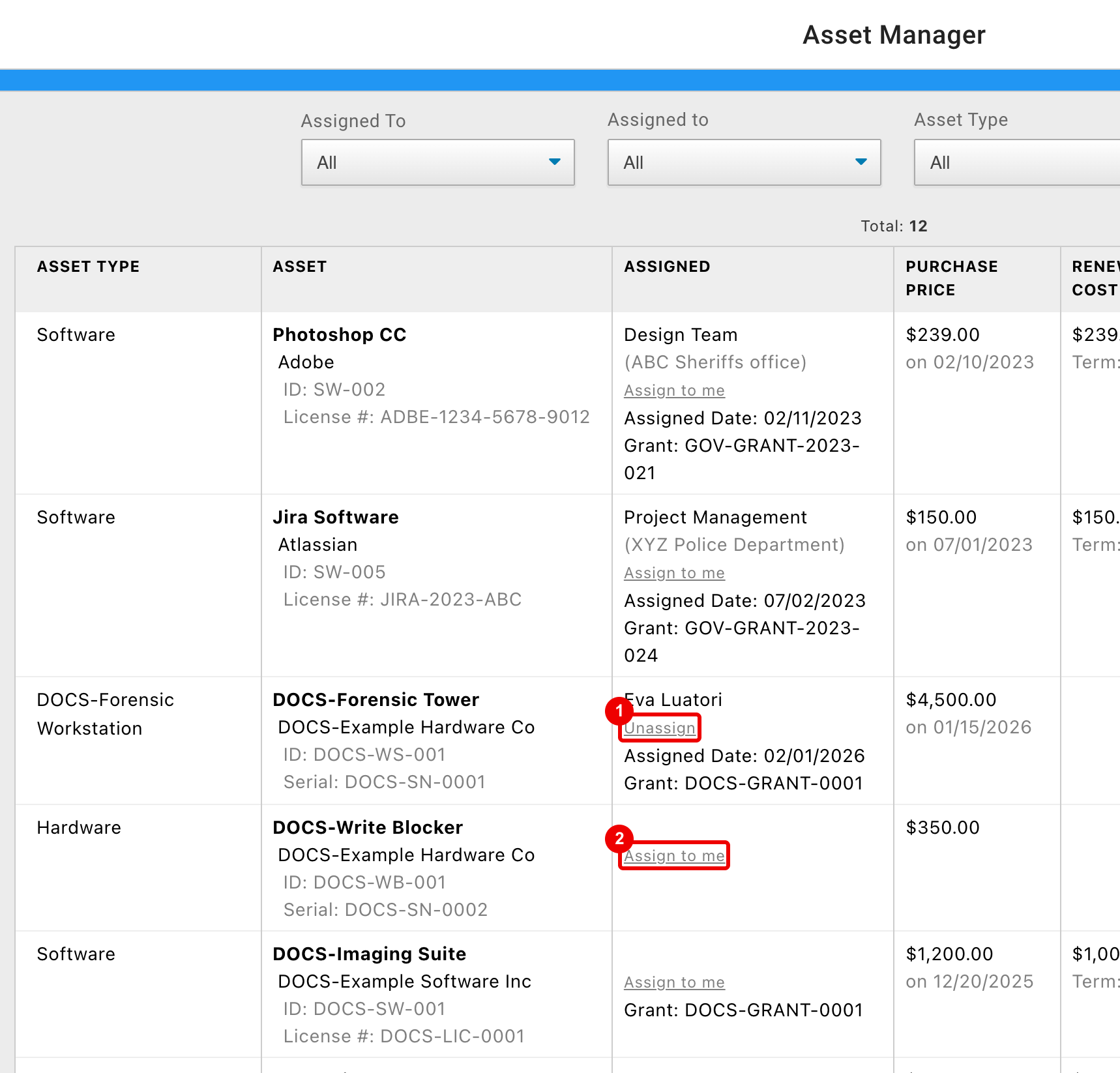
- Unassign: gives back an asset assigned to you.
- Assign to me: takes an asset that no xBit user holds.
Assign to me also shows on assets another xBit user holds, but taking one of those fails with an error. Neither link sends email.
Download
Download saves an Asset Report Excel file (.xlsx) of the assets that match the filters.
It lists the filters used, Purchase Total and Renewal Total, then one row per asset with every field, including the holder's email and agency and the grant (External ID).
Emails
Both need email (SMTP) turned on. See also Notifications.
| Sent when | |
|---|---|
| Asset Assigned | An Admin saves an asset with Send notifications on and an xBit user in Assigned To: a new asset, or an edit that changes the user. If the asset has an Expiration Date, the email gives it and says a reminder will follow. |
| Asset will expire in 1 month | Daily check: the asset's Expiration Date is exactly one month away and it is assigned to an xBit user. Sent whatever Send notifications was set to. |
Without email, Send notifications is greyed out with SMTP must be turned on to enable this feature. With email on, it stays greyed out until you choose someone in Assigned To.